
- Discovery MR750 3.0T System Service Methods
- 5690009-2EN Revision 4
- 00000018WIA3024C950GYZ
- id_20261822.3
- Oct 11, 2021 6:34:12 PM
Changing the Operating System password
Use these steps to change your operating system password.
About this task
Note: If your system is under a GE service contract, you must share the updated password credentials with the GE Online Center to retain GE remote monitoring and service. Failure to do so prevents GE from remotely accessing the system, which will significantly degrade the speed and quality of the service delivery.
Procedure
- From the header area of the screen, click the Tools icon.

- From the MR Service Desktop screen, click the Utilities tab.
Figure 1. MR Service Desktop tabs area 
- From the Security Tools folder, click OS Passwords.
Figure 2. Security Tools folder 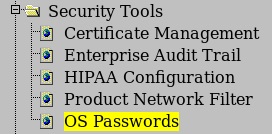
- From the OS Password screen, complete these steps.
Figure 3. OS Password screen 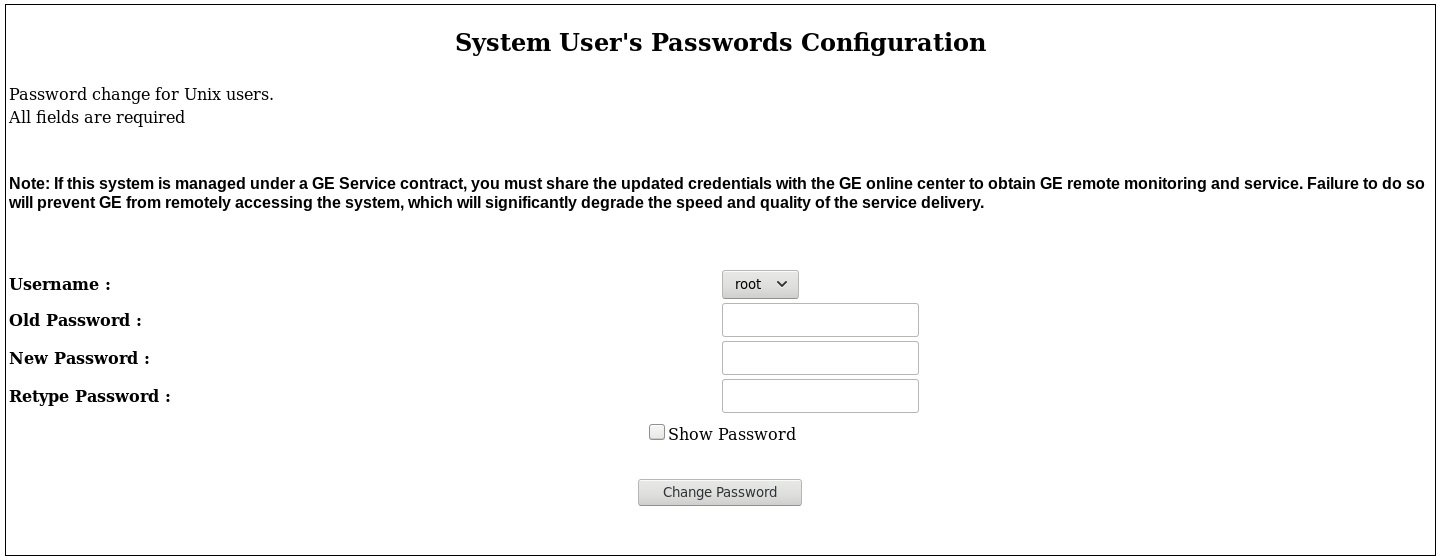
- From the Username menu, select root.
- In the Old Password text field, enter your old password.
- In the New Password text field, enter a new password.
- In the Retype Password, retype your password.
- Click Change Password.