
- Optima MR450w BASE 1.5T System Service Methods
- 5690012-2EN Revision 3
- 00000018WIA3047A030GYZ
- id_123737071.5
- Nov 26, 2019 2:05:12 PM
View Error Logs
Overview
Disclaimer: Depending on your service agreement, not all service tools, diagnostics, and utilities referenced in this document may be accessible. Contact your sales person for information on available service license packages.
Error logs contain system information detailing potential errors the scans, processes, and functions for a specified device.
The following error logs are available:
-
SYS log
-
IOS logs
-
Browser log
-
Health page log
-
Diagnostic event logs
-
HART logs
View Logs with Command Shell
-
Open command prompt and login into the system device remotely.
Note:It is possible that the customer changed the default password. If you cannot log in, contact the customer for the correct password.
-
In the command window, enter cd /usr/g/service/log.
-
Enter one of the following commands followed by the desired log file:
Note:If you are unaware of the full log title, enter a partial name with an asterisk (*) afterward as a wildcard indicator.
-
The command ls —al (list all) displays all content in the specified directory.
-
The command cat (concatenate) prints the content of the file on the screen.
-
View Logs with CSD
From the CSD, select Error Logs > Error Log.
GE System Log
The GE system log is an advanced error log viewer containing hyperlinks and extended error messages.
GE System Log Components
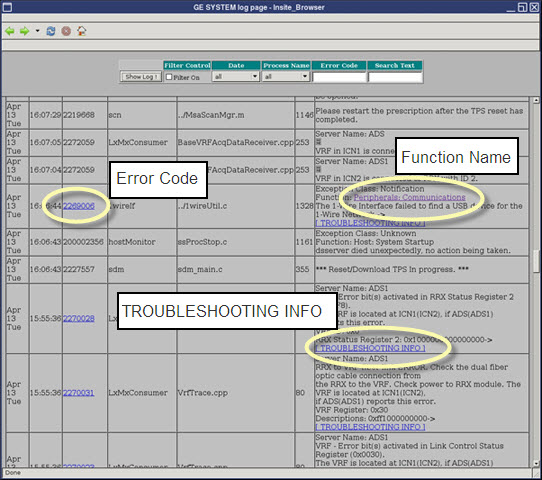
Text hyperlinks in the GE system log provide an easy and efficient way for you to access the diagnostics folder associated with the specific error's function name or the error code information window associated with the error. Linked text in the GE System Log appears underlined and is either blue or purple (unvisited links are blue, visited links are purple). Three types of links appear in the log. These links can only be accessed in proprietary mode using a service key.
-
Function Name
-
[TROUBLESHOOTING INFO]
-
Numeric Error Code
| Function Name |
Clicking the Function Name link in the Message column opens the error’s associated with the diagnostics folder in the GE System Log. From this link, you can run the diagnostic. |
| [TROUBLESHOOTING INFO] |
Clicking the [TROUBLESHOOTING INFO] link in the Message column takes you to the extended error message window. |
| Error Code |
Clicking the numeric link in the Error Code column takes you to the extended error message window. 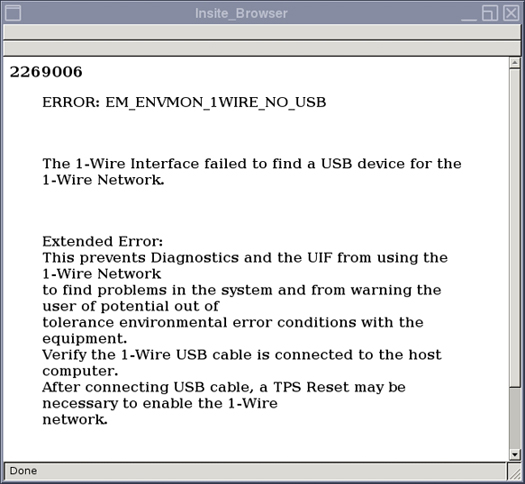 |
Filter the GE System Log
The GE System log keeps records of all reported errors on the system. To better find the error message relating to a particular system component or test, use the filter tool at the top of the GE system log to define your search results.
-
Select Filter Control checkbox to turn filter settings on.
-
Enter search criteria based on the information you know.
-
To search by date, select all dates, today’s date, or a date range.
-
To search by system process, click on the drop-down menu and select the process that resulted in an error.
-
To search by error code, manually enter the error code.
-
To search by text, enter keywords, component or process names to generate an active search of existing errors.
-
-
Click Show log! to view results.