• Discovery MR750 3.0T System Service Methods
  • 5690009-2EN Revision 4
  • Object ID: 00000018WIA30915730GYZ
  • Topic ID: id_2012154 Version: 4.3
  • Date: Dec 31, 2021 7:18:39 PM

Setting up enterprise authentication

Enterprise Authorization with encrypted communication using TLS and certificates is available for software 29 and later. If the facility IT desires, TLS Certificates are required to establish this encryption.

About this task

See Importing and exporting TLS certificates, and use the flow chart to set up the appropriate certificates.

Procedure

  1. Click the Enterprise tab.
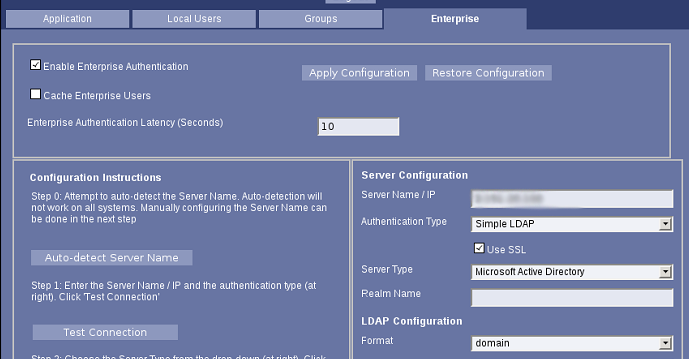
  2. Select Enable Enterprise Authentication and click Apply Configuration.
    Figure 1. Enterprise tab
  3. Enter the server name or IP in the Server Name/IP field.
  4. In the Server Configuration pane, set the Authentication Type to Simple LDAP.
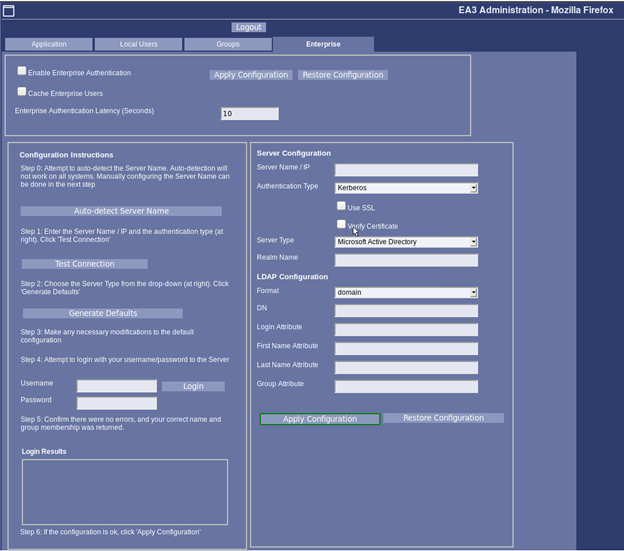
  5. Select the correct Encryption Option as applicable at site:
    1. Do not select both Use SSL and Verify Certificate.
      1. Not checking both these options means that the MR system will communicate to the LDAP server is facility without any encryption.
      2. This is not a preferred option unless the facility IT absolutely wants to LDAP without encryption of any sort.
    2. Select Use SSL only.
      1. Use SSL only makes sure an SSL flow is used, and certificates are not used in the flow.
      2. This is the old workflow for existing hospital networks, where a valid certificate may not be available / difficult to configure, but still wants the flow to be secured.
    3. Select both Use SSL and Verify Certificate.
      1. This option is only available on software versions 29 and later.
      2. Verify Certificate requires that the third party trust certificate from the facility LDAP has been imported into the MR system and has been configured for EA3 application using the Certificate Management interface. See Importing third-party certificates - public keys.
      3. If i and ii are satisfied, both these options can be checked.
  6. In the Configuration Instructions pane, click Generate Defaults.
    Figure 2. Enterprise configuration for MR28 and earlier
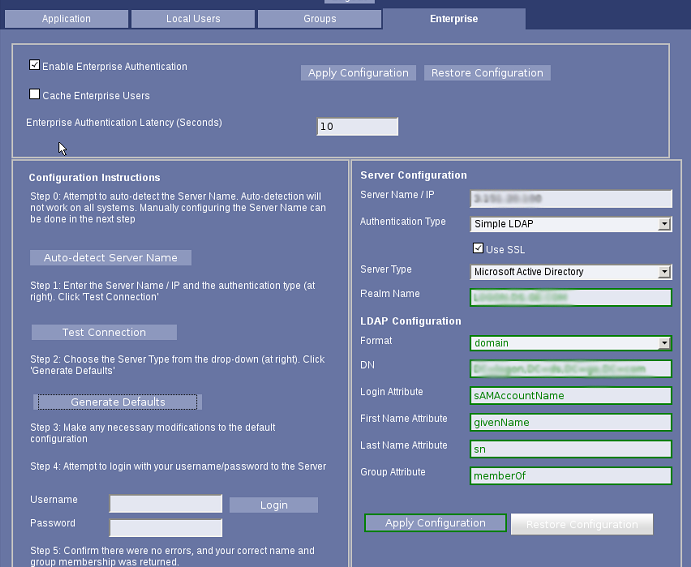
    Figure 3. Enterprise configuration for MR29 and later
  7. Click Apply Configuration in the Server Configuration pane.