• Discovery MR750 3.0T System Service Methods
  • 5690009-2EN Revision 4
  • Object ID: 00000018WHA30BC62GYZ
  • Topic ID: id_2001449 Version: 4.14
  • Date: Feb 4, 2022 2:59:05 PM

Configuring HIS/RIS

This procedure documents the setup and calibration of the system to a clinical hospital information system (HIS) or a radiology information system (RIS).

Procedure

  1. From the Common Service Desktop, click Configure > Guided Install, and in FE Mode log on as root .
  2. Under Connectivity, select HIS/RIS.
    Figure 1. HIS/RIS screen
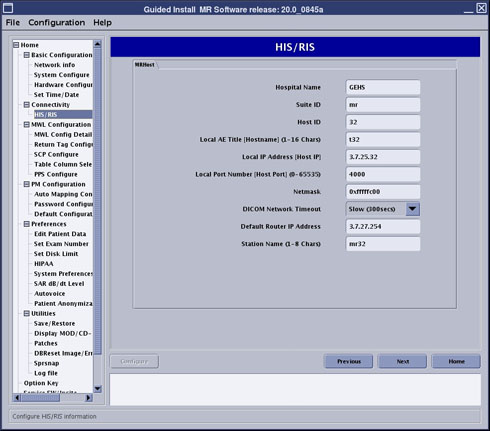
  3. Enter applicable information in all fields (as provided by site) and click Configure.
  4. Under MWL Configuration, select MWL Config Details.
    Figure 2. MWL Config Details screen
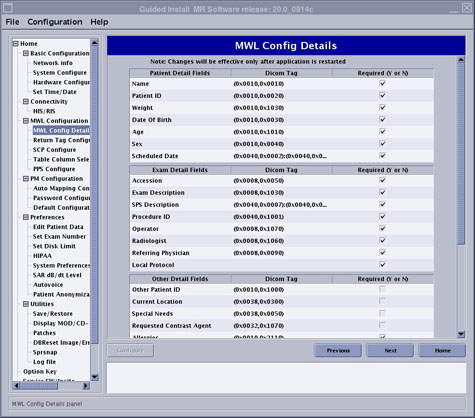
    Figure 3. MWL Config Details screen (continued)
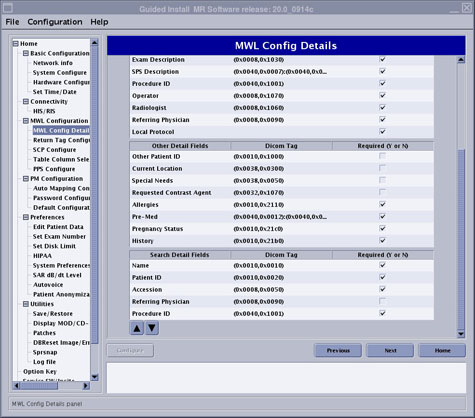
  5. If any fields, other than the defaults, are desired to show in the MWL Config Details, select or clear appropriately and click Configure.
  6. Under MWL Configuration, select Return Tag Configure.
    Figure 4. Return Tag Configure screen
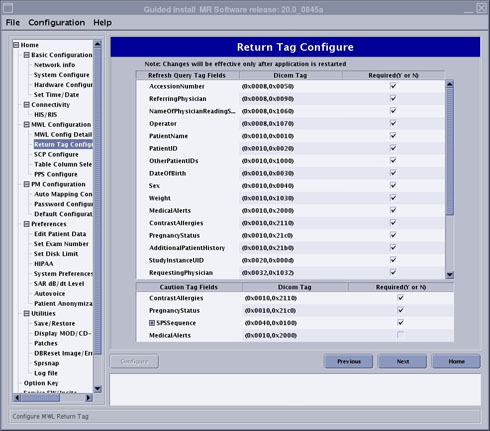
  7. If any fields, other than the defaults, are desired by the site to be refreshed in the Modality Worklist, select or clear appropriately and click Configure.
  8. Under MWL Configuration, select SCP Configure.
    Figure 5. SCP Configure screen
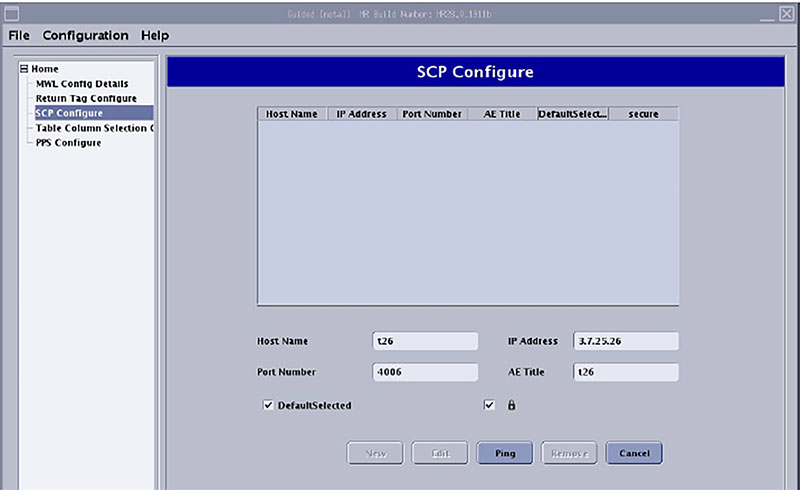
  9. Click New to set up a new item.
  10. Enter applicable information in all fields (as provided by site) and click Configure.
  11. To verify network connectivity, click Ping.
  12. Under MWL Configuration, select Table Column Selection Configure.
    Figure 6. Table Column Selection Configure screen
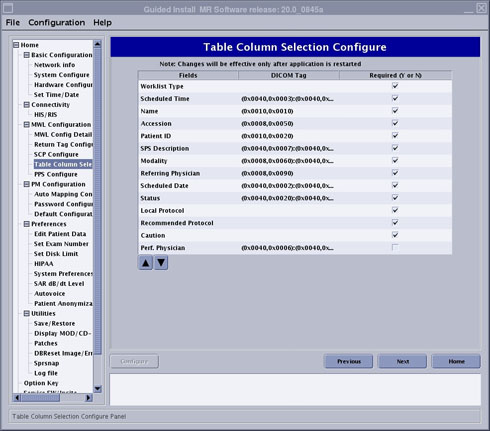
  13. Select or clear any fields desired to show in the patient record table (located at the top of the scan window) and click Configure.
  14. Under MWL Configuration, select PPS Configure.
    Figure 7. PPS Configure screen
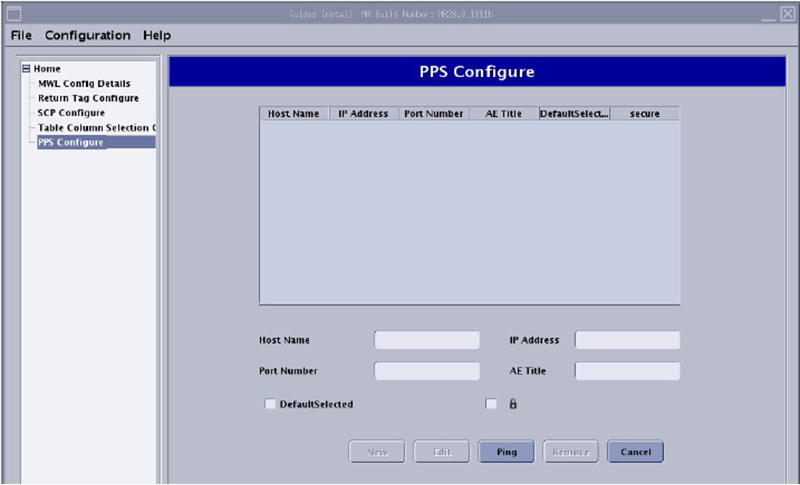
  15. Click New to start a new setup.
  16. Enter applicable information in all fields (as provided by site) and click Configure.