- id_13106437
- Version: 5.0
- Date: Feb 14, 2020 4:03:07 PM
Loading or Deleting Proprietary Software
Prerequisites
| Required persons | Preliminary requirements | Procedure | Finalization |
|---|---|---|---|
| 1 | Not Applicable | 30 minutes | Not Applicable |
| Item | Quantity | Effectivity | Part number | Manufacturer |
|---|---|---|---|---|
| Advanced Software CD | 1 | DV25.0 and earlier | - | - |
| MR Service Software DVD | 1 | DV25.1 and later | - | - |
This procedure explains how to install and uninstall proprietary and advanced service software. An installation GUI accessed from the Common Services Desktop directs the installation or removal of this software.
If loading service software, an Advanced or Restricted service software CD-ROM is required as well as the following:
-
In-House Service Key to load Advanced service software
-
General Electric FE Service Key to load Restricted service software
(For DV25.1 and later) The MR Service Software DVD combines the Restricted Software CD and the Advanced Software CD into a single DVD and can be used to install either the Restricted Software or the Advanced Software, based on SSA licensing.
Loading Proprietary Software (DV25.0 and earlier)
Shut down all applications before loading the Restricted service or Advanced service media. This media should not be loaded with applications software running.
Procedure
- Restart the system and log in as root with
the password: operator.note:
It is possible that the customer changed the default password. If you cannot log in, contact the customer for the correct password.
note:If continuing from Host Software Load, it is not necessary to reboot at this time.
- Open the Guided Install and select FE Mode and the link: Click here to start this tool.note:
Restricted service software is only available for GE use; Advanced service software is only available to sites with a valid Advanced Service Package Limited License. GE Healthcare Restricted service software permits configuration of InSite Interactive.
- Insert the Service Software media and from the left navigation
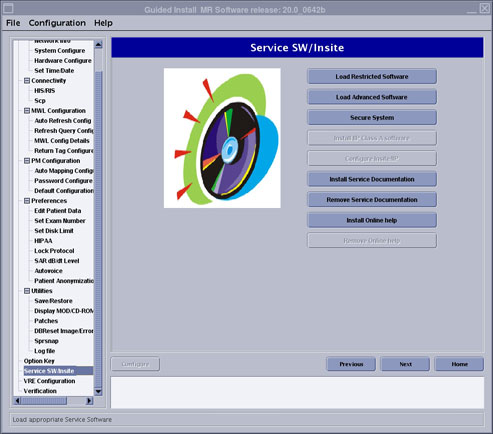
menu, select Service SW/InSite and click Load Restricted Software or Load Advanced
Software.
Figure 1. Service SW/Insite Menu
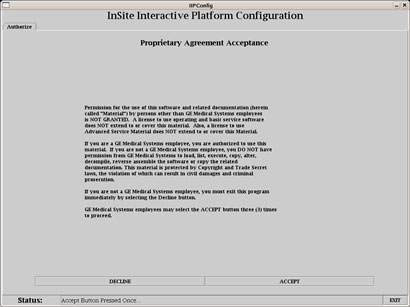
- When the Configure Insite Menu displays, read the proprietary
statement and click Accept three times to continue.
Figure 2. Configure Insite Menu
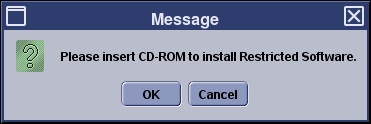
- When the message displays: Please Insert CD-ROM to
Install Restricted Service, click OK. The Restricted software load in progress window
displays.
Figure 3. Insert Restricted Software Media
This load will take about three (3) minutes. The media is automatically ejected when the load is complete and the InSite Interactive screen displays.
Loading Proprietary Software (DV25.1 and later)
Shut down all applications before loading the Restricted service or Advanced service media. This media should not be loaded with applications software running.
Procedure
- Restart the system and log in as root with
the password: operator.note:
It is possible that the customer changed the default password. If you cannot log in, contact the customer for the correct password.
note:If continuing from Host Software Load, it is not necessary to reboot at this time.
- Open the Guided Install and select FE Mode and the link: Click here to start this tool.note:
Restricted service software is only available for GE use; Advanced service software is only available to sites with a valid Advanced Service Package Limited License. GE Healthcare Restricted service software permits configuration of InSite Interactive. Whether Restricted Software or Advanced Software installs is based on SSA licensing.
- Download and install the customer SSA soft licenses. This licensing mechanism is required to continue the Service Software Load.
- Insert the MR Service Software
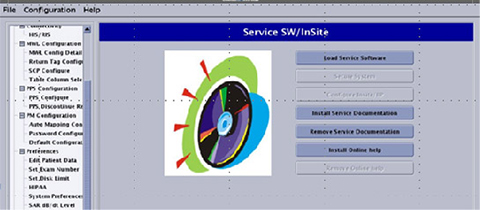
DVD and from the left navigation menu, select Service SW/InSite and click on the Load Service Software button.
The MR Service Software DVD was shipped together with the MR Application
Software Collector.
Figure 4. Service SW/Insite Menu
- If and when the Configure Insite Menu displays, read the proprietary
statement and click Accept three times to continue.
Figure 5. Configure Insite Menu
This load will take about five (5) minutes. The media is automatically ejected when the load is complete and the InSite Interactive screen displays.
Checking Restricted Software Load Results (DV26 and later)
The restricted software load procedure will either succeed or fail. To verify, perform the getver command.
Procedure
- Open a command prompt and type /usr/g/bin/getver.
- Search for Service_Software_Install_Incomplete.
If this text appears, then the installation procedure failed. Delete the proprietary software and perform the installation again.
Deleting Proprietary Software
To delete proprietary software, proceed as follows:
Procedure
- Open Guided Install and select FE Mode and the link: Click here to start this tool.
- From the left navigation menu of the Guided Install, select Service SW/InSite.
- Click Secure System to delete proprietary software.
Finalization
Finalization
No finalization steps.