- id_2004041
- Version: 2.1
- Date: Jul 5, 2019 7:49:03 AM
Configuring user access for RSD
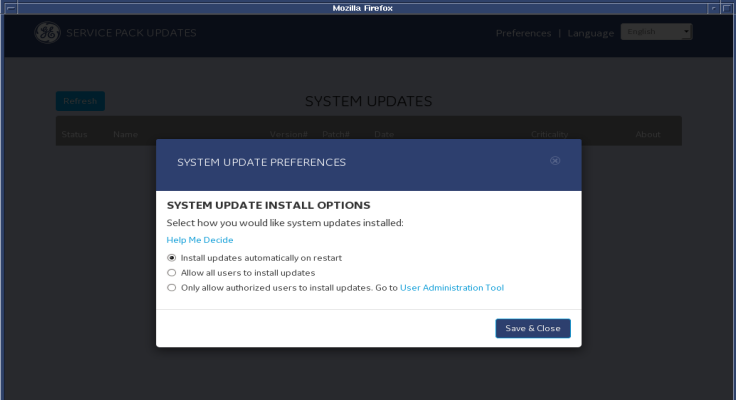
The option Only allow authorized users to install updates is the default preference when setting up preferences for receiving software updates. This option allows only root users and also EA3 authorized users (role-based authorization) to install a new service pack. Use this procedure to establish authorization for individual EA2 users.
Procedure
- On the System Update Preferences screen, click Preferences.
- Click the User Administration Tool link.
Figure 1. User administration tool link
- Log in with root credentials.
- Click the Local Users tab.
Figure 2. Local users tab
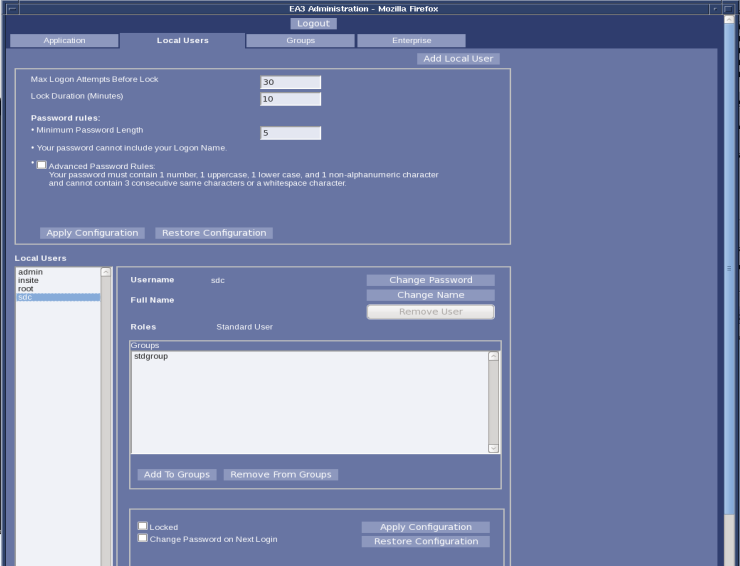
- Click on the user who requires access.
- Click Add to Groups.
- Select GESoftwareInstallerGroup.
Figure 3. Add membership
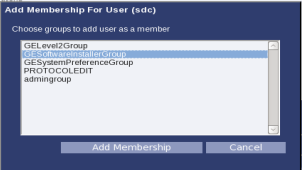
- Click Add Membership.The user can now install software updates.