- id_2011692
- Version: 4.1
- Date: Feb 4, 2020 11:34:18 AM
Setting the boot sequence - HP Z420 workstation
Specifies the order of host computer boot devices.
Prerequisites
| Personnel requirements | |||
|---|---|---|---|
| Required persons | Preliminary requirements | Procedure | Finalization |
| 1 | - | 5 minutes | - |
| Safety |
|---|
|
Before working in any GE Healthcare MR suite or performing any GE Healthcare service procedure, you must:
If you have any safety concerns at any time, do not begin work or immediately stop work and move to a safe location. Immediately contact your supervisor or site safety officer for instructions on how to proceed. |
Procedure
- Start the BIOS utility by turning on or restarting the computer and pressing the F10 key (or ESC, then F10 key) when Press F10 to enter setup is displayed in the lower left screen.
- Select the Storage tab on the task bar.
Figure 1. Boot sequence
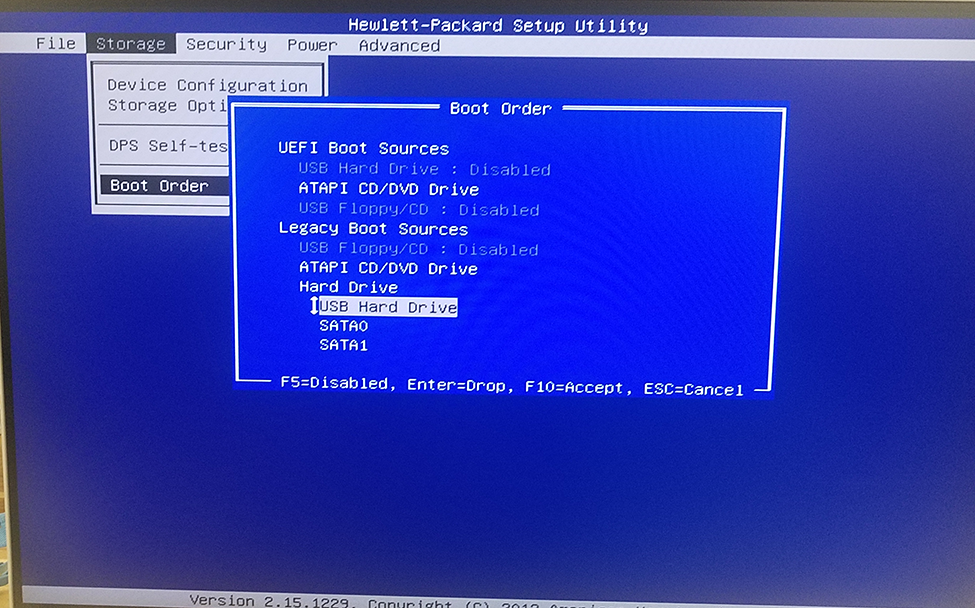
- Select Boot Order from the menu.
- Make sure that UEFI Boot Sources USB Hard Drive is set to Disabled. Change to Disabled, if needed.
- Make sure that ATAPI CD/DVD Drive
USB Floppy/CD is set to Disabled. If needed, change to Disabled.note: OS media will not be detected when USB media and/or DVD media are disabled. The BIOS settings would need to be changed. Go into the BIOS and re-enable USB media and/or DVD media as external boot device prior to using OS media.
- Make sure that Legacy Boot Sources USB Floppy/CD is set to Disabled. If needed, change to Disabled.
- Select F10 to save the changes, if needed.
- If this is the first time the computer has been used, see Setting the admin password - HP Z420.