• Object ID: 00000018WIA3000BE20GYZ
  • Topic ID: id_13105930 Version: 3.1
  • Date: Nov 27, 2019 10:19:09 AM

Replacing Operator Display, Control Panels, and E-Stop Buttons

Prerequisites

Table 1. Personnel requirements
Required personsPreliminary requirementsProcedureFinalization
15 minutes45 minutes5 minutes
Table 2. Tools and test equipment
ItemQuantityEffectivityPart numberManufacturer
Non-Magnetic Service Tool Kit1-

5112581

-
Table 3. Replacement parts
ItemQuantityEffectivityPart numberManufacturer
In-Room Display (IRD)1-

See FRU Manual

-
Trackball Control Panel (Left or Right)1-

See FRU Manual

-
E-Stop Panel1-

See FRU Manual

-
IRD Pivot Bracket Assembly1-

See FRU Manual

-
Table 4. Safety

About this task

This procedure describes the removal and installation of the operator display, control panel, E-stop, and IRD pivot bracket assembly.

Replace In-Room Display (IRD)

Procedure

  1. Follow lockout/tagout procedures. See LOTO information in the MR Service Safety Manual, PN 5452735.
    Note:

    The PDU must be powered down completely to prevent damage to system electronics.

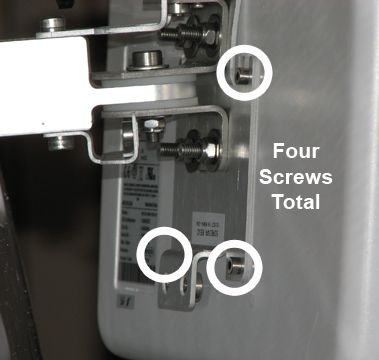
  2. Remove the two outer bracket covers, held by two screws each.
    Figure 1. Outer Bracket Cover Screws (Left Side View)
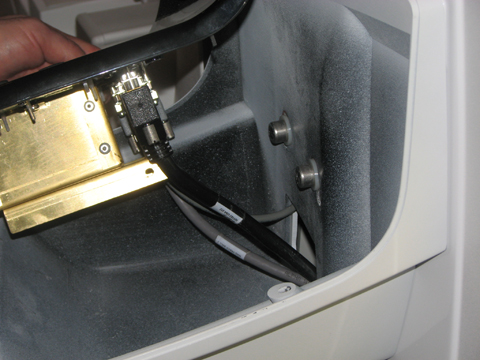
  3. Remove the two inner bracket covers, held by two screws each.
    Figure 2. Inner Bracket Cover Screws (Right Side View)
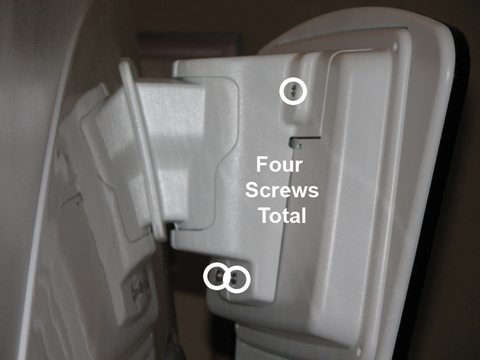
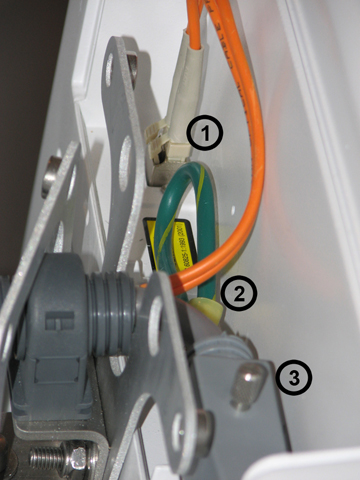
  4. Disconnect three cables attached to the IRD (ground cable, fiber optic cable, and power cable).
    Figure 3. IRD Cables
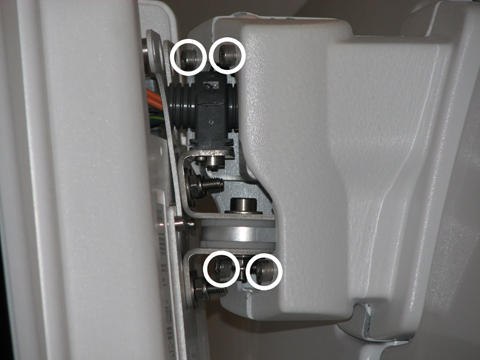
  5. Remove the bottom two screws and loosen the top two screws holding the bracket plate to the back of the IRD. Lift the monitor up and off the bracket carefully, because eddy currents may pull against it.
    Figure 4. IRD Bracket Plate Screws
  6. Mount the new IRD, and reconnect the appropriate cables and replace the covers in reverse order.
  7. Remove the LOTO to the PGR/PDU and power on the PDU.
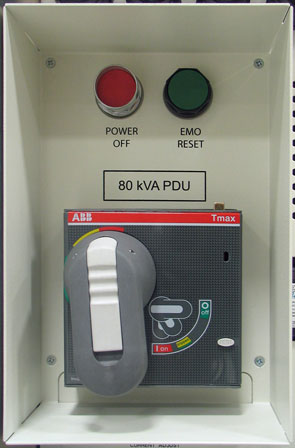
  8. Press the EMO reset button to return the system to normal operation.
    Figure 5. EMO Reset Button
Replace Operator Control Panel (OCP)

About this task
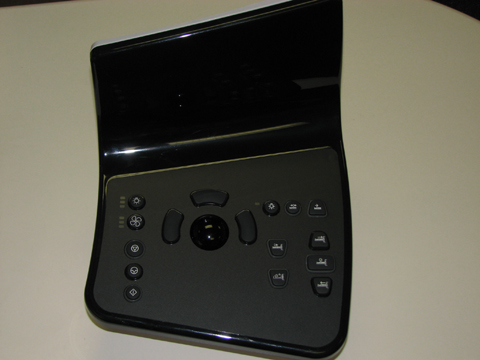
Figure 6. Operator Control Panel (OCP)

Procedure

  1. Follow lockout/tagout procedures. See LOTO information in the MR Service Safety Manual, PN 5452735.
  2. Note:

    The PDU must be powered down completely to prevent damage to system electronics.

    Remove the five screws from under the OCP to detach it from the front cover.
    Note:

    The front cover includes the bottom of the OCP.

  3. Disconnect the three cables from the back of the OCP and remove it.
    Figure 7. OCP Cables
  4. Connect the cables to the new OCP and attach it to the front cover.
  5. Remove the LOTO to the PGR/PDU and power on the PDU.
  6. Press the EMO reset button to return the system to normal operation.
    Figure 8. EMO Reset Button

Replace E-Stop Button/Panel

About this task
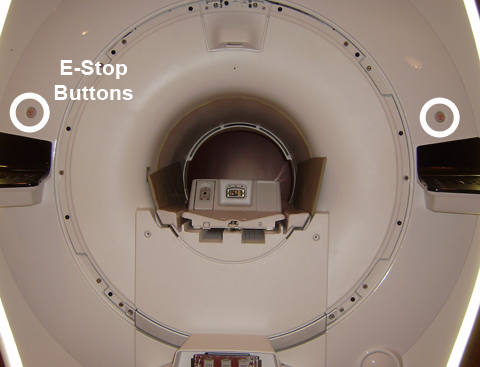
Figure 9. Front Panel E-Stop Buttons

Procedure

  1. Follow lockout/tagout procedures. See LOTO information in the MR Service Safety Manual, PN 5452735.
    Note:

    The PDU must be powered down completely to prevent damage to system electronics.

  2. Disconnect the E-stop button cable from the OCP (see Replace Operator Control Panel (OCP)).
    Figure 10. E-Stop Button Cable
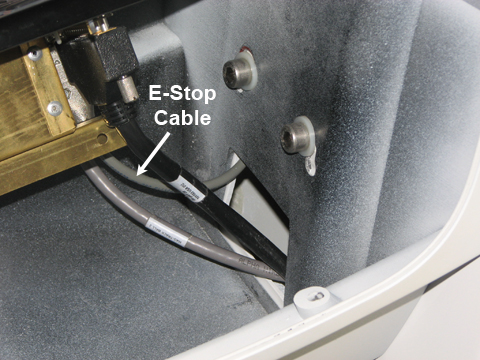
  3. Remove the left or right front cover corresponding to the E-stop button/panel to be replaced (see Front Cover Removal and Installation).
  4. On the back of the front cover, remove the E-stop button/panel assembly.
  5. Attach the new E-stop button/panel assembly.
  6. Reassemble the covers and OCP in the reverse order. Ensure the other end of the E-stop cable is attached to the OCP.
  7. Remove the LOTO to the PGR/PDU and power on the PDU.
  8. Press the EMO reset button to return the system to normal operation.
    Figure 11. EMO Reset Button

Replace IRD Pivot Bracket Assembly

Procedure

  1. Follow lockout/tagout procedures. See LOTO information in the MR Service Safety Manual, PN 5452735.
    Note:

    The PDU must be powered down completely to prevent damage to system electronics.

  2. Follow the instructions for removing the IRD (see Replace In-Room Display (IRD)). Retain the four screws after the mounting plate is removed.
  3. Remove the cable clamp from the pivot bracket and move the IRD cable out of the way.
    Figure 12. Pivot Bracket Cable Clamp (Right Side View)
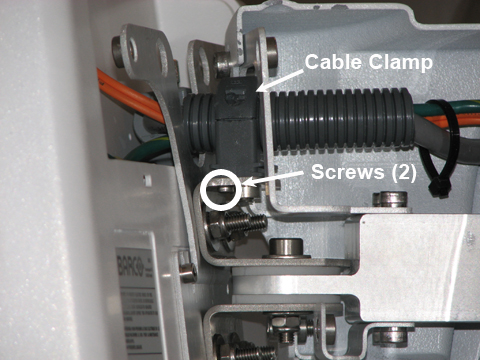
  4. Remove the two screws holding the pivot bracket assembly to the bracket/plate mounted on the magnet.
    Figure 13. Pivot Bracket Assembly
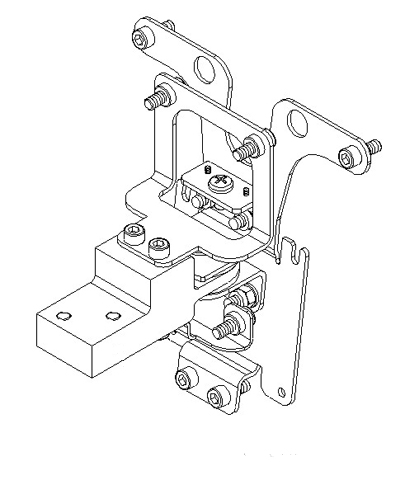
  5. Install the new IRD pivot bracket assembly and attach the cable clamp to the bracket.
  6. Mount the IRD and reconnect the cables. Replace the covers in reverse order.
  7. Remove the LOTO to the PGR/PDU and power on the PDU.
  8. Press the EMO reset button to return the system to normal operation.
    Figure 14. EMO Reset Button

Finalization

Procedure

  1. Whenever the IRD or OCP are disconnected and then reconnected, a TPS reset must be completed. (This should not be necessary if the host computer is rebooted.)
  2. Check the functionality of the item replaced. Run the associated diagnostic, if necessary.
    • For the IRD: From the Common Service Desktop, select Diagnostics > Hardware Location > Magnet Room > In Room Display.

    • For OCP: From the Common Service Desktop, select Diagnostics > Hardware Location > Magnet Room > SRI Functional Tests.