DANGEROUS VOLTAGES ARE PRESENT THROUGHOUT THE SYSTEM CABINET
WHEN POWER IS APPLIED.
Follow LOTO requirements. See the MR Service Safety Manual,
PN 5452735.
About this task
Overview
VRE is an acronym for volume recon engine, and ICN is an acronym
for image compute mode. These terms are used interchangeably. The
term changed from VRE to ICN when DV25.0 was introduced. Illustrations
in this document reflect DV26.0 systems but are applicable to all
VREs/ICNs.
VRE configuration copies the VRE operating system onto the host
computer during first-time software loads onto new ICNs. VRE reconfiguration
is executed during ICN replacement or to resolve issues regarding
image reconstruction. Perform this procedure following ICN Replacement.
VRE configuration — During host PC software load
Procedure
Insert the MR VRE Linux OS DVD.
Select ICN Configuration, click Configure ICN, and click OK.
The VRE OS copy-to-host-PC procedure takes about 20 minutes.
The DVD ejects when the procedure is complete.
The ICN configuration starts and takes about 20 minutes to complete.
Proceed to VRE reconfiguration, Step 10 and continue.
VRE reconfiguration
Procedure
Notice
Reconfigure the ICN only if absolutely necessary.
Note: The SSA class M hard key is needed only to show the ICN terminal screen.
On the Tools screen, select the Service Desktop Manager tab.
Click Guided Install and then click Start.
When prompted, enter the root login.
Note: It is possible that the customer changed the default password. If you cannot log in, contact the customer for the correct password.
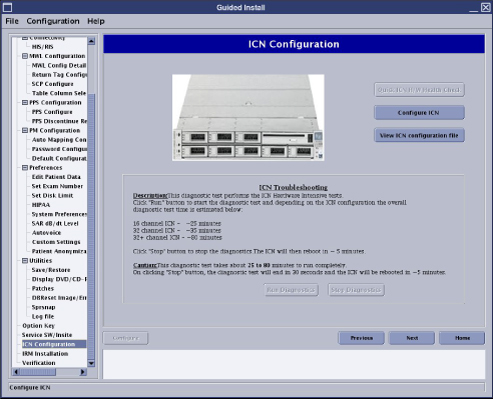
On the left sidebar menu, select VRE Configuration.
Figure 1. Guided install - ICN/VRE configuration
On the ICN/VRE Configuration screen, click View VRE
configuration file to the view the current output status
of the ICN(s).
(For DV24.0 only) On the VRE Configuration screen,
click Configure VRE Blades. You will be prompted
to determine if the hardware connections are secure so that the OS
will be properly installed.
If the connections are secure, click Continue.
If the connections are not secure, click Abort. Ensure that all hardware connections are secure to continue with
the VRE configuration.
(For DV24.0 only) At the prompt, select the
number of VRE blades to be configured:
For a 16-channel system with Sun 4100
ICN or Sun 4170 ICN, select 1.
For a 32-channel system with Sun 4100
ICN, select 2, and with Sun 4170 ICN, select 1.
If prompted, insert the OS DVD that came with the system software
into the host PC and click OK to continue the
VRE reconfiguration. (This is not necessary unless the host repository
is corrupted.)
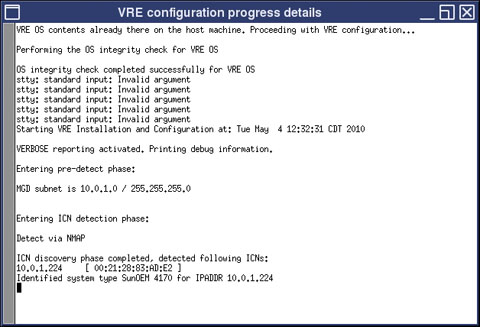
VRE configuration progress and details appear in a separate
window.
Figure 2. VRE Progress Details
At the end of VRE configuration, a dialog box displays with either a success or failure message. If VRE configuration fails, review the message and details in the separate window to determine next steps.