• Optima MR450w BASE 1.5T System Service Methods
  • 5690012-2EN Revision 3
  • Object ID: 00000018WIA30B04450GYZ
  • Topic ID: id_2021947 Version: 3.0
  • Date: Feb 21, 2021 9:01:02 PM

Configure user accounts for Role Based access controls

EA3 component

About this task

The system login control features are in the component Enterprise Authentication Authorization Audit (EA3). EA3 manages authentication and authorization on GE Healthcare Products. It supports local authentication and can also authenticate against Enterprise directory servers (MSAD, LDAP, and so on) to do enterprise authentication. An authenticated user will be associated with roles through its group membership.

The EA3 component is designed to meet the requirements of the IHE Enterprise User Authentication (EUA) Profile, IHE Personnel White Pages (PWP) Profile, and the audit logging portion of the IHE Audit Trail and Node Authentication (ATNA) Profile. These profiles can be found in the IHE Technical Framework Version 4 (see http://www.ihe.net).

The following roles are available in EA3:

  1. admingroup allows members within this group to perform all administrative activities for the EA3 users and user accounts.
  2. GESoftwareInstaller group allows members in the group to install software updates as and when they are downloaded by GE.
  3. GELevel2Group, is available for research sites and this enables Second level SAR and dB/dt as available option.
  4. ProtocolEdit, allows users in the group to edit site protocols.
  5. GESystemPreferenceGroup, allows users in the group to change Administration Privilege settings on the System.
  6. stdgroup is a group for any normal user. Any local user created by default falls into this group. The users in this group do not have special privileges.
  7. LinuxShellGroup allows members within this group to open the Linux C Shell. The command prompt cannot be opened without.

Procedure

  1. Access the EA3 admin utility. See Accessing the EA3 admin utility.
    1. From Tools, launch the service browser.
    2. Select Utilities > HIPAA Configuration.
    3. Click Click here to go to the link.
    4. Log on using the gesvc user name and password. The gesvc password is generally setup to use the cabinet serial number with @mrappended to the end. If the gesvc password is not known then check with then refer FFA password vault for the password if the system is connected.
  2. Click the Local Users tab.
    Figure 1. Local Users window
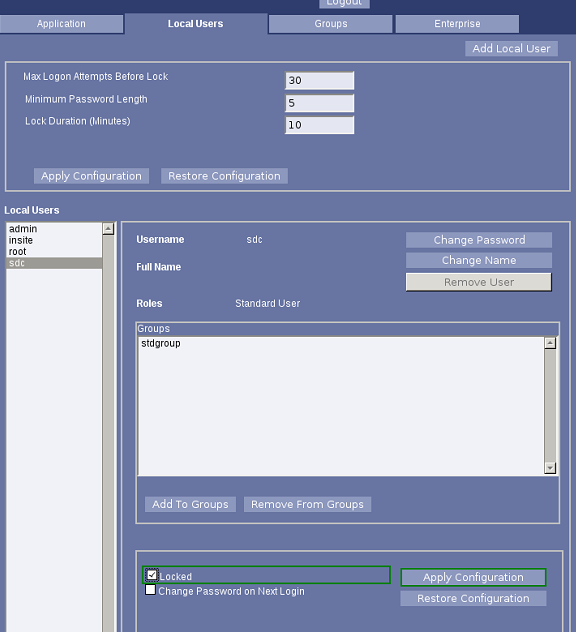
  3. Select a local user.
  4. Click Add To Groups.
  5. For user administrators, select admingroup and click Add Membership.
  6. For users allowed to use the System Preferences feature, select GESystemPreferenceGroup and click Add Membership.
  7. For users allowed to use the second-level SAR dB/dt feature, select GELevel2Group and click Add Membership.
  8. For users allowed to install GE downloaded Software Updates, select GESoftwareInstallerGroup and Add Membership.
  9. For users allowed access to Linux Command Prompt, select LinuxShellGroup and Add Membership.
  10. Repeat as needed for additional users.