- Topic ID: id_15460297
- Version: 2.0
- Date: Nov 8, 2018 1:36:54 AM
Z-Alignment
Prerequisites
Overview
This document provides the necessary steps to align the X-Ray Tube with the Detector and Collimator in Z-axis direction.
1 Data Acquisition
Procedure
- Move table to longitudinal home position.
- Remove scan window.
- Select CALIBRATION from Service Desktop.
- Select Z ALIGN.
- If Attention window is displayed when tool
is launched, CAREFULLY READ and click ACCEPT.note:
Tube Install Certification service procedure will need to be performed as part of the Cold Iso Alignment Finalization section.
note:If CANCEL is clicked, the tool is dismissed.
- Once the ACCEPT button is clicked, another Attention window will be displayed. CAREFULLY READ and click OK.
- Click MOVE.
- Verify DESIRED TUBE POSITION in Tube Position window is 0.
- Click OK in Tube Position window if CURRENT TUBE POSITION is not 0.
- Click DISMISS in Tube Position window.
- Click SCAN.
- Press START on SCIM when it flashes.note:
If one or more tube spits occur, repeat steps 11 and 12.
- Click CALCULATE.
- If no adjustments are required, click DISMISS and skip to section 5.note:
If “Z-Axis Tube Alignment PASSES Specification” and “Detector Skew FAILS Specification”, check collimator and detector functionality, perform appropriate corrective action, and retest.
2 Mechanical Alignment
Procedure
- Remove right side gantry cover.
- Turn off HVDC ENABLE, AXIAL DRIVE ENABLE and 120 VAC ENABLE switches on Service Switch panel.
- Remove scan window, gantry left side cover, gantry top covers
and gantry front cover.note:
Gantry front-cover control panels and display functionality are required during this procedure.
- Manually rotate gantry until X-Ray tube reaches 2 o'clock position.
- Engage rotational lock.
- Mount dial indicator gauge on Z-Axis mounting bracket, located
on tube assembly front face, with gauge's probe resting perpendicular
to tube casting's front face (Item 1 in Figure 1 and Figure 2).
Figure 1. Dial Indicator Mounting and Adjustment Screws Locations (Performix Pro VCT 100 / Performix HD X-ray Tube. , Ball Bearing)
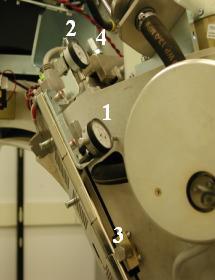
Figure 2. Dial Indicator Mounting and Adjustment Screws Locations (Performix VCT Plus / Performix HD Plus X-ray Tube, Liquid Bearing)
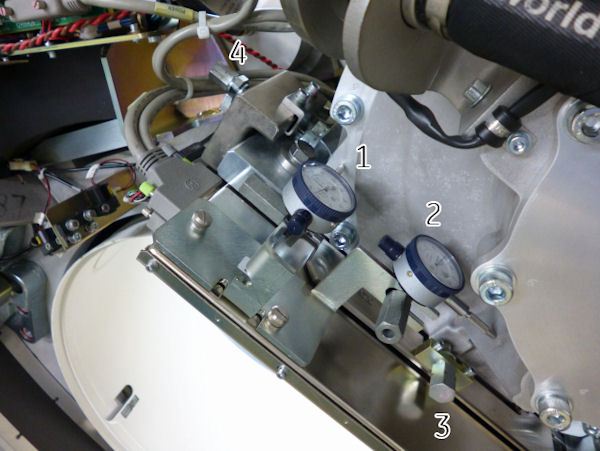
- Mount dial indicator gauge on X-Axis mounting bracket, located on tube assembly left face, with gauge's probe resting perpendicular to tube casting's left face (Item 2 Figure 1 and Figure 2)
- Set both dial indicators to zero.
- Loosen four M12 mounting bolts on tube assembly about 1/4 to
1/2 turns with a 10mm hex bit socket drive and 12 inch extension.
In case of Performix VCT Plus or Performix HD Plus tube (Liquid Bearing), crow foot wrench shall be used in order to access front M12 bolt. Also be careful not to hit dial gage when loosening the bolt.
Figure 3. Crow Foot Wrench
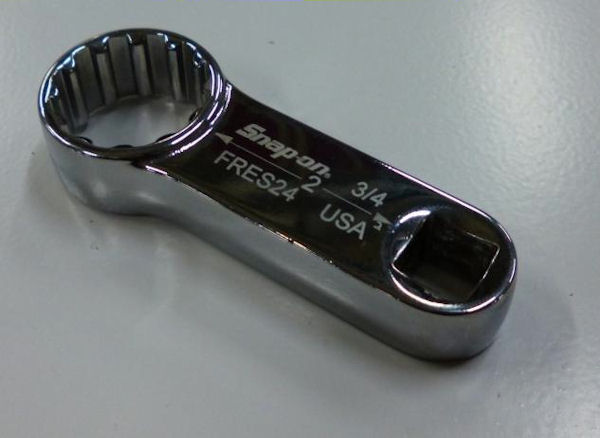
Figure 4. Crow Foot Wrench with Torque Wrench
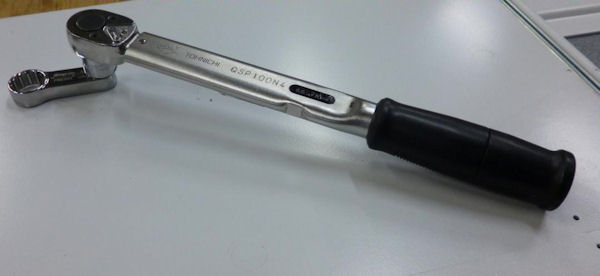
Figure 5. Hitting Dial Gage
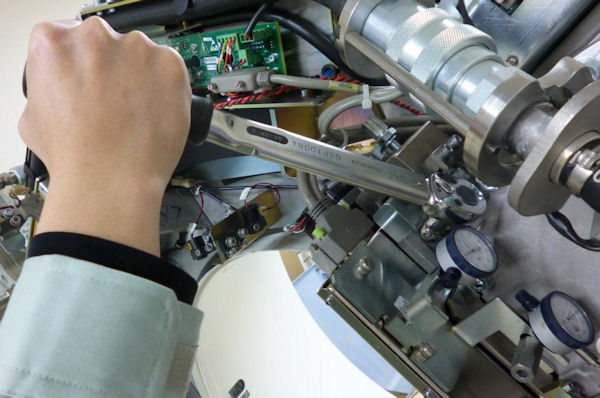
- Turn Z-axis adjustment screw, located on tube assembly front
face, in direction specified by Z-Align tool, until dial indicator
shows Z-Align calculated value (Item 3 in Figure 1 and Figure 2).
EXAMPLE: “Z-Align Adjust 5.000 mm 200.000 mils (move towards gantry).”
note:1 mil is equal to 0.001 inches.
note:Turn adjustment screw counterclockwise for “move towards gantry.” Turn adjustment screw clockwise for “move away from gantry.”
- Tighten four M12 mounting bolts on tube assembly in a cross
pattern configuration, with a 10mm hex bit socket torque wrench and
12 inch extension, to the following torque values:
In case of Performix VCT Plus or Performix HD Plus tube (Liquid Bearing), crow foot wrench shall be used in order to access front M12 bolt. Also be careful not to hit dial gage when tightning the bolt.
note:Ensure that neither dial indicator values change during tightening step.
- Disengage rotational lock.
- Turn on 120 VAC ENABLE, AXIAL DRIVE ENABLE and HVDC ENABLE switches on Service Switch panel.
- Press ESTOP RESET on Service Switch panel and wait until scan hardware is reset.
- Click RESTART from Z-Align tool and repeat Section 4.1, Steps 4 - 11 until no adjustments are required.
3 Finalization
(For Liquid Bearing Tube) Cold ISO Alignment (LB Tube)