- Topic ID: id_15460293
- Version: 3.0
- Date: Jun 15, 2020 10:54:37 PM
Liquid Bearing Tube IB Two-Step Upgrade for VCT
Prerequisites
Overview
This document explains the Liquid Bearing Tube upgrade procedure for LightSpeed 7.X. This manual refers other procedures (i.e. Tube replacement procedure, etc.). Refer to LightSpeed 7.X Service Method (Gen.) CD-ROM (5193574-2EN rev.24 or later) for all procedures indicated.
There are two procedures. Two-Step upgrade procedure is used when LB Tube installation is done separately from Software upgrade and other hardware modification. One-Time upgrade procedure is used when both of Software upgrade, hardware modification and LB Tube installation are done at the same time.
System Requirement
LightSpeed 7.X with System software (12HW14.6 with any Service Pack) for GOC5, GOC6 and GOC6.5.
LightSpeed 7.X with System software (13HW31.8 with any Service Pack) for GOC6.6 Z820.
This procedure should be completed in conjunction with the VCT Liquid Bearing Tube FMI to ensure the update is documented and tracked.
Flowchart
The following shows the flowchart used in this document.
Figure 1. Flowchart of Proactive Upgrade (Two-Step Upgrade)
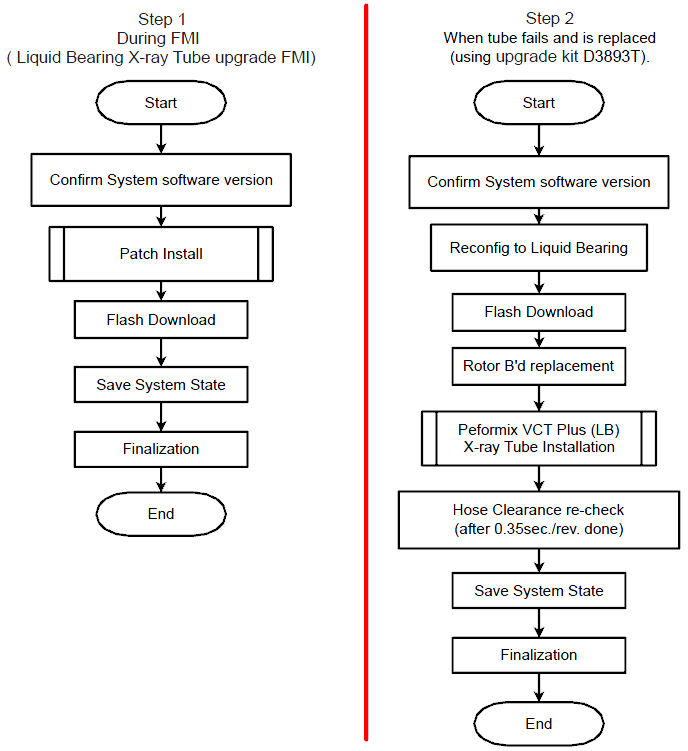
1 First Step of Proactive Upgrade
Procedure
- Confirm that the software version is listed below.
-
12HW14.6, 12HW14.6_SP1-0-1 or 12HW14.6_SP1-1-1 (GOC5, GOC6, GOC6.5)
-
13HW31.8 or 13HW31.8_SP1-0-X (GOC6.6 Z820)
-
-
(For GOC5, GOC6, GOC6.5) Execute (12HW14.6) Service Pack 2.2 Installation Procedure.
(For GOC6.6 Z820) Execute (13HW31.x) Service Pack 2.0 Installation Procedure.
- Perform Flash Download.
- Using CSD > Utilities > Flash Download.
- Press “Update”.
- Once the Gantry Hardware Flash Downloads successfully, select [Dismiss].
- Perform Save System State.
- Using CSD > Utilities > System State.
- Insert DVD or USB memory and press “Save System State”.
- Press “Dismiss” when it’s completed.
- Finalization
- Discard old Service Pack software CD-ROM.
- Perform sanity scan with the following technique and confirm
they completed successfully.
Scout, Axial and Helical.
- Send the following information to Performix.Plus@ge.com.
-
Ball Bearing Tube serial number
-
BB Tube Installation date
-
BB Tube kAs
-
BB Tube exams
-
System ID
-
2 Install Performix VCT Plus Tube (This will be performed later date when BB tube fails.)
Procedure
- Confirm the system software version is the following at CSD
home page.
-
12HW14.6_SP2-2-X for GOC5, GOC6 and GOC6.5
-
13HW31.8_SP2-0-X for GOC6.6 Z820
Go to reconfig. menu and set Bearing type of X-ray Tube to correct type. Refer to System Configuration (12HW14.6 SP2.1 or later).
-
- Replace the Rotor Board.
- Remove Auxiliary Equipped. Refer to the Auxiliary Box Replacement for instructions to remove Auxiliary Box..
- Place the Auxiliary Box on a flat surface, then remove the front cover.
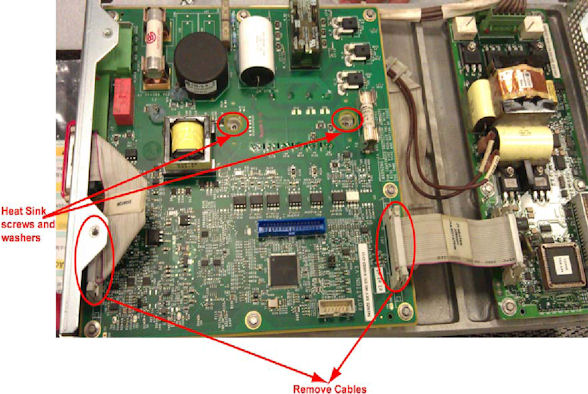
- Disconnect all cables to Rotor Control Board, unscrew all the
screws, and remove the old Rotor Control Board. Be sure to remove
screws and washers from heat sink also.note:
Use ESD/ground strap at rotor control board replacement.
Figure 2. Old Rotor Control Board Removal
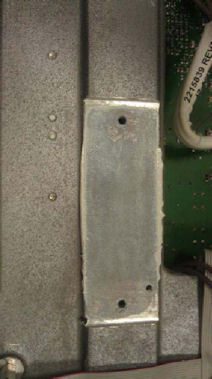
- Remove old thermal grease from groove.
Figure 3. Thermal Grease Removal
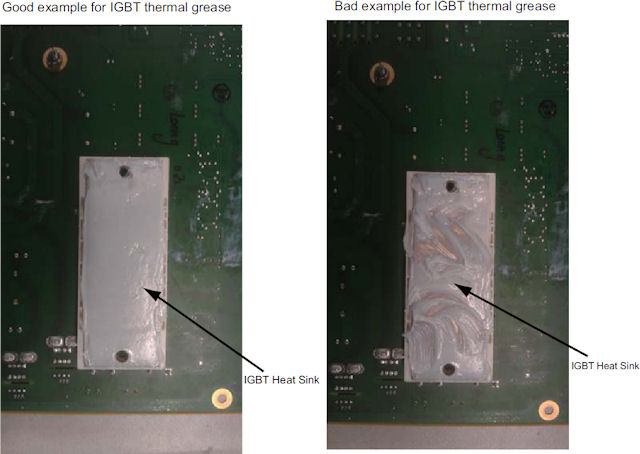
- notice
- Put on gloves and apply thermal conductivity grease (P/N 5134927)
on IGBT heat sink of the new rotor board (P/N 5456518), then install
the new rotor board to Auxiliary Box and re-connect cables.
Figure 4. Rotor control Board IGBT Heat Sink
- Torque the two screws to the following final value. Install
the RCB with 8 screws.
- Re-install the front cover of Auxiliary Box.
- Attach “2324118-9” label on the modified auxiliary
equipped.
Figure 5. Label Location of Auxiliary Box
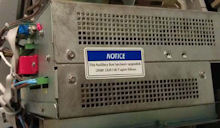
- Install modified Auxiliary Equipped. Refer to the Auxiliary Box Replacement , Auxiliary Box Installation section..

- Install Performix VCT Plus Tube. Refer to the Tube Replacement (VCT LB Tube).
- Interposer plate must be replaced with new one provided in LB
Tube Upgrade kit during Tube replacement procedure. The following
shows the procedure.
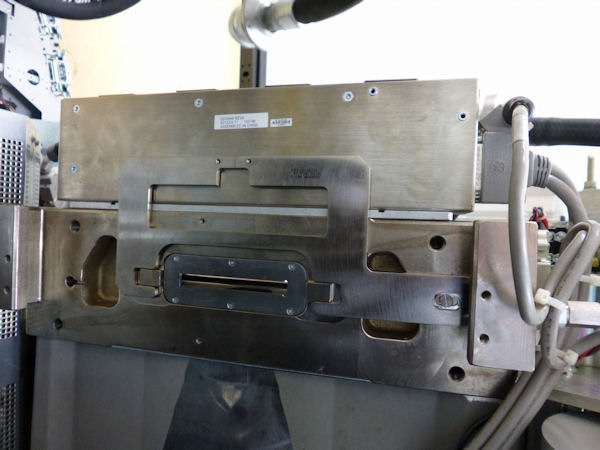
- Remove three M4 hex screws and replace the current interposer
plate with provided one (remove three flat head screws). Position
the interposer plate at approximate center of circle in picture (slot
hole). New interposer plate uses only one flat head screw to fix it.
Refer to the following Illustrations.
Figure 6. Three hex screws for interposer plate
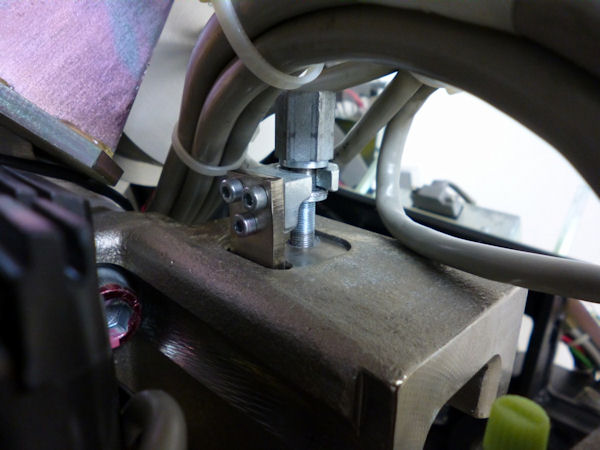
Figure 7. New interposer plate
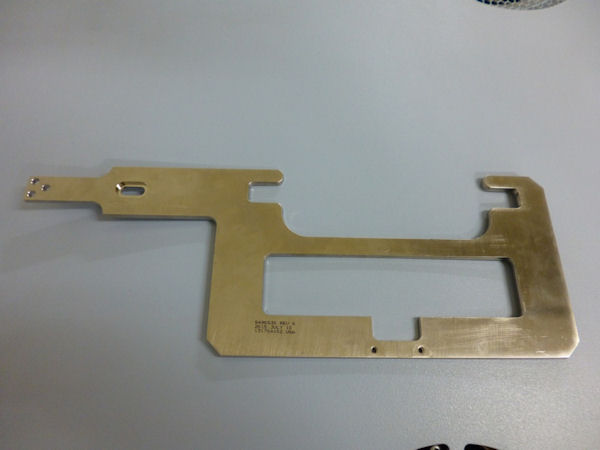
Figure 8. Interposer plate with collimator
- Apply loctite 243 for the three hex screws and one flat head screw.
- Keep original interposer plate and two flat head screws for future use.
- Remove three M4 hex screws and replace the current interposer
plate with provided one (remove three flat head screws). Position
the interposer plate at approximate center of circle in picture (slot
hole). New interposer plate uses only one flat head screw to fix it.
Refer to the following Illustrations.
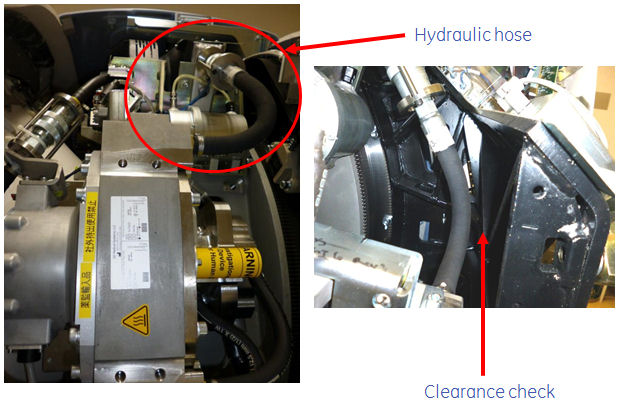
- Make sure of a clearance between the hydraulic hose and gantry
frame again.
Especially confirm the clearance around hose of heat exchanger.
Figure 9. Clearance check point (Gantry right side view)
- Re-install Gantry covers.
- Turn off 120VAC switch on Gantry Service Panel
- Install Gantry front cover.
- Install Gantry Left Side cover.
- Install Gantry top covers.
- Turn on HVDC, 120V
- AC, and Axial Drive switches on the Gantry Service Panel. Press E-Reset.
- Perform Save System State.
- Using CSD > Utilities > System State.
- Insert DVD or USB memory and press “Save System State”.
- Press “Dismiss” when it’s completed.
3 Finalization
Procedure
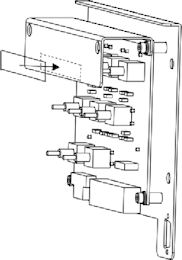
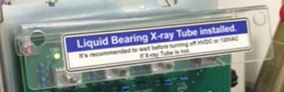
- Attach the labels (on Service Switch Panel, PDU and A1 Panel)
of Label collector (P/N 5788095) provided in FMI kit (part of Liquid
Bearing upgrade kit), follow to the instruction in the Label collector.
Figure 10. Location of Service Switch Panel Notice Label
- Install Gantry Right Side cover.
- Send the following information to Performix.Plus@ge.com
-
Liquid Bearing Tube serial number
-
LB Tube Installation date
-
LB Tube kAs
-
LB Tube exams
-
System ID
-