- Topic ID: id_15460185
- Version: 3.0
- Date: Jan 20, 2020 8:33:30 PM
Backplane Replacement Procedure
Prerequisites
Overview
Backplane replacement requires the removal of the Digital Detector assembly. This procedure will provide a guide to the overall procedure but will reference directly to the detector replacement procedure for that portion of the procedure.
1 Gantry Preparation
Procedure
- Move table to home position, fully out and down.
- Remove gantry right side cover.
Refer to
- Stop the rotor of X-ray tube in case of Liquid Bearing Tube before HVDC off. Refer to Liquid Bearing Tube Rotor stop procedure for details.
- Turn OFF the Axial Drive and HVDC switches on the gantry’s Service Switch Panel.
- Position the detector at 12 o'clock and lock gantry rotation.
- Turn OFF the 120 VAC switch on the gantry’s Service Switch Panel.
- Remove the gantry left side cover, top covers and front and
rear covers.
Make sure to terminate the E-stop circuit as defined in the front and rear cover removal.
2 Detector Removal
Procedure
- Cover the Tube Collimator port to protect it against dropped tools or screws. (Cloth or any other available item)
- Remove the Air Plenum as shown in Detector Air Plenum Removal/Installation.note:
Reminder that using the mouse right button on the above document link and selecting “Open in new Window” will keep this document open at the same time for ease in use. Can leave the Air Plenum instructions open for later use when reinstalling the plenum.
- Using the VCT Detector Replacement
Procedure remove the digital detector from the
gantry using sections 4.4 and 4.5.
-
There is no need to use the Replacement wizard since the detector is not being replaced.
-
Leave the detector on the hoist during backplane replacement. Swing the detector out of the way to a location that it is not a hazard during work on the backplane.
-
3 Backplane Removal
Procedure
- Remove all cabling from the backplane to be replaced. Both
backplane procedures are basically the same. The low channel backplane
will be used for examples in this procedure as it has the addition
of the fiber optic connections to the DCB.note:
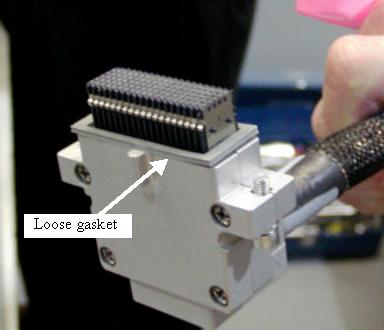
There is a loose gasket on the backplane cable. After pulling backplane cable from connector, place the gasket in a known location to avoid losing it. See Figure 1.
Figure 1. Backplane Connector
- Remove the DIFB cover from the chassis behind the backplane
to be replaced. Disengage the DIFBs from the backplane connectors
(including the DCB if removing the low channel backplane). See VCT DCB and DIFB Replacement for details.note:
The DCB fiber optic cables MUST be disconnected prior to ejecting the DCB board from the IFB chassis.
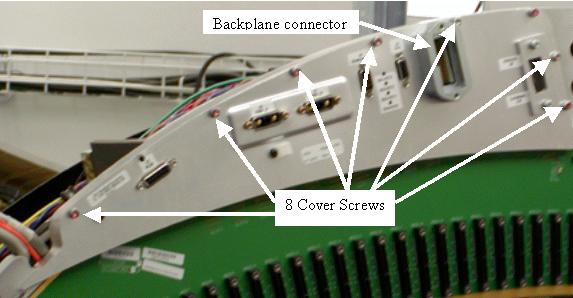
- Remove the backplane cover shield. See Figure 2.
Figure 2. Backplane Cover Shield
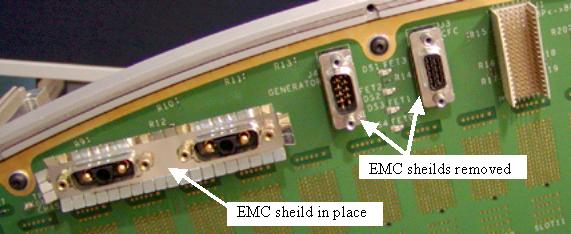
- After removing the backplane cover shield, remove the EMC connector
shields from all Sub-D connectors and set them with the backplane
cable gasket. See Figure 3 for shield example.
Figure 3. EMC connector shields
- Remove the 9 screws around the edge of the backplane.
- Lift off the backplane and place it in a static bag.
4 Backplane Installation
Procedure
- Position new backplane on the DAS plate.
- Install 9 screws and torque to the value shown in Table 7.
- Place the EMC shields onto the Sub-D connectors so the fingers are angled away from the backplane as shown in Figure 3.
- Position the backplane cover shield and torque screws to the
value shown in Table 8. Reference Figure 2 for the backplane shield.
- Place the supplied backplane barcode sticker on the backplane shield over top of the old sticker to identify the new backplane on the system.
- Engage the DIFB’s (and DCB if low channel backplane) into the backplane.
- Install the DIFB chassis cover.
- Install the 4 captive DIFB cover screws and torque to the value
shown in Table 9.
- Install the 2 M6 DIFB cover screws and torque to the value shown
in Table 10.
- Reinstall the DAS fiber optic cables and Sub-D connectors as
applicable. (Inspect pins of sub-D cables before installing.). Using
proper torque will avoid breaking cable jackscrews. Torque Sub-D connectors
to the value shown in Table 11.
- Position the DAS backplane cable gasket on the connector as shown in Figure 1 and carefully insert the connector into the backplane. When properly lined up, the connector should easily slide onto the backplane pins.
- Torque the backplane connector to the value shown in Table 12.
5 Detector Installation
Procedure
- Install the Detector as shown in VCT Detector Replacement Procedure using section 4.6.
- Install the Air Plenum as shown in Detector Air Plenum Removal/Installation.
- Finish installing the DAS/Detector harnessing as shown in VCT Detector Replacement Procedure section 4.8.
- Make sure the DCB and DIFB boards are installed into the backplane connectors and that no board is sticking out from the others when looking across all the boards from the side.
6 Gantry Reassembly and Testing
Procedure
- Make sure the Axial Drive, HVDC and 120 VAC switches on the gantry’s Service Switch Panel are OFF.
- Install the gantry front cover, rear cover, top covers and left
side cover.
Refer to
- Enable 120 VAC HVDC and Axial Drive service switches from the service switch panel. Press the table drives enable button on the lower right corner of the service switch panel.
- From the DASTools interface run the following
rotating tests.
- Select and Run mA Ratio Test (creates/updates the bad channel map)
- Select and Run the Auto Test from DASTools.
- If all the checks pass continue with the next section. If anything fails, troubleshoot per the appropriately failed test.
- Install the gantry right side cover.
7 System Calibration
Procedure
- The detector requires up to 45 minutes to reach operating temperature prior to starting the calibration process. Failure to wait will cause artifacts later when the detector reaches operating temperature. The time to warm up starts from the time the gantry power was turned on. Check the Common Service Desktop to make sure the detector temperature is at 38 degrees C +/- 1.5 prior to starting calibrations. The operator message area will post a message when the detector is back to normal temperature.
- Perform Collimator calibration using Scanner Utilities - Collimator Cal.
- Perform Full Spectral calibration using Scanner Utilities - Detailed Cal.note:
CT# adjust is run as part of Detailed Cal, no need to run it separately.
- Perform FastCal using Daily Prep – Fastcal. (Required after every detailed calibration)
8 Finalization
Procedure
- Perform a Quality Assurance Test from the Functional Checks menu of the service manual to ensure system operation.
- Perform a Save State to save new calibration data.