• Discovery MR750 3.0T System Service Methods
  • 5690009-2EN Revision 4
  • Object ID: 00000018WIA30BF3E20GYZ
  • Topic ID: id_13106587 Version: 3.3
  • Date: Aug 26, 2020 1:22:03 PM

RFA loopback test

Prerequisites

Table 1. Personnel requirements
Required personsPreliminary requirementsProcedureFinalization
1 -20 to 60 minutes10 minutes
Table 2. Tools and test equipment
ItemQuantityEffectivityPart numberManufacturer
RF cables kit 1---
Oscilloscope1---
Standard tool kit1---
RF power measurement kit1-

One of the following: 5307511-2, 5307511-3, or 5434817

-
Universal SST kit (1.5T and 3.0T)1-

5110731-4

-
Head coil1-

5180918

-
200–watt 30 dB attenuator (used as the 1.5T dummy load, secondary, from 1.5T tool kit, 46-317724G1 or 46-317724G2) – For use with dual drive systems ONLY1-

46-317724P14

-
6 feet of N-male to N-male RG214 cable (from 1.5T tool kit, 46-317724G1 or 46-317724G2)1-

46-317724P9

-
70 dB, with 10 dB step, attenuator (from 3.0T grafidy kit, 2386042)1-

46-255838P2

-
BNC M-F feedthrough with DC blocking cap (from DVMR service cables kit, 5306523)1-

5160682

-
Body sphere (27 cm)1-

2359877

-
Body loader1-

2360037

-
Head sphere (17 cm)1-

2360025

-
Head loader1-

2360031

-
Head loader positioner1-

5110241

-
Loop Velcro squares (for attaching the RF sense loops; from universal SST kit, 5110731)as needed-

46-307152P1

-
Table 3. Safety

About this task

The RFA (radio frequency analysis) tool is designed to quantitatively measure the performance of the transmit chain by allowing loopback tests from several different points along the chain. At most points, the inter-pulse RF stability and inter-pulse RF fidelity (magnitude and phase linearity) can be measured.

For information about the theory behind the tests, see RF Loopback Test Theory.

Topic ID: id_SL1801049-1051111

Set up test

Procedure

  1. Ensure that the system is idle, and remove all portable coils from the bore.
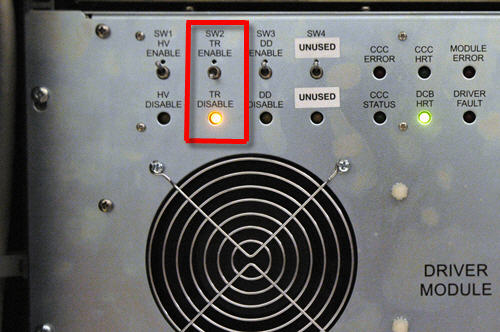
  2. On the driver module in the PEN cabinet, set switch 2 (SW2) to TR DISABLE.
    Figure 1. Setting TR disable
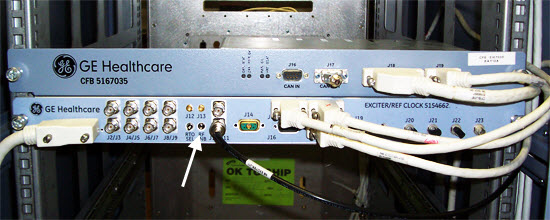
  3. On the exciter/ref clock module located in the PEN cabinet, set the RF Enb switch down (Disable).
    Figure 2. Exciter/Ref Clock Module
  4. The following table provides links to the setup diagrams for the loopback test for the various components. Locate the setup diagram that matches the system and the loopback test that you want to perform. At a minimum, run the Headdummy or Bodydummy loopback and Exciter loopback tests. Set up the components to match the setup diagram.
    Table 4. Reference Diagrams for Loopback Tests
    For this loopback test: On systems with this type of RF amplifier: Using this RF Power Measurement Kit: See this setup diagram:
    Exciter
    Note: Landmark on the center of the body loader shell containing the body TLT sphere on the patient table inside the RF body coil.
    Single drive RF amplifier5307511-2, 5307511-3, or 5434817 5474983.pdf
    Dual drive RF amplifier5307511-2, 5307511-3, or 5434817 15236298.pdf
    Headdummy
    Note:
    Single drive RF amplifier 5307511-2 or 5307511-3 (Bird RF power measurement kits) 5474985.pdf
    5434817 (Agilent RF power measurement kits) 5474984.pdf
    Dual drive RF amplifier 5307511-2 or 5307511-3 (Bird RF power measurement kits) 15236312.pdf
    5434817 (Agilent RF power measurement kits) 15236305.pdf
    Bodydummy
    Note: Landmark on the center of the body loader shell containing the body TLT sphere on the patient table inside the RF body coil.
    Single drive RF Amplifier 5307511-2 or 5307511-3 (Bird RF power measurement kits) 5474981.pdf
    5434817 (Agilent RF power measurement kits) 5474996.pdf
    Dual drive RF amplifier 5307511-2 or 5307511-3 (Bird RF power measurement kits) 15236319.pdf
    5434817 (Agilent RF power measurement kits) 15236326.pdf
    Headsense
    Note: Landmark on the center of the head loader shell containing the head TLT sphere centered inside the split-top head coil.
    Single or dual drive RF amplifier 5307511-2 or 5307511-3 (Bird RF power measurement kits) 5474991.pdf
    5434817 (Agilent RF power measurement kits) 5474990.pdf
    Bodysense
    Note: Landmark on the center of the body loader shell containing the body TLT sphere on the patient table inside the RF body coil.
    Single and dual drive RF amplifiers 5307511-2 or 5307511-3 (Bird RF power measurement kits) 5481081.pdf
    5434817 (Agilent RF power measurement kits) 5481077.pdf
Topic ID: id_SL1801058-1051111

Perform test

Topic ID: id_SL5399574-1051111

Running RFA in exciter, bodydummy, or headdummy mode

Procedure

  1. (For Bodydummy only) Confirm that the power sensor is connected to the J4 or J22 channel output under test, and that the 7/16" 1/4-wave stub is connected to the remaining unselected/unused channel output.
  2. Set the 1 dB/step and 10 dB/step rotary attenuators to the settings shown in the appropriate setup diagram.
  3. Enable RF output from the exciter module:

    On the exciter module in the PEN cabinet, set the RF Enb switch to up (Enable), or reconnect J14 (channel 1) and J21 (channel 2) on the RF amplifier front.

  4. Landmark as indicated in the setup diagram for the test you are running, and advance to scan.
  5. In the service browser, select Image Quality > RFA Tool. The RF Analysis Tool appears.
    Figure 3. RF analysis tool (single drive RF amplifier)
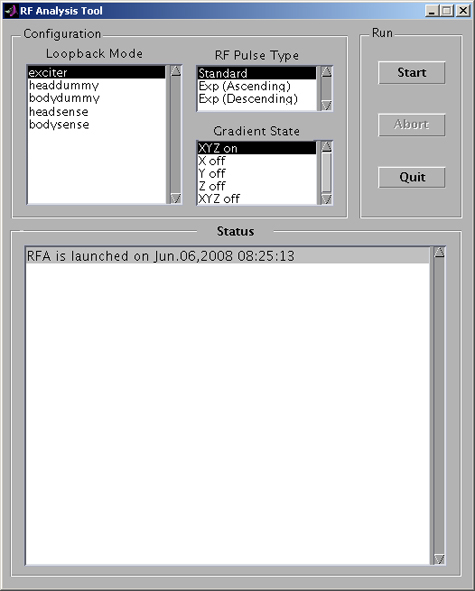
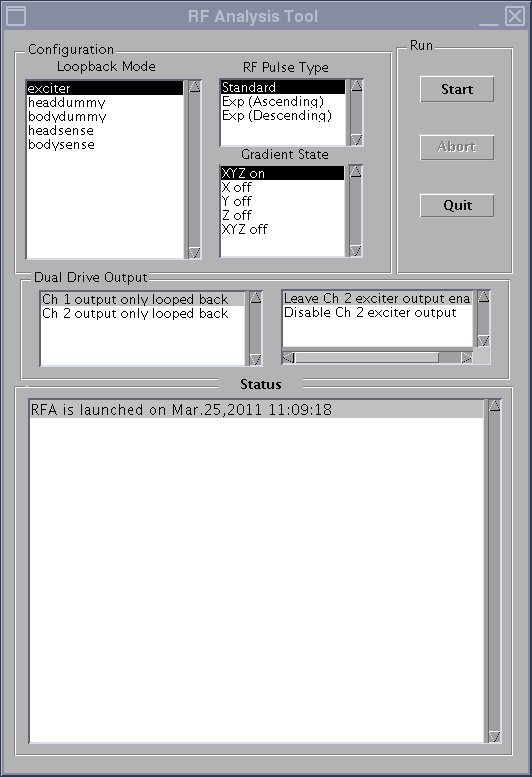
    Figure 4. RF analysis tool (dual drive RF amplifier)
  6. Select the Loopback Mode for the test you want to run.

    (For systems with dual drive RF amplifiers) If you are running the test in Exciter or Bodydummy mode, there are two outputs: channel 1 and channel 2. Select the channel to test in the Dual Drive Output section of RFA. Only one channel can be monitored at a time. Disable the output to the other (unmonitored) channel by selecting Disable Ch 1 or 2 exciter output in the Dual Drive Output section of the GUI. Leaving both channels enabled requires connecting each Body Ch1 and Ch2 RF amplifier output to a separate dummy load.

  7. Select RF Pulse Type (initially use the default Standard, and select Exp (Ascending) and Exp (Descending) in the second and third iterations of the test).
  8. Select Gradient State (use the default XYZ On).
  9. (For dual drive systems only) For Exciter or Bodydummy loopback mode, select Dual Drive Output settings in both the left and right windows:
    1. In the left window, select channel 1 or 2.
    2. In the right window, select the second option to disable exciter output of the unselected/unused channel. Do not leave the unused channel output enabled, because overranging and amplifier faults during manual prescan can result.
      For example, if Ch 1 output only looped back is selected in the left window, then Disable Ch 2 exciter output must be selected in the right window. The channel not selected in the left window MUST be disabled in the right window, OR the input cable of the unselected/unused channel must be disconnected at the front of the RF amplifier. (In this case, disconnecting the cable at J21 at the front of the RF amplifier would also disable the unselected/unused channel 2.)
    Note: (For Bodydummy ONLY) Under Dual Drive Output in the right window, if the selection is made to leave the unselected/unused channel output enabled and the input cable of the unselected/unused channel is not disconnected, a second dummy load capable of dissipating 15 kW of RF power MUST be connected in place of the 7/16" 1/4-wave stub at the unselected/unused RF output channel on the RF amplifier. In the previous example, where channel 2 is unselected/unused in the left window, if Leave Ch 2 exciter output enabled is selected in the right window, then the 7/16" 1/4-wave stub must be disconnected and the dummy load connected, using high-power RF test cable from the RF measurement kit, to RF amplifier J22.
  10. Click Start.
  11. Note: SVAT errors usually indicate a setup problem such as landmark, 32-channel patient table connector not connected, TR or DD fault, etc. Check the error log.
    A popup window asks you to check the loopback setup. Check the setup, and then click Continue.
  12. After about 60 seconds, a Set loopback signal level message box appears. When this message appears, click the Patient icon.
    Figure 5. Patient icon
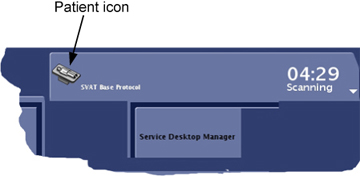
  13. Slowly increase TG to 200 while adjusting the rotary attenuators (to prevent receiver over-range indicated by R1%>100 or R2%>100) until you achieve an R1% and R2% display on the manual prescan page of 84-94% with TG=200.
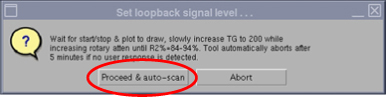
  14. When done, select the Toolbelt icon to return to the service window. Start a scan by clicking Proceed & auto-scan on the Set loopback signal level message box.
    Figure 6. Message box
  15. After the scan and analysis ends, view the results. Compare the results to the typical normal plots shown in RFA plot results. Real failures will exceed the example plot values by 2 or more times. Minor differences are not failures. Select the popup choice to erase the displays. The plots are saved as JPG files under /usr/g/service/cclass/RFA/.
Topic ID: id_SL5399576-1051111

Running RFA in headsense or bodysense modes

Procedure

  1. Set the 1 dB/step and 10 dB/step rotary attenuators to the settings shown in the appropriate setup diagram.
  2. Set up the oscilloscope as described in the setup diagram.
  3. Enable RF output from the exciter module.

    On the exciter module in the PEN cabinet, set the RF Enb switch to up (Enable), or reconnect J14 on the RF amplifier front and/or J21 on dual-drive RF amplifier front.

  4. On the driver module in the PEN cabinet, set switch 2 (SW2) to TR ENABLE.
  5. Landmark as indicated in the setup diagram for the test you are running, and advance to scan.
  6. In the service browser, select Image Quality > RFA Tool. The RF Analysis Tool appears.
  7. Select the Loopback Mode (Head or Body) for the test you want to run.
  8. Select RF Pulse Type (initially use the default Standard).
  9. Select Gradient State (use the default XYZ On).
  10. Click Start.
    Note: Do not click OK on the sense loop popup until you are ready to end the test.
  11. Note: SVAT errors usually indicate a setup problem such as landmark, 32-channel patient table connector not connected, TR or DD fault, etc. Check the error log.
    Note:

    (For systems with dual drive RF amplifiers) For the Loopback mode in Bodysense, there are three possible outputs: Ch 1 output only looped back, Ch 2 output only looped back, and both channels enabled in normal dual drive output loopback. Normally leave both channels enabled so the system operates as it would in dual drive clinical mode.

    Set up the oscilloscope according to the following parameters:
    For this setting: Select:
    Channel 1Ground1 MegaOhm
    Vertical scale100 mV/division
    Vertical position0 V
    InvertOff
    BandwidthFull
    Channel 2Ground1 MegaOhm
    Vertical scale100 mV/division
    Vertical position0 V
    InvertOff
    BandwidthFull
    TriggerTypeEdge
    Trigger sourceExternal
    CouplingDC
    SlopeA trigger slope
    LevelA trigger level
    Trigger level300 mV
    Horizontal position0%
    Horizontal scale800 µs/div
    ScalingScale the amplitude of the envelope pulse so it is coincident with the envelope of the RF pulse.
  12. A popup window asks you to check the loopback setup. Check the setup, and then click Continue.
  13. After about 60 seconds, a Set loopback signal level message box appears. When this message appears, click the Patient icon.
    Figure 7. Patient Icon
  14. Increase TG to 200.
  15. This is a visual test only. When properly scaled, the two waveforms should be similar and it should be possible to overlay one over the other. Investigate any differences in wave shape between the two waveforms.
Topic ID: id_SL2100728-1051111

RFA plot results

Topic ID: id_SL2100729-1051111

Inter-pulse stability plots

About this task

The following sample plot results are Inter-pulse Stability (created in Standard Test mode only)

Procedure

  1. Note: (For systems with dual drive RF amplifiers) There are no specifications for RFA at this time. However, if troubleshooting body transmit issues, both channel 1 and channel 2 should have similar results. There should also be similar results when running RFA on channel 1, with channel 2 active or not active.
    PkMag

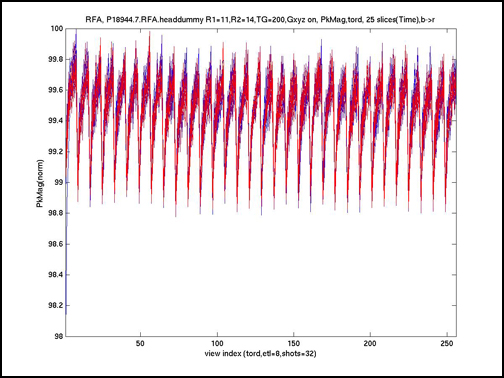
    The resulting plot should look similar in magnitude and shape to that shown in Figure 8, Figure 9, and Figure 10.

    The title of this plot indicates that it is an RFA tool result (from raw data file /usr/g/mrraw/P04608.7.RFA.exciter) from an exciter loopback test performed with R1=11, R2=12, TG=200, showing RF pulse PkMag results ordered in time.

    PkMag means that for each RF pulse we are plotting a point representative of its peak time domain magnitude measured during its play out. This RFA acquisition collected 15 slices worth of RF2 pulses. That is, 15 echo trains per TR period, each train 8 echoes in length, for 32 TR periods or shots (that is, ymatrixSize/teal = 256/8 = 32 shots) for a total of 15x8x32=3840 RF pulses (total plot points).

    All data from the first echo train slot in each TR period is shown in a “pure” blue plot with all 256 points acquired for that slot (one per RF pulse) shown in time order from left to right (that is, indices 1 to 256=ymatrixSize on the horizontal axis). All data from echo train slots 2 through 14 in each TR period is shown in separate overlaid plots that gradually change in color from blue to purple to red. All data from the last (15th) echo train slot in each TR period is shown in a “pure” red plot overlaid on all previous plots.

    The ideal result showing no problems would appear as a single red horizontal line at a vertical axis value of 100, meaning that every RF2 pulse played for every slice had exactly the same peak magnitude and all these values scaled to 100.0 when the entire data set was normalized to “percent of peak value”. This display format allows visual assessment and separation of instabilities that are tied to echo train, to shot (TR period), to slice time slot, or to the entire scan’s acquisition. Be aware that the plots are auto-scaled.

    Figure 8. PkMag, or peak magnitude (exciter)
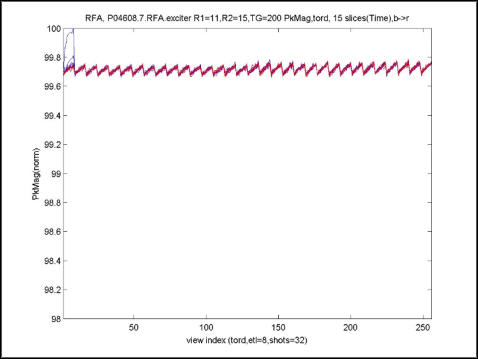
    Figure 9. PkMag (body dummy)
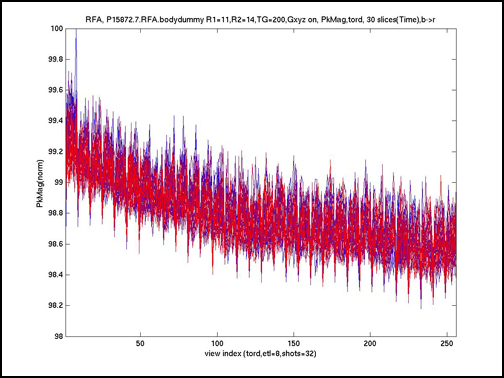
    Figure 10. PkMag (head dummy)
  2. Integ
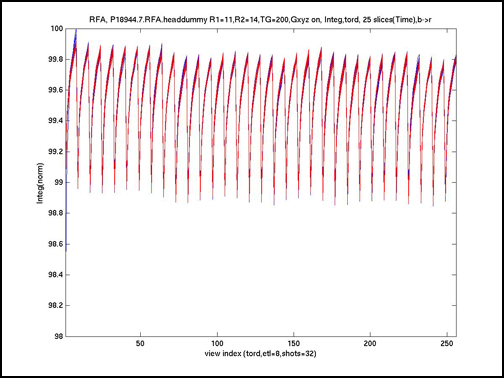
    The resulting plot should look similar in magnitude and shape to that shown in Figure 11, Figure 12, and Figure 13.

    This is analogous to the earlier PkMag plot description; however, this plot represents the RF pulse INTEGRAL (or area) for each RF pulse acquired.

    Figure 11. Integ, or integral (exciter)
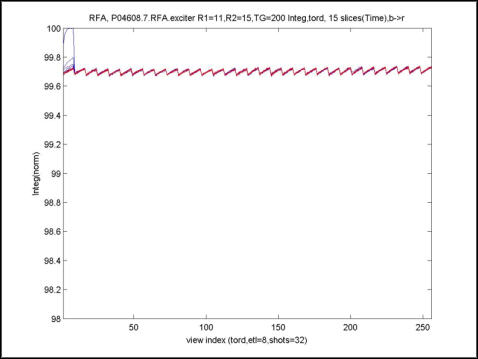
    Figure 12. Integ (bodydummy)
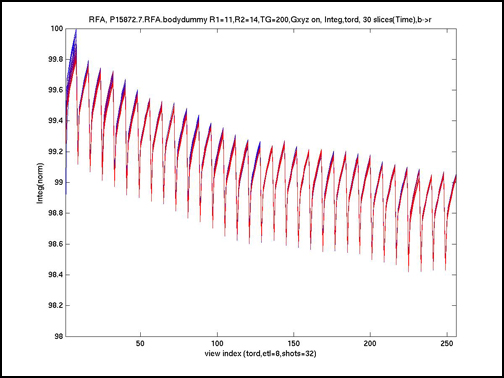
    Figure 13. Integ (headdummy)
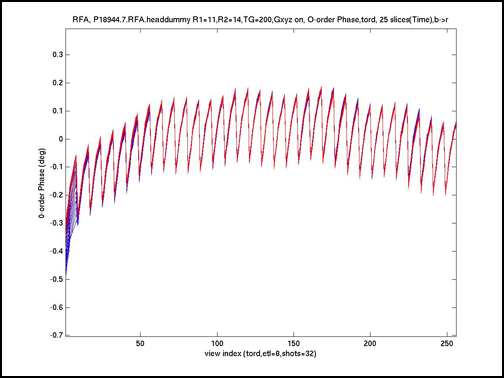
  3. 0-order Phase
    The resulting plot should look similar in magnitude and shape to that shown in Figure 14, Figure 15, and Figure 16.

    This is analogous to the earlier PkMag plot description; however, this plot represents the RF pulse 0-order phase (AVERAGE PHASE) in degrees for each RF pulse acquired.

    Figure 14. 0-order phase (exciter)
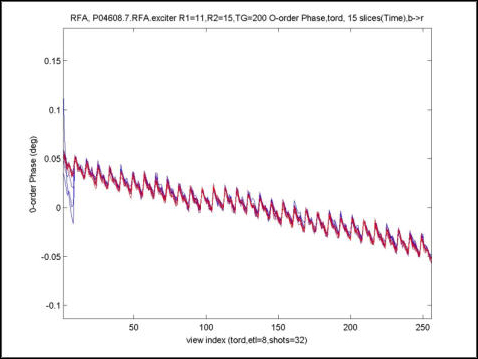
    Figure 15. 0-order Phase (bodydummy)
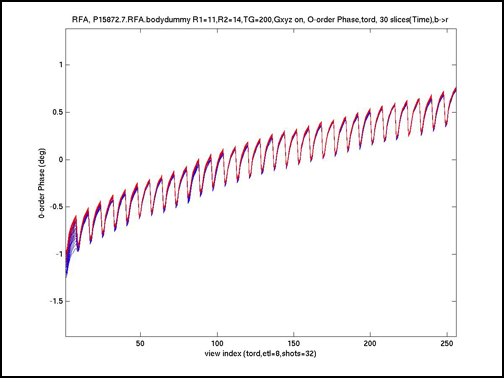
    Figure 16. 0-order phase (headdummy)
  4. 1-order Phase
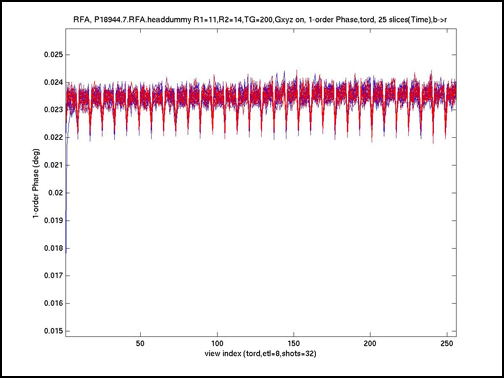
    The resulting plot should look similar in magnitude and shape to that shown in Figure 17, Figure 18, and Figure 19.

    This is analogous to the earlier PkMag plot description; however, this plot represents the RF pulse 1-order phase (LINEAR PHASE) in degrees/point for each RF pulse acquired.

    Figure 17. 1-order pulse (exciter)
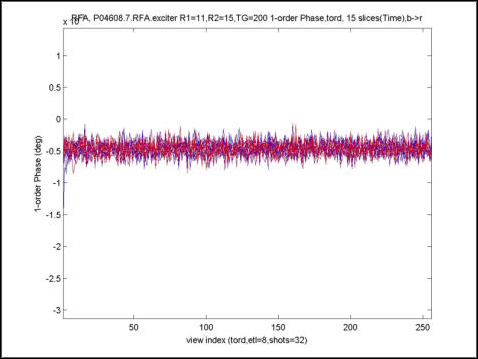
    Figure 18. 1-order pulse (bodydummy)
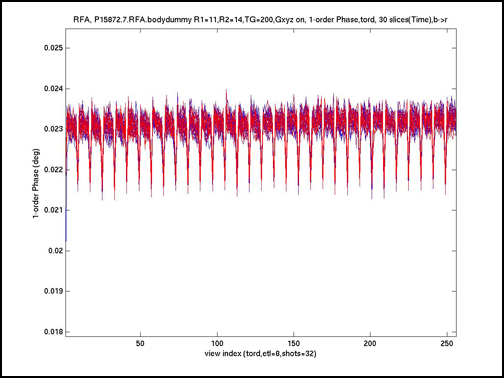
    Figure 19. 1-order pulse (headdummy)
Topic ID: id_SL2100738-1051111

Intra-pulse fidelity plots

About this task

The following sample plot results are Intra-pulse Fidelity (created in Exp(onential) Test mode).

Procedure

  1. Magfit
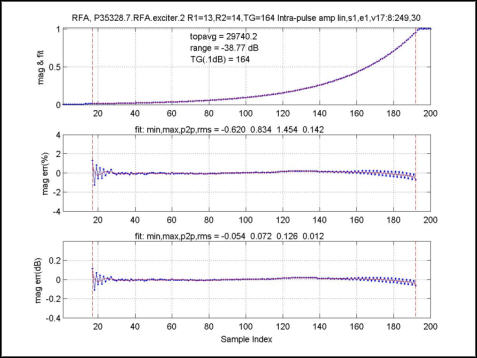
    The resulting plot should look similar in magnitude and shape to that shown in Figure 20.

    Plot title: none; mag & fit vs sample index; Ideal: Perfect exponential of blue points with overlaid red exponential curve fit.

    Plot title: none; mag err(%) vs sample index; Ideal: Flat horizontal blue line of processed points with overlaid flat red curve fit, both at mag err(%) = 0.0 %.

    Plot title: none; mag err(dB) vs sample index; Ideal: Flat horizontal blue line of processed points with overlaid flat red curve fit, both at mag err(dB) = 0.0 dB.

    Figure 20. Magfit, or intra-pulse (All)
  2. Magdif

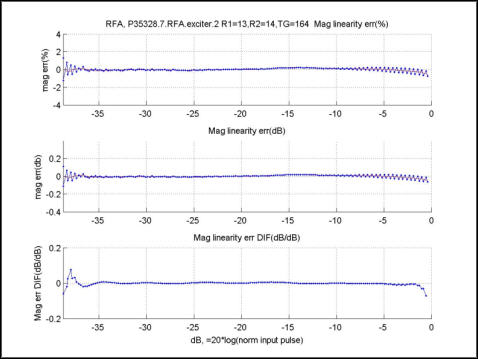
    The resulting plot should look similar in magnitude and shape to that shown in Figure 21.

    Plot title: Mag linearity err(%) ; mag err(%) vs dB; Ideal: Flat horizontal blue line of processed points with overlaid flat red curve fit, both at mag err(%) = 0.0 deg.

    Plot title: Mag linearity err(dB); mag err(db) vs dB; Ideal: Flat horizontal blue line of processed points with overlaid flat red curve fit, both at mag err(dB) = 0.0 dB.

    Plot title: Mag linearity err DIF(dB/dB); mag err DIF(dB/dB) vs dB; Ideal: Flat horizontal blue line of processed points with at mag err(dB) = 0.0 dB.

    Figure 21. Magdif (All)
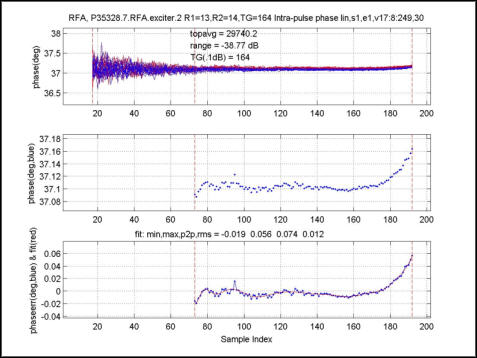
  3. Phafit
    The resulting plot should look similar in magnitude and shape to that shown in Figure 22.

    Plot title: none; Phase(deg) vs sample index;Ideal: One horizontal red line at any phase(deg) value.

    Plot title: none; Phase(deg,blue) vs sample index; Ideal: One horizontal red line at same phase(deg) value as previous ideal plot.

    Plot title: none; Phase err(deg,blue) & fit(red) vs sample index; Ideal: One horizontal red line at 0.0.

    Figure 22. Phafit (All)
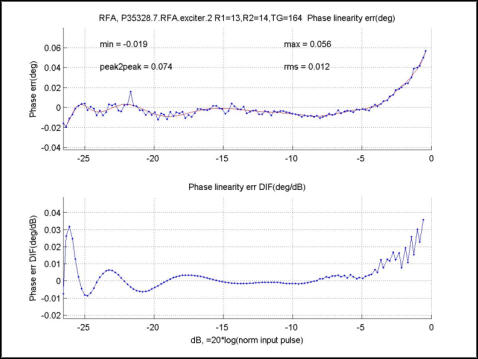
  4. Phadif
    The resulting plot should look similar in magnitude and shape to that shown in Figure 23.

    Plot title: Phase linearity err(deg); Phase err(deg) vs dB; Ideal: One horizontal red line at 0.0

    Plot title: Phase linearity err DIF(deg/dB); Phase err DIF(deg/dB) vs d; Ideal: One horizontal red line at 0.0

    Figure 23. Phadif (All)
Topic ID: id_14998647

Finalization

Procedure

  1. On the exciter/ref clock module, set the RF Enb switch to Disable (down).
  2. When finished with the loopback test, restore the cabling to the default clinical state.

    Default clinical state reference diagrams:

  3. On the exciter/ref clock module, set the RF Enb switch to Enable (up).
  4. On the driver module in the RF system cabinet, switch the TR drive switch (SW2) to TR ENABLE.
  5. Perform a check scan to verify the system is operating properly.