Discovery MR750w and SIGNA™ Architect T 3.0T System Service Methods
5690002-2EN
Revision
4
Object ID: 00000018WHA305D62GYZ
Topic ID: id_2001459 Version: 5.0
Date: Feb 21, 2021 9:04:22 PM
Installing software options with eLicense generated keys
This procedure describes how to use eLicenses to generate and install software options on MR scanners.
About this task
The eLicense allows the field to generate license keys for MR scanners and removes the need to send out physical media for all options on the order. The first step in creating option keys is to go to the eLicense website and register the scanner. To access the eLicense website, you must have a computer with connectivity, as well as a single sign-on (SSO) account. The eLicense website can be accessed at http://elicense.gehealthcare.com.
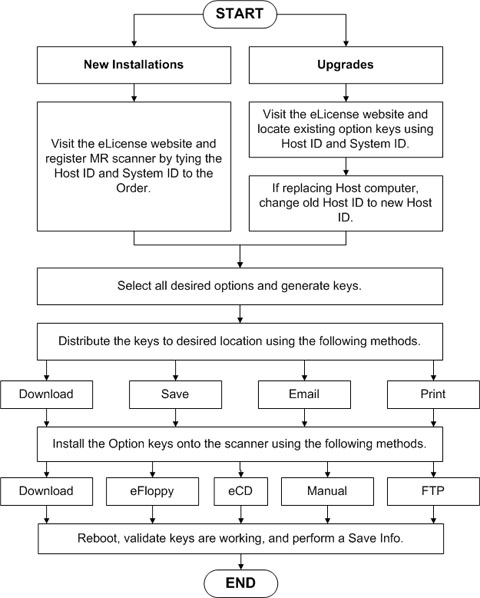
The MR system must be tied to the Global Order Number (GON) through the Host ID and System ID of the scanner. After the site information is entered, the keys can be generated and distributed by e-mail, downloading, saving to CD/DVD, or printing. This file can then be installed on the system through CD/DVD, InSite auto download, SFTP, or manual entry.
The illustration below shows the eLicense process flow. For additional information on how to generate and obtain these keys from the eLicense server, see the eLicense User Guide under the HELP tab of the eLicense website.Figure 1. Process Flow of Option Key Generation
The following tasks are included in this procedure:
For additional information on how to generate and obtain these keys from the eLicense server, see the eLicense User Guide under the HELP tab of the eLicense website.