- Discovery MR750w and SIGNA™ Architect T 3.0T System Service Methods
- 5690002-2EN Revision 4
- 00000018WIA30F92040GYZ
- id_20130152.8
- Apr 23, 2020 8:36:14 PM
Quick view of auto coil prescription
Service manual mode receive element group selection
For troubleshooting, it may sometimes be useful to acquire data using exactly the same elements used during a customer scan. The coil selection User Interface (UI) manual mode, along with the information in the DICOM header, can be used to do this as described in this document.
- View the image DICOM header using .
- Locate the Receive Element Groups (REG)s used for the local coil mode in each series in DICOM tag (0043, 10C2).
- Select Manual Mode from the gear icon on the coil selection UI.
- Select the REGs indicated in the DICOM header from the list on the coil selection UI.
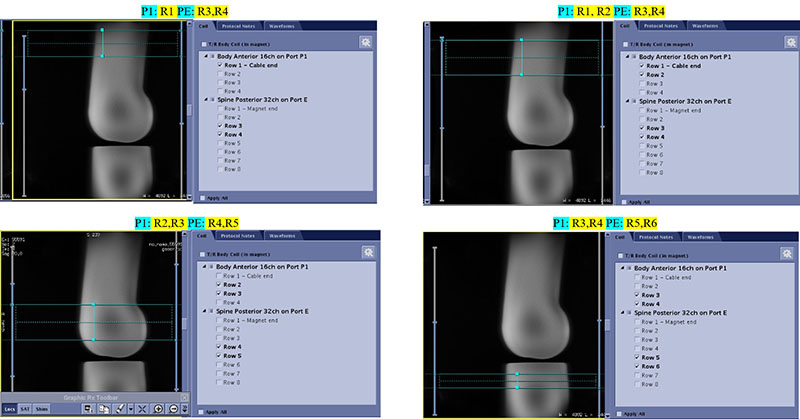
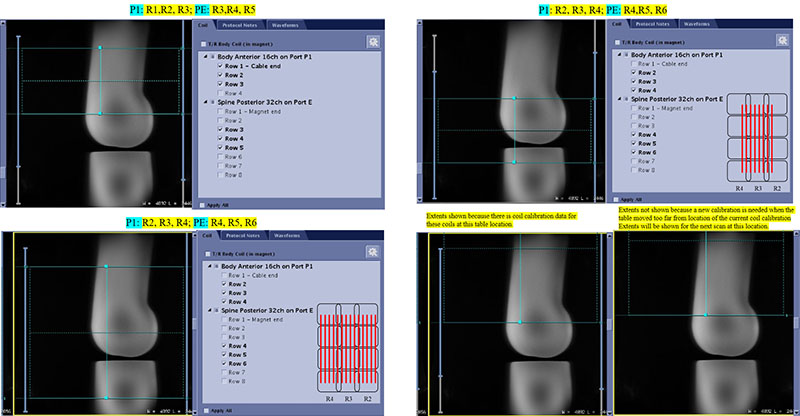
- After scanning the localizer, the extent of the dynamic coil mode generated for the currently selected REGs can be seen on the graphic Rx viewports.
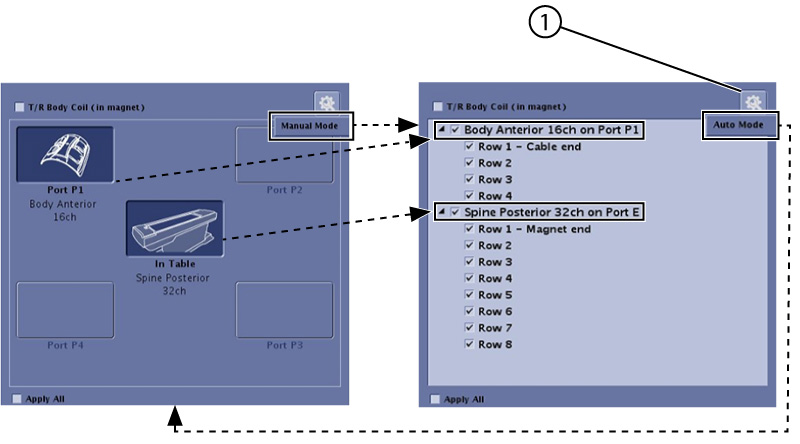
| 1 | The manual tools icon is only available in GESERVICE and RESEARCH modes. |
REGs in bold are those that the ACRx algorithm would select.
Tips
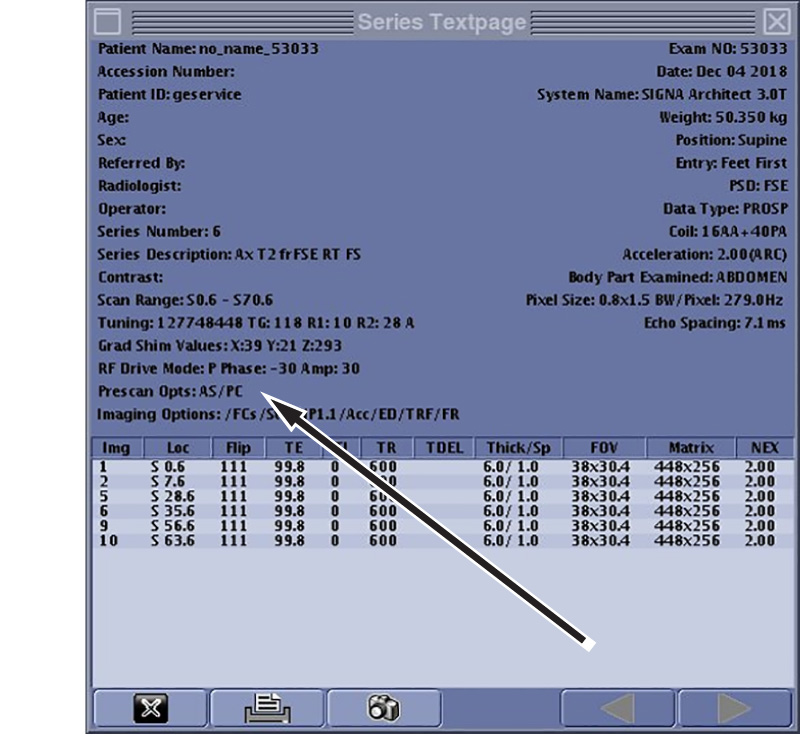
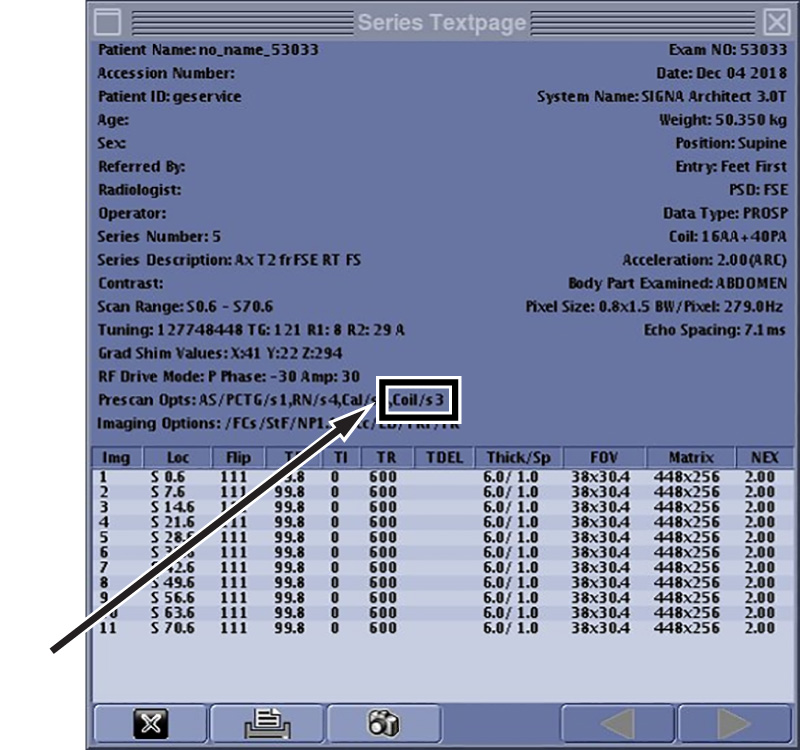
The coil calibration scan will be reused from a previous series if possible. If the scan is reused from another series, Coil/s# will be shown on the series text page.
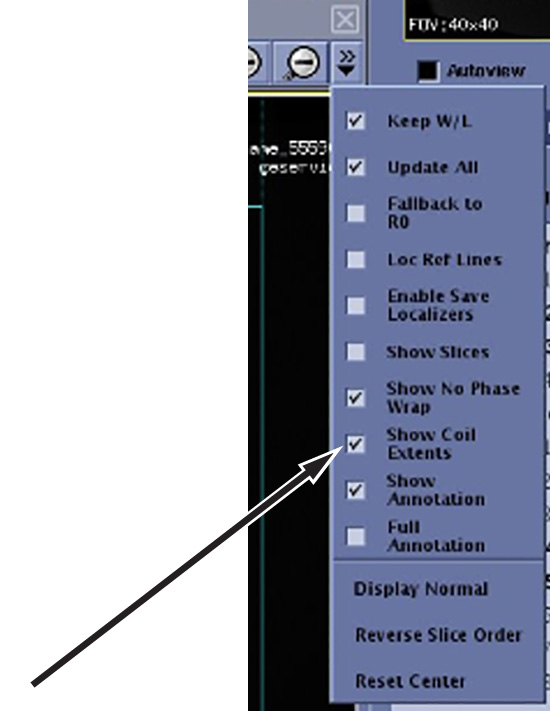
Enabling coil extents
To show Ax/Sag/Cor coil coverage (coil extents), check Show Coil Extents from the GRx pull-down menu.
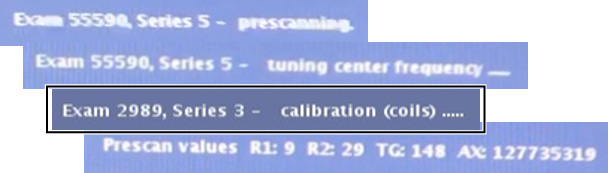
Extent lines will not appear until after the prescan completes for the currently selected coils and table location. Gray extent lines show the extent of the entire coil and blue lines show the extents of the selected elements.
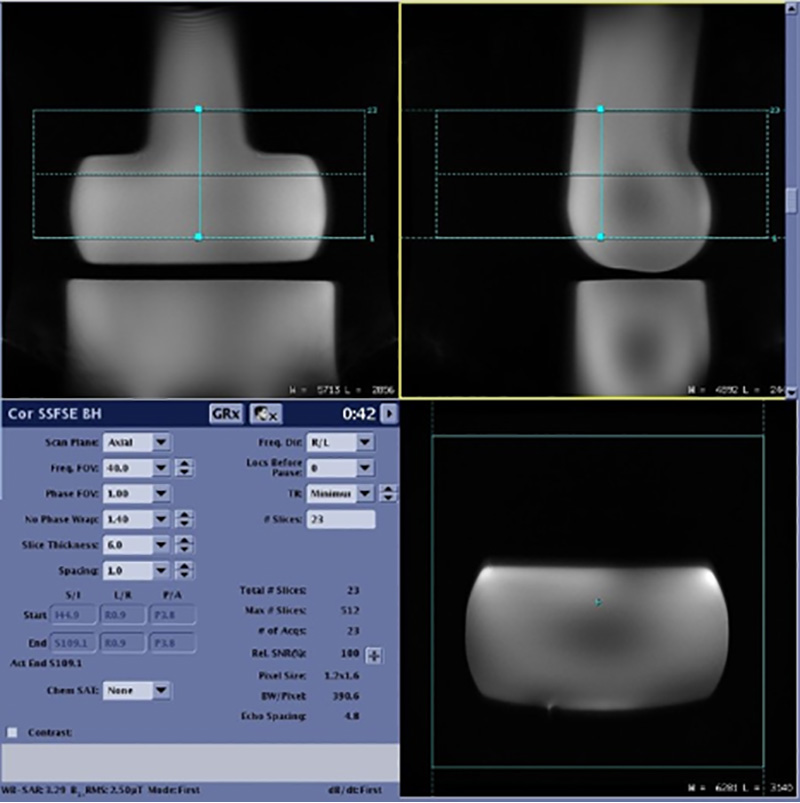
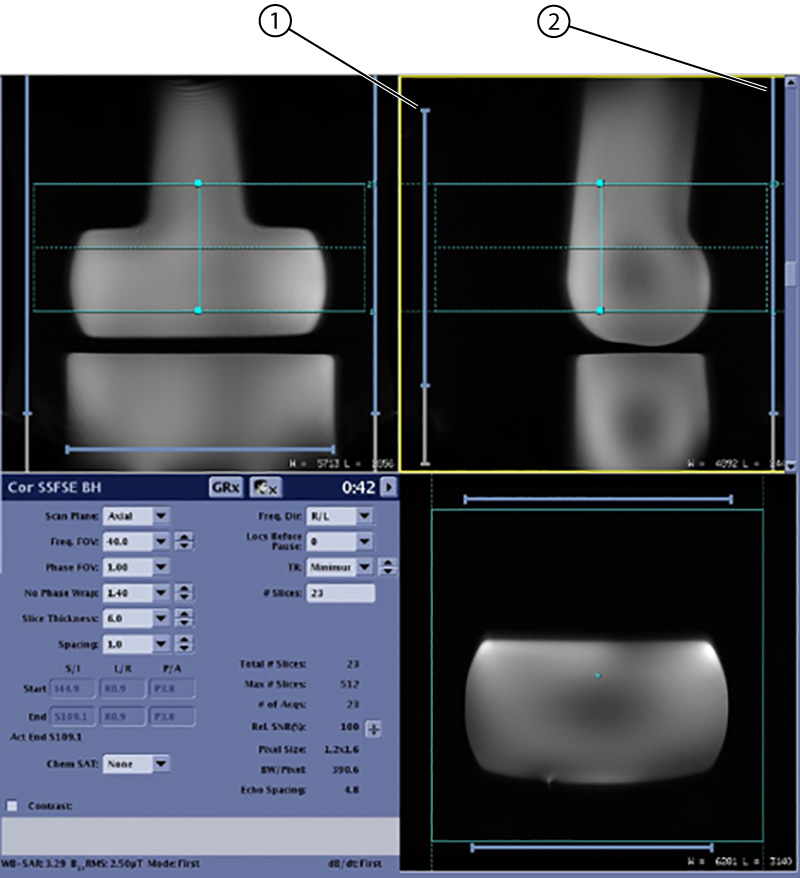
| 1 | AA coil coverage |
| 2 | PA coil coverage |
Putting it all together
ACRx automatically selected the optimal REGs.