Universal Power Monitor - Body Setup and Calibration
Prerequisites
This procedure sets up the Universal Power Monitors (UPM’s) in Body Mode, by using the system and the Power Measurement Kit (Wattmeter). For proper calibration of the Universal Power Monitors, (UPM) Forward Power must be completed in Body mode.
1 BODY FORWARD POWER CALIBRATION
Procedure
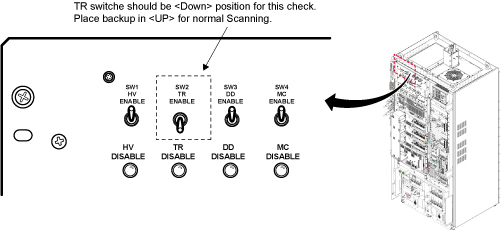
- Inhibit TR faults. Disable the Driver Module in the System Cabinet, Figure 1. Move switch 2 to the TR Disable position.
Figure 1. Driver Module Switches
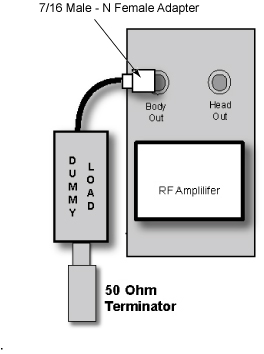
- Remove the Body RF cable from J4. Connect the RF dummy load
into J4. Use 7/16 Male - N Female Adapter attached in System Cabinet.note:
If the body section of the 1.5T SRFD3 Max Power RF Output and Calibration procedure was just completed, configuration is the same. You can leave the head RF cable disconnected and body can keep the wattmeter in line. It will not change the outcome of the calibration.
note:7/16Male -N Female Adapter is located at System Cabinet Left Shelf. Remove left cover and find it. See Figure 2Figure 2. Built In Service Tool
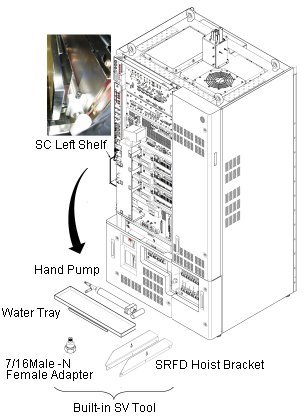
Figure 3. Plug the Dummy Load into J4, Body Out
2 Setting up Software Tool to Calibrate UPM - Body Forward Power
This tool must see a Landmark only. It is not necessary to have a Head coil in place, or any other scan parameter entered than what is described below. Simply Landmark on the cradle where the Head coil would be.
Procedure
- notice
- If Head UPM is NOT calibrated before Body UPM Calibration, reset
“UPM1Cal.cfg” and “UPM2Cal.cfg” file to 0
according to the following procedure.
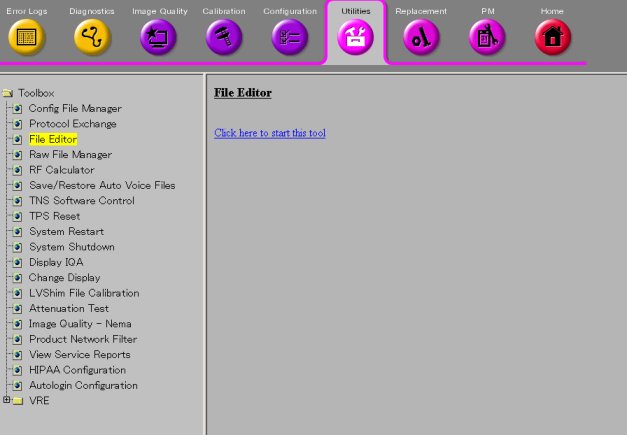
- Open File Editor by selecting Utility/File Editor from Common Service Desktop.
Figure 4. File Editor
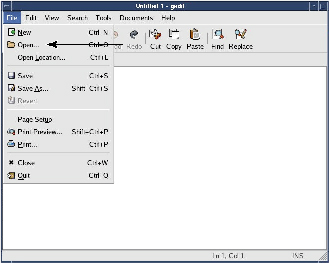
- Select File/Open.
Figure 5. File/Open
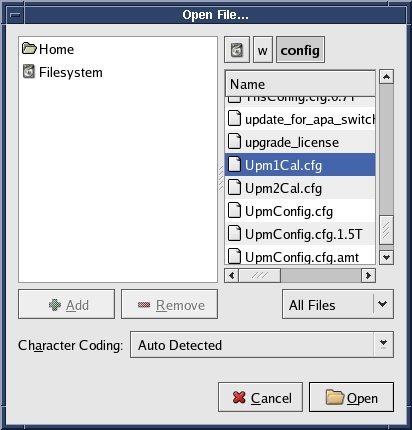
- Select 'w/config/Upm1Cal.cfg' and Open.
Figure 6. Select file
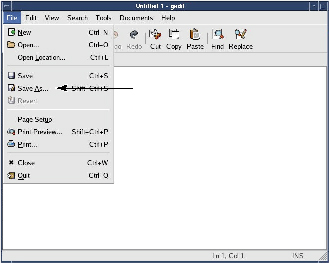
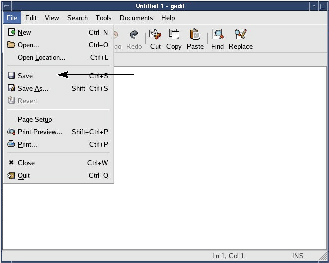
- Select Save As... and save the file as 'Upm1Cal.cfg.bk' .note:
The purpose of this step is creating backup file.
Figure 7. Save As
- Select File/Open.
Figure 8. File/Open
- Select 'w/config/Upm1Cal.cfg' and Open.
Figure 9. Select file
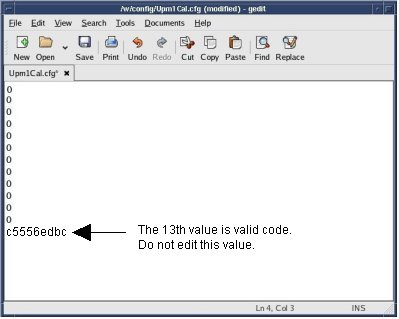
- Edit the file so that the 12 values are set to '0'.
Figure 10. Edit
- Save the config file.
Figure 11. Save
- Perform the same procedure for 'Upm2Cal.cfg'.
- Quit the tool.
- Perform [TPS Reset].
- Open File Editor by selecting Utility/File Editor from Common Service Desktop.
- Start a New Exam
- Enter the following parameters:
- geservice
- Weight: 111
- Press the Align button on, (Land Mark).
- Move the cradle to the Home position and then drive it into the bore.
- Press Landmark button when the align light is approximately where the center of the head coil would be.
- From the Common Service Desktop Select:
- Select Calibration Tab
- Select UPM Tool
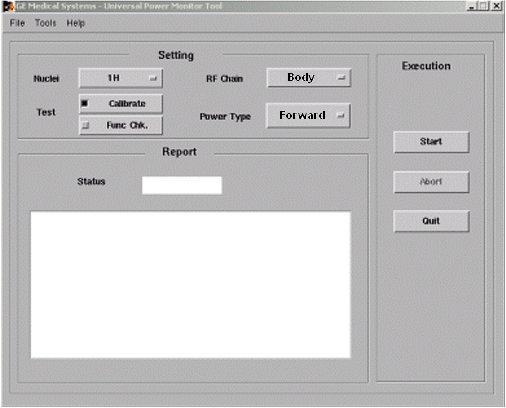
- Start UPM tool from the Service Browser, Figure 12. Figure 13 shows an example of the UPM tool.
Figure 12. Starting UPM Tool
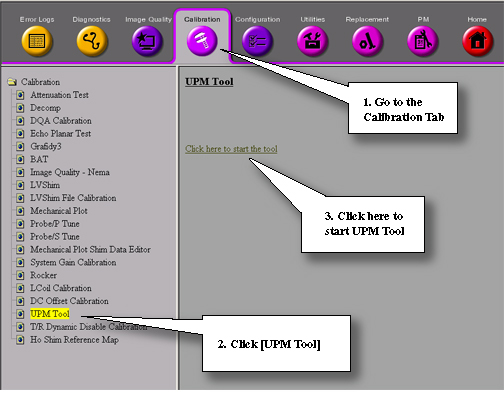
Figure 13. UPM GUI
 note:
note:The first time running the UPM Calibration tool after a load from cold, the following Error may appear: “The spectroRFampType and upm.config do not match! Please run the UPM Tool config file editor and hit [Restore Defaults] and save the config file”. If this error appears, click [File] -> “Edit Config”. When the window opens, click [Restore Defaults] then close the screen. The tool will now have the correct information and this pop-up will not appear again during future UPM Calibrations.
- Select the Nuclei 1H.
- Select the RF Chain you are going to calibrate Body.
- Select Power Monitor type. Forward
- Select: Calibrate Button
- Select the Start button on the tool opened earlier, Figure 13.
- Status should indicate Pass/Fail from 1 minute to 7.5 minutes depending on software version (tool should notify user of current step in progress). If failure occurs, see Universal Power Monitor (UPM) Troubleshooting.
 |
This tool must see a Landmark only. It is not necessary to have a Head coil in place, or any other scan parameter entered than what is described below. Simply Landmark on the cradle where the Head coil would be.
3 Finalization
Procedure
- Remove the cables and power measurement equipment.
- Re-enable T/R Drive . See Driver Module, Figure 1.
- Upon completion of UPM calibration, Reset TPS. The system will not scan until this step is done