System Gain Body Calibration
Prerequisites
1 System Gain Body
Procedure
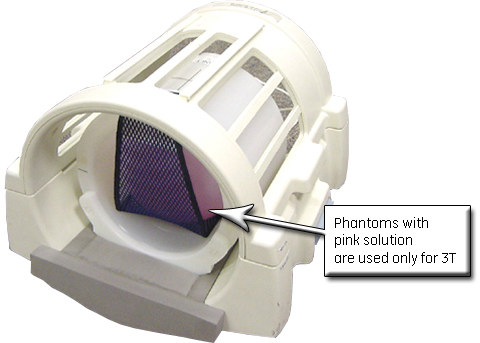
- For systems with the new Split-Top Head Coil, position the SNR
Sphere in the head loader as shown. Fasten the strap to the top of
the head load to secure the SNR Sphere in the loader.
Figure 1. Positioning SNR Sphere in Head Loader
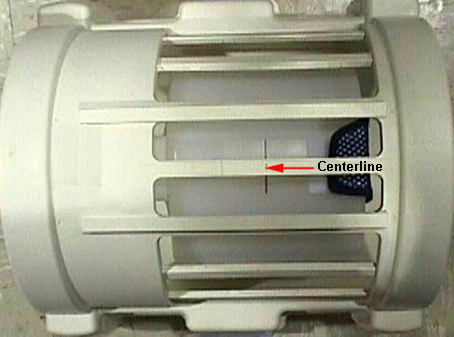
- Position the Head Loader on top of the Head TLT Loader Holder
in the head coil (shown below) so the loader is centered and the loader
axial mark is at the center of the head coil window.
Figure 2. Landmarking Head SNR Sphere
- For systems with the Quad Head Coil, position the DQA Phantom
in the head coil.
- Turn on the alignment lights, and align so the center of the DQA Phantom matches the axial beam.
- Place the Head TLT Sphere in the head loader, and fasten the strap to the top of the head loader to secure the sphere.
- Remove the DQA Phantom and replace with the Head Loader/Sphere centering it using the axial alignment light.
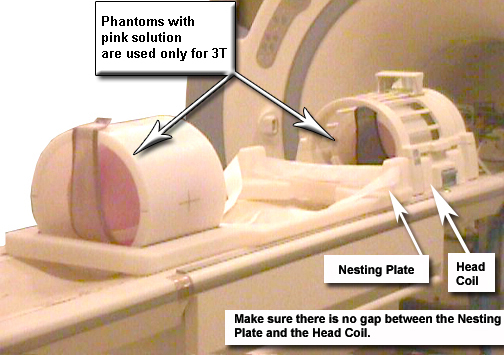
- Place the SPT Body Loader and Body Sphere after the head coil
as shown.
Figure 3. Phantom Setup
- Landmark on the head coil. As the calibration runs, the table will move to the body coil scan by itself.
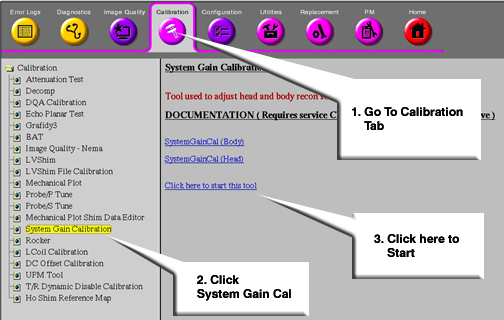
- Go to the CSD and start the Service Browser if not already running.
Select the Calibration icon
and select System Gain Calibration.
Figure 4. Starting System Gain Calibration
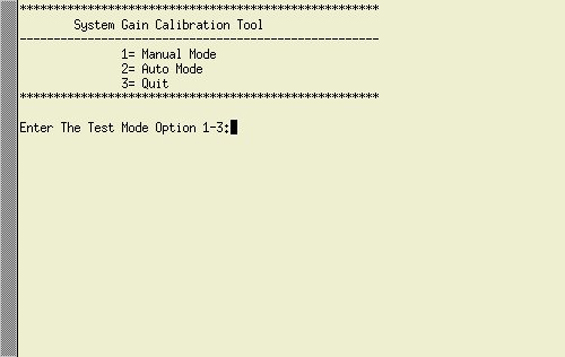
- In the System Gain Calibration tool, type 2 and press Enter for Auto Mode.
Figure 5. Starting System Gain Calibration in Auto Mode
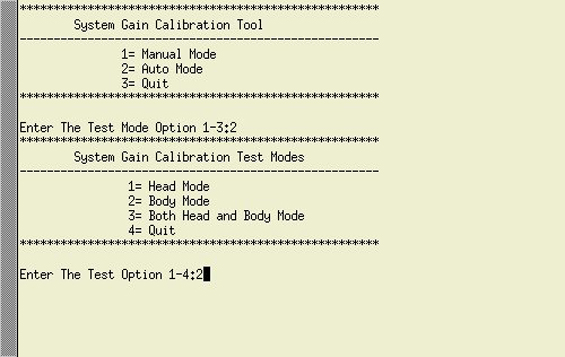
- In the next window, select option 2 and
press Enter for Body Mode calibration.
Figure 6. Selecting Body Mode Calibration
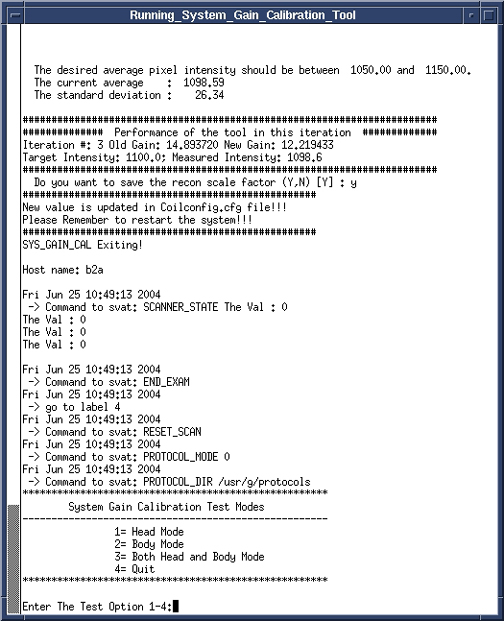
When testing is completed, one of two messages will display:
-
One will indicate the calibration is done and no adjustments are required.
-
The other message will ask if the new Recon Scale Factor should be saved. Type Y and press Enter to save the new calibration file.
Figure 7. Calibration Output
-
- When finished, type 4 and press Enter to exit the tool.
2 Finalization
Procedure
- Proceed to System Gain Head Calibration if required.
- Reboot the system.
- Remove all phantoms from the system, and perform a check scan to ensure system operation.