LCD Monitor Replace with HP HC240
Prerequisites
Procedure
- notice
- Disconnect DVI cable and Power cable from defective LCD Monitor and remove LCD Monitor from the operator workspace table.
- Pull the new LCD monitor out of its box and its packing and set the LCD monitor on the operator workspace table.
- Connect the DVI-D and power cables to the LCD monitor.note:
For DVI cable and Power cable, reuse the one which was originally connected to the previous LCD monitor.
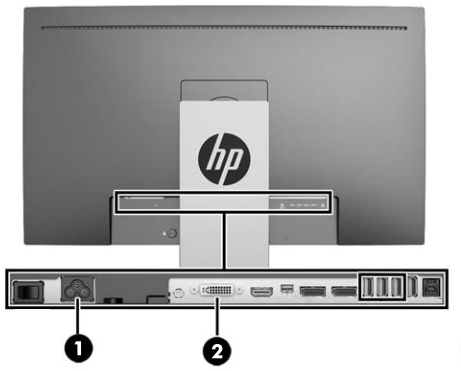
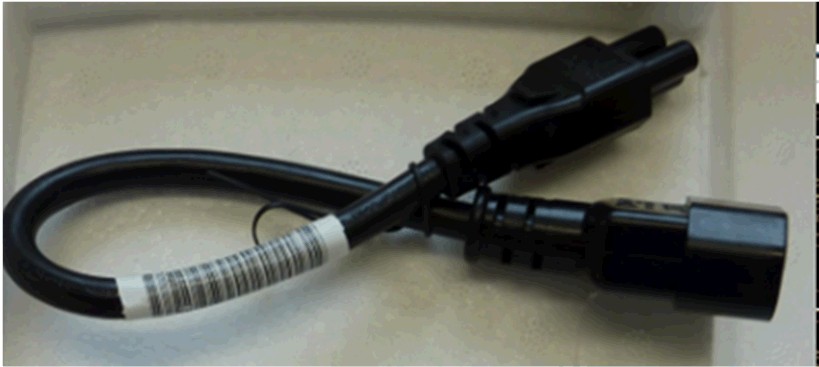
If replace NEC monitor to HP HC240 monitor, will need the supplied adapter to mate the HP monitor to the existing IEC power cord.
- Position the monitor no closer than 16 in (41 cm) and no farther than 28 in (71 cm) from the eyes. The optimal distance is 24 in (61 cm) for either of the monitors.
- Restore Power of Global Operator Console and boot up as normal mode.
- Check that the main LCD monitor power is on. If not, press the Power On/Off button on the front panel.
- Open Guided Install and select Basic Configuration > System Configure.
- Select LCD Monitor as the display type.
Figure 1. System Configuration Panel — Example
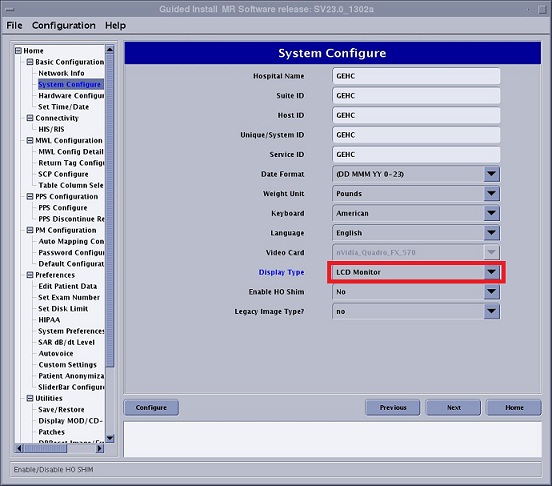
- Click Configure. Default gamma tables will be installed on the system.
- Select File > Quit to close Guided Install.
 |
1 What to do next
Finalization
Monitor Celebrating refer to HP HC240 Monitor Calibration