- 00000018WIA30EAA650GYZ
- id_20250421.7
- May 12, 2020 3:05:19 PM
Updating McAfee ePolicy Orchestrator (ePO)
After the McAfee ePolicy Orchestrator (ePO) ePO server is properly installed by the customer, the customer also owns the process of updating the ePO software in accordance to McAfee’s recommendations. These steps are only to be referenced by the FE if the customer has questions.
Prerequisites
Note: This task is to be performed by the customer IT. The information in this topic is just informational for the FE, and not for the FE to actually complete.
| Personnel requirements | |||
|---|---|---|---|
| Required persons | Preliminary requirements | Procedure | Finalization |
| - | - | 30 minutes of customer IT time. The GE FE does not need to be on site. | - |
About this task
Procedure
- Find the ePOUpdater executable file in the installation folder, right-click, and select Run as Administrator.
Figure 1. ePOUpdater file 
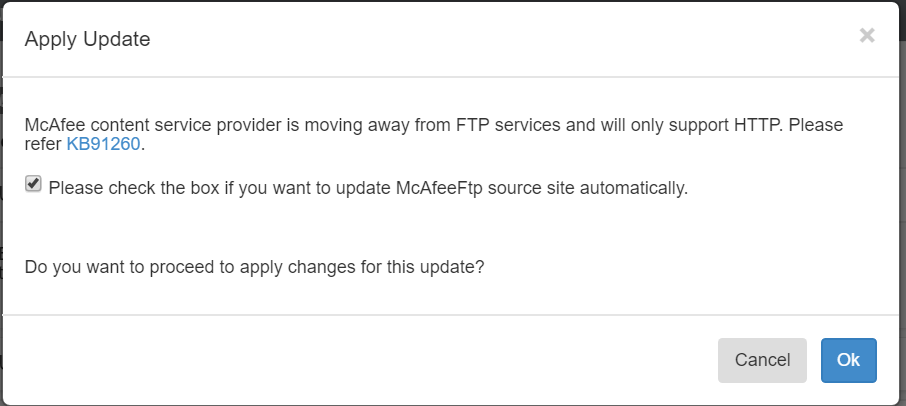
- An Apply Update window will display and ask whether you would like to have the McAfeeFtp source site automatically update. Checking the box is optional, but recommended. Click OK.
Figure 2. Apply ePO Update window