Updating McAfee ePolicy Orchestrator (ePO) DAT or Engine files using a USB drive
This is a breakdown of the process of updating a .dat file or engine file on an MR system using a USB drive, in the case that McAfee ePolicy Orchestrator (ePO) product deployment is not an option.
Prerequisites
Personnel requirements
Required persons
Preliminary requirements
Procedure
Finalization
1
-
60 minutes
-
Required conditions
Existing MR system with McAfee option key installed under Service Browser > Utilities > Security Tools > Antivirus.
Most current .dat files downloaded and unzipped from McAfee website and placed on a secure USB drive.
Note: This is NOT the preferred procedure to update dat files. The preferred way is for the customer to configure their ePO server to get the latest .dat file automatically from the McAfee site.
Procedure
Download the DAT files by navigating to http://www.mcafee.com/apps/downloads/security_updates/dat.asp.
Note: If the link does not work, navigate to the McAfee website and navigate to the Enterprise version of their software. Search for Security Updates to click the Security Updates link to navigate to where the latest DAT file is located.
From the Download V2 Virus Definition Updates (DATs) section click DAT Package For Use with McAfee ePO (avvepo9496dat <- avvdat9267.zip).
Download and unzip avvepoxxxx.dat.zip. Inside is the avvdat-xxxx.zip file.
Extract the files in the avvdat-xxxx.zip file on to a USB.
Note: The latest virus signature definitions (DAT files) can be downloaded from the McAfee site. These are not controlled by GE and may change after publication of this guide. The zip file should have the three files listed below.
avvclean.dat
avvnames.dat
avvscan.dat
Insert USB drive containing .dat files.
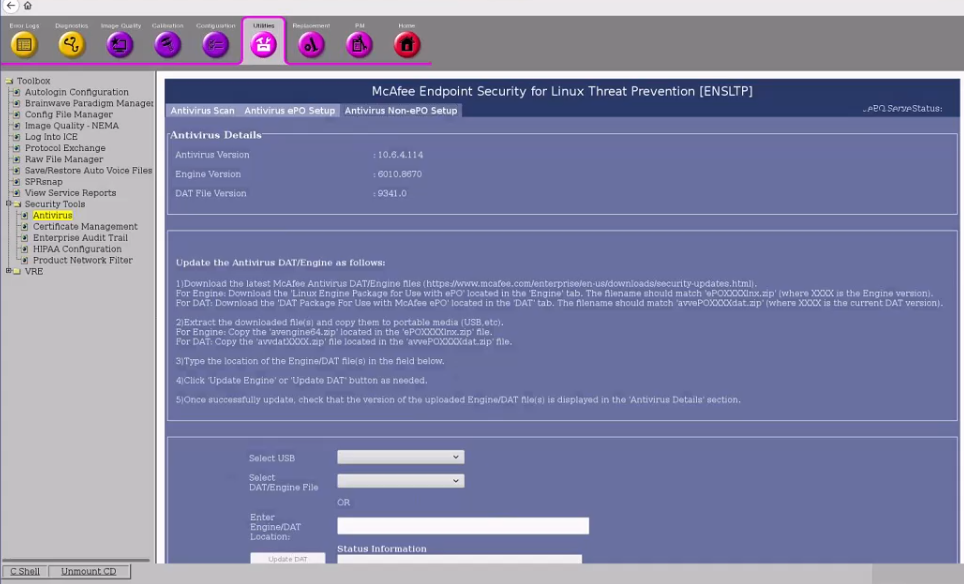
On the MR system, go to Service Browser > Utilities > Security Tools > Antivirus.
Figure 1. Antivirus window
Click the Antivirus Non-ePO Setup tab.
Select the USB drive that the .dat file is on.
Select the .dat file you want to update.
Click Update Engine or Update DAT.
Note: The engine revision should not be updated.
After installation, make sure that the DAT/Engine version you installed matches the Antivirus Details on the top section of the screen.