
- 00000018WIA30B42A50GYZ
- id_20262782.0
- Feb 21, 2021 9:01:04 PM
Configuring the ICN - VRE
Volume Recon Engine (VRE) configuration reinstalls the software onto the Image Compute Node (ICN). This procedure is also needed after ICN replacement.
Prerequisites
This step is only necessary if VRE needs to be configured as part of software load process or VRE is replaced or if VRE configuration failed on previous step.
| Personnel requirements | |||
|---|---|---|---|
| Required persons | Preliminary requirements | Procedure | Finalization |
| 1 | 10 minutes | 30 to 60 minutes | 5 minutes |
| Tools and test equipment | |||
|---|---|---|---|
| Item | Quantity | Part number | Manufacturer |
|
MR VRE Linux OS DVDDV26.0 or earlier | 1 | - | - |
|
MR Software USB Media DV29.1 or later | 1 | - | - |
| Safety |
|---|
|
Before working in any GE Healthcare MR suite or performing any GE Healthcare service procedure, you must:
If you have any safety concerns at any time, do not begin work or immediately stop work and move to a safe location. Immediately contact your supervisor or site safety officer for instructions on how to proceed. |
About this task
The following procedure describes manual ICN-VRE configuration. ICN compatibility is dependent on software revision see, PGR Cabinet for compatibility.
Volume Recon Engine (VRE) and Image Compute Node (ICN) are terms that are used interchangeably. VRE configuration installs the software onto the ICN. This procedure is needed after ICN replacement. This procedure may also be needed when troubleshooting issues with the ICN system. Refer to Troubleshooting the ICN for more information.Procedure
- Invoke Guided Install as root.
- When you power up the host computer and see the login screen, click on root login.
Figure 1. Login screen 
- Type the user name: root and type the root password.
Figure 2. Welcome login screen 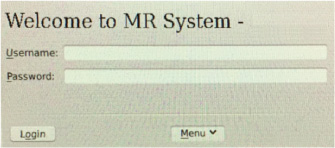 Note: It is possible that the customer changed the default password. If you cannot log in, contact the customer for the correct password.
Result
Logging in as the root user automatically displays the Linux desktop and launches the Guided Install Starter window.
- When you power up the host computer and see the login screen, click on root login.
- If ICN configuration fails, review the dialog box and details in the separate window to determine next steps.
Figure 3. ICN progress details 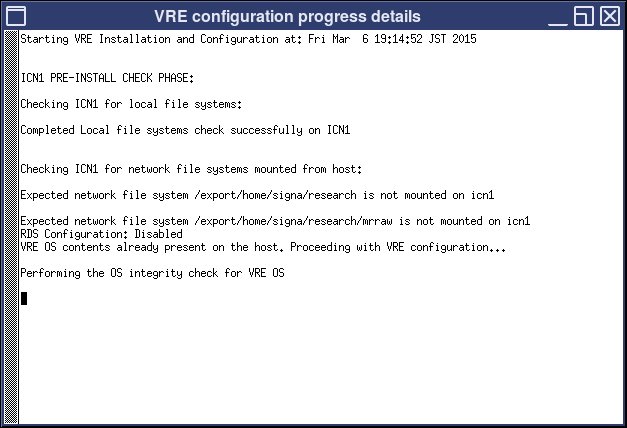
- Once the ICN Remote Console window appears, click OK, and then Continue.This will install the Java security options.
Figure 4. ICN remote console 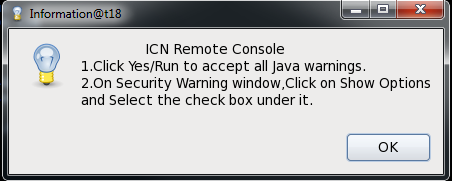
- Once the Java Security Warning window appears select the following:
- Select the I accept the risk and want to run this application checkbox.
- Click on Show Options and select the Do not show this again for apps from the publisher and the location above. checkbox.
- Click Run.
Figure 5. Security Warning 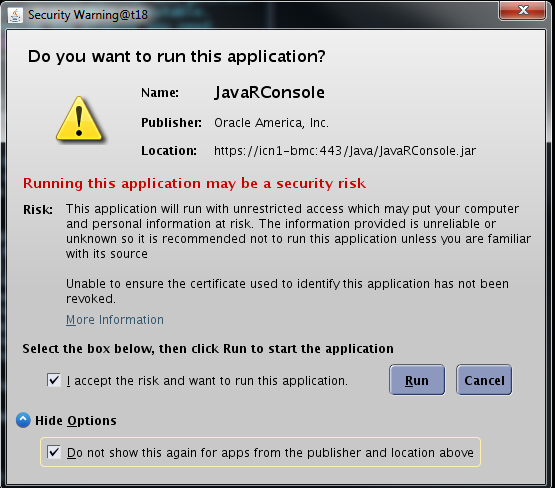
Result
The Remote Console window opens showing the progress of the installation.
Finalization
- If this procedure was performed as part of a software reload, return to the software installation procedure and proceed with the next steps.
- If this procedure was not performed as part of a software reload:
- Perform a system restart. This is required after configuration for the changes to take effect.
- Perform a test scan to verify that the system is working properly.
- Perform SaveInfo.