
• Object ID: 00000018WIA30D12130GYZ
  • Topic ID: id_15271058 Version: 2.10
  • Date: Nov 17, 2020 12:47:00 AM

RF Amplifier and UPM Calibration

Prerequisites

Table 1. Personnel requirements
Required personsPreliminary requirementsProcedureFinalization
1-45 minutes (plus 30 minutes for Agilent wattmeter power up)5 minutes
Table 2. Tools and test equipment
ItemQuantityEffectivityPart numberManufacturer
12 inch Crescent Wrench1---
Medium Phillips Screwdriver1---
Small Flat Head Screwdriver1---
RF power measurement kit (use one of the following kits):1-

EITHER 5307511-2 or 5307511-3 (Bird wattmeter)

BOTH 5491202 (Agilent wattmeter) and 5491202-2 (dummy load)

-
Digital Multimeter1-

46-194427 P284

-
Table 3. Safety
Table 4. Required conditions
ConditionReferenceEffectivity

Before beginning this procedure, confirm that the exciter has been on for at least 20 minutes.

--

When using the Agilent wattmeter, plug in the wattmeter and turn it on. The wattmeter must be powered for at least 30 minutes for stable and accurate readings.

--

About this task

Overview

This procedure provides instruction to set up and calibrate the maximum power for the RF amplifier. The procedure also proceeds through the calibration and functional check of the Universal Power Monitor (UPM) for each channel.

Use the UPM Tool to process each channel through each procedure. For example, when you select head mode, the tool executes the RF amplifier calibration and, if the amplifier passes, proceeds to the UPM calibration and then to the functional check. The process is order-dependent.

Process the body channel first and then the head channel.

RF amplifier and UPM calibration are performed for forward power on a channel. UPM functional check is performed after the channel is calibrated.

The table below describes the calibration steps.

Table 5. Calibration Steps: XRFD Amplifier
XRFD Amplifier
Safety
Disabling T/R, DD, and RF Input for Body Mode
Using Bird Wattmeter and Power Adjustment Kit for RF Body Calibration

or

Using Agilent Wattmeter and Power Adjustment Kit for RF Body Calibration
Adjusting RF Amplifier Output Power for Body Mode
Calibrating UPM Forward Power for Body Channel
UPM Functional Check for Body Mode
Disabling T/R, DD, and RF Input for Head Mode
Using Bird Wattmeter and Power Adjustment Kit for RF Head Calibration

or

Using Agilent Wattmeter and Power Adjustment Kit for RF Head Calibration
Adjusting RF Amplifier Output Power for Head Mode
UPM Calibration for Head Mode
UPM Functional Check for Head Mode
Finalization

Disabling T/R, DD, and RF Input for Body Mode

Procedure

  1. (For Agilent wattmeters) Plug in the wattmeter and turn it on. The wattmeter must be powered for at least 30 minutes for stable and accurate readings.
  2. Verify that the system is idle and all coils have been removed from the magnet bore.
  3. Open the front door of the PEN cabinet.
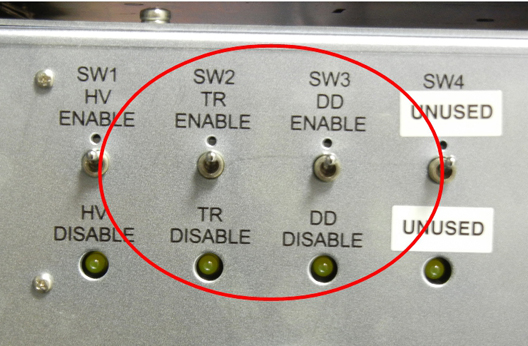
  4. On the front of the driver module, disable the TR and DD fault detection. Set SW2 to TR DISABLE (down) and set SW3 to DD DISABLE (down).
    Figure 1. Driver Module (Front View) Switch
    Note:

    Leave HV set to ENABLE.

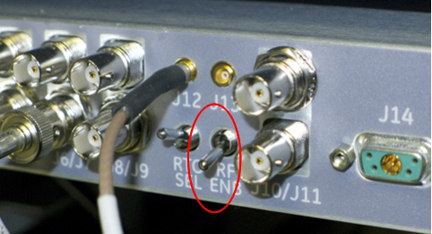
  5. Set the RF Enable switch on the exciter (located in the top of the PEN cabinet) to DISABLE (down).
    Figure 2. RF ENB Switch in DISABLE (Down)
  6. The power measurement kit can have one of two brands of wattmeters. The setup instructions are different for each.

Using Bird Wattmeter and Power Adjustment Kit for RF Body Calibration

Setting up RF Coupler for Body Calibration

Procedure

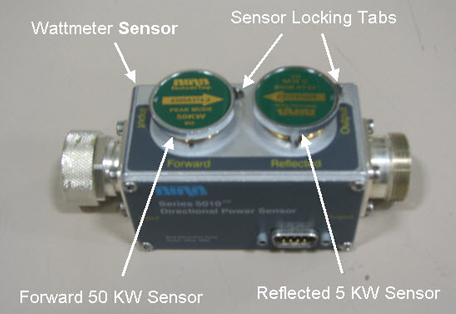
  1. Insert the 50 kW element into the Forward sensor port (green 4300A374-2). Lock the element in place using the locking tab on the sensor. The Reflected port is not used during this procedure. Placing the 5000 W element (green 4300A374-5) into the Reflected port is just a safety measure, and is not used during body calibration.

    Make sure the arrows on the elements point in opposite directions.

    Figure 3. RF Coupler Setup for Body Mode
  2. Use the DVM to measure the resistance of input to the dummy load. Confirm that the resistance measures 50 ohms +/- 5 ohms.
    Note:

    If the dummy load is out of spec, return the RF kit for repair. Do NOT proceed with the RF amplifier output calibration.

Wattmeter and Dummy Load Setup for Body Channel (XRFD Amplifier)

Procedure

  1. Verify that the scanner is idle. Confirm that the RF ENB switch on the DTX1 exciter is in the Disable (down) position.
  2. Disconnect the body output cable from J4 on the front panel of the RF amplifie.
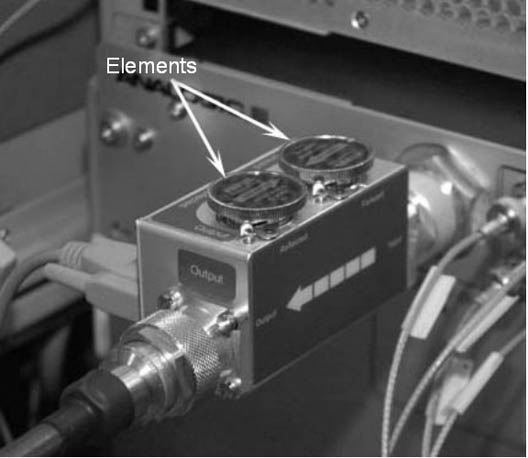
  3. Connect the input of the coupler to J4 on the front panel of the RF amplifier.
    Figure 4. Connection of RF Coupler to Body Output
  4. Connect the output of the RF coupler to the dummy load.
    Figure 5. Complete Body Output Test Setup (16 kW XRFD Amplifier)
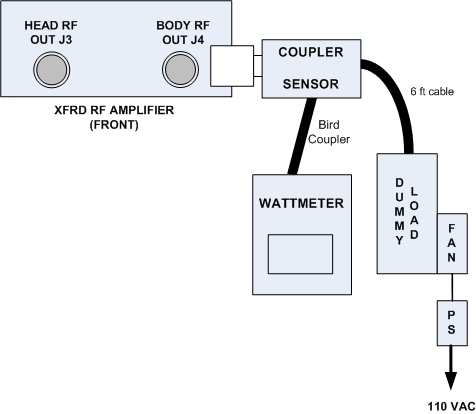
  5. Plug in the wattmeter to use wall power (batteries are often not charged). Connect one end of the wattmeter cable to the sensor connector (RS232 is unused). Connect the other end to the coupler.
  6. Plug the fan for the dummy load into a service outlet located in the upper right part of the PGR cabinet. Never use this dummy load without its fan running.
  7. Set the RF ENB switch to ENABLE (up).
  8. The power measurement kit can have one of two Bird wattmeters. The setup instructions are different for each.

Setting up Bird 5000-EX Wattmeter to Measure Forward Body Maximum Power

About this task
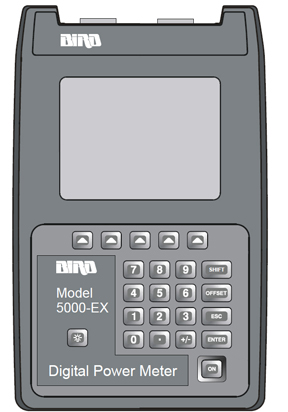
This procedure is for the Bird 5000-EX. If you have a Bird 5000-XT, see Setting up Bird 5000-XT Wattmeter to Measure Forward Body Maximum Power.
Figure 6. Bird 5000-EX Wattmeter

Procedure

  1. Press the ON button on the wattmeter. (If the coupler and sensor are not correctly attached to the amplifier you will see a “No Sensor” indication.)
  2. Select the arrow ▲ button under Scale.
  3. Enter 50000 to set the range.
  4. Select the ENTER button.
  5. Check the setting by selecting the arrow button under Scale.
  6. Press the ENTER button to exit.
  7. Select the arrow button under Fwd Units. Make sure the scale reads W (or kW on some wattmeters). If the scale reads dBm, select the arrow button under Fwd Units again to toggle the scale to read W (Watts) or kW (kiloWatts) on the TOP, forward power scale. Ignore the BOTTOM, reflected power scale value. It is not used during maximum power calibration.
  8. Select the SHIFT button.
  9. Select the arrow button under Setup.

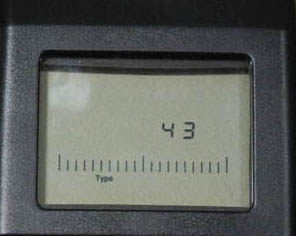
    This displays the sensor type configured in the wattmeter. This procedure uses sensor type 43, which is optimized for peak power measurement.

  10. Verify that the output reads 43, and then press the ENTER button.
    Figure 7. Wattmeter Display Set to Read
  11. Press the ENTER button.
  12. Press the arrow ▲ button under Type and then toggle to change the unit of measurement to Peak.
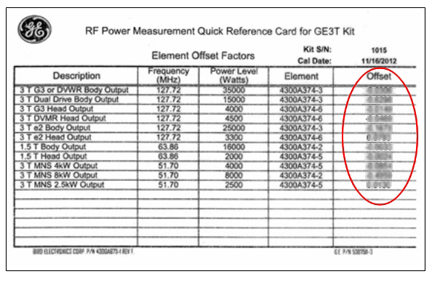
  13. All kits require an offset to ensure accurate measurement. Locate the Element Offset Factors card in the kit.

    Find the offset for “1.5T Body Output.”

    Figure 8. Example Element Offset Factors Card
  14. Press the Offset button on the wattmeter. Enter the numerical value from the offset card and press the Enter button.
    Note:

    To enter a negative value, first enter the numerical value, then the minus symbol (–).

    Figure 9. Wattmeter Set to Display Peak Power
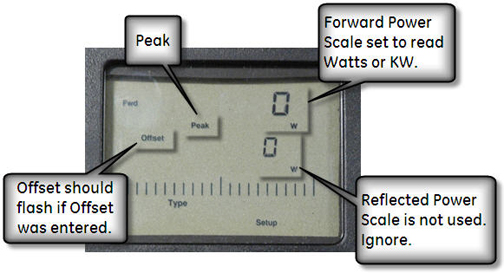
  15. Proceed to Adjusting RF Amplifier Output Power for Body Mode

Setting up Bird 5000-XT Wattmeter to Measure Forward Body Maximum Power

About this task
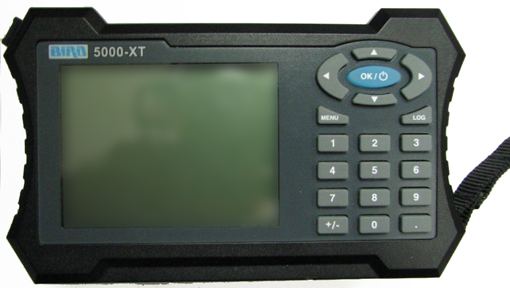
This procedure is for the Bird 5000-XT. If you have a Bird 5000-EX, see Setting up Bird 5000-EX Wattmeter to Measure Forward Body Maximum Power.
Figure 10. Bird 5000-XT Wattmeter

Procedure

  1. Press the OK button on the wattmeter.
  2. Press the MENU button. Press the ▼ button to SCALE MENU, and then press OK.
  3. Press 50000 to set the range, and then press OK.
  4. Check the setting by pressing ▼ to SCALE MENU, and then press OK.
  5. Press OK to exit. Press ◄ to return to measurement mode.
  6. Press ▲ to make sure the scale reads W (or uW or kW on some wattmeters). If the scale reads dBm, press ▲ again to toggle the scale to read W (or uW or kW on the TOP, forward power scale. Ignore the BOTTOM, reflected power scale value. It is not used during maximum power calibration.
  7. Press MENU.
  8. Press ▼ to select ELEMENT TYPE, and then press OK.

    This displays the sensor type configured in the wattmeter. This procedure uses sensor type 43, which is optimized for peak power measurement.

  9. Verify that the output reads 43, and then press OK.
    Figure 11. Wattmeter Set to Read
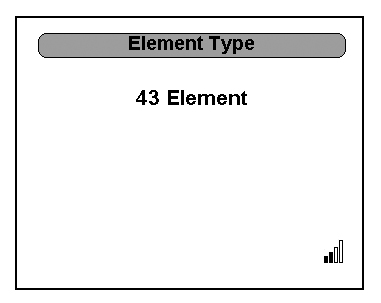
  10. Press OK. Press ◄ to return to measurement mode.
  11. All kits require an offset to ensure accurate measurement. Locate the Element Offset Factors card in the kit.

    Find the offset for “1.5T Body Output.”

    Figure 12. Example Element Offset Factors Card
  12. Press the MENU button on the wattmeter. Select OFFSET, and then press OK. Enter in the numerical value that was displayed on the kit’s offset card and press OK. (The wattmeter rounds to three significant digits.) Press ◄ to return to measurement mode.
    Note:

    To enter a negative value, first enter the numerical value, and then the minus symbol (–).

  13. Press MENU. Press ▼ until SMOOTHING is selected, and then press OK.
  14. To verify that SMOOTHING has been set, press ▼until SMOOTHING is selected, and then press OK.
  15. The wattmeter should display 4 Samples. Press OK.
  16. Press ◄ to return to measurement mode.
    Figure 13. Wattmeter Set to Display Peak Power
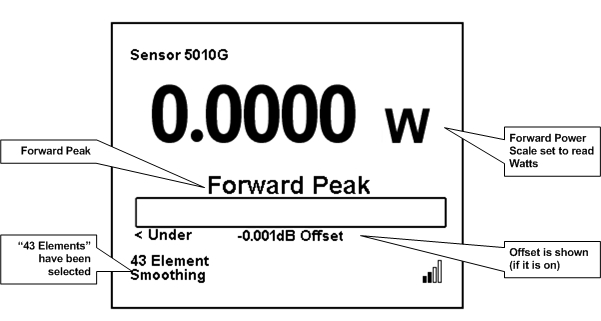
  17. Proceed to Adjusting RF Amplifier Output Power for Body Mode.

Using Agilent Wattmeter and Power Adjustment Kit for RF Body Calibration

About this task

The Agilent wattmeter must be powered on for at least 30 minutes for stable and accurate readings. Plug in the wattmeter and turn it on at the beginning of this procedure.

Agilent Wattmeter Setup

Procedure

  1. Set up the wattmeter for calibration as shown in the following illustration.
    1. Connect the Agilent sensor probe cable to the sensor.
    2. Connect the sensor to the power reference (PWR REF) port on the wattmeter.
    3. Connect the other end of the sensor probe cable to the Channel A port on the wattmeter.
      Figure 14. Agilent Wattmeter Calibration Setup
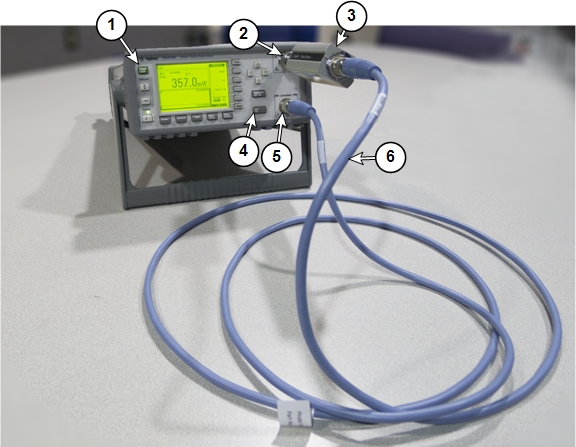
      1Front of wattmeter 4Zero/Cal button
      2Power reference (PWR REF) port 5Channel A port
      3Agilent RF power sensor 6Agilent sensor probe cable
  2. On the front of the wattmeter, press Zero/Cal.
  3. Press the Zero + Cal softkey to start the calibration process.

    The wattmeter displays a wait screen while it zeros. While the wattmeter calibrates, a green LED next to the power reference port turns on (indicating RF power is being transmitted from the reference port). When this LED turns off, the calibration is complete.

    If there is a calibration error, an error message appears on the wattmeter screen. If this happens, check the connections to the meter and sensor and press the Zero + Cal softkey to re-run the calibration.

    Note:

    Expect to see a fluctuating low power reading on the wattmeter on the order of ±3.0 dBm (± 2.0 mW) after it is calibrated.

Wattmeter and Dummy Load Setup for Body Mode (XRFD Amplifier)

Procedure

  1. Verify that the scanner is idle. Confirm that the RF ENB switch on the DTX1 exciter is in the Disable (down) position.
  2. Disconnect the body output cable from J4 one the front panel of the RF amplifier:
  3. Connect the input of the coupler to J4 on the front panel of the RF amplifier:

Setting up Agilent Wattmeter to Measure Forward Body Maximum Power

Procedure

  1. Use a digital multimeter to measure the resistance between the dummy load RF connector center pin and the shield. Confirm a reading of 50 ohms (+/- 5 ohms). Replace the dummy load if the resistance is out of range.
  2. Connect the remaining Agilent power components as shown below.
    Figure 15. Agilent Power Meter Setup for RF Body Calibration
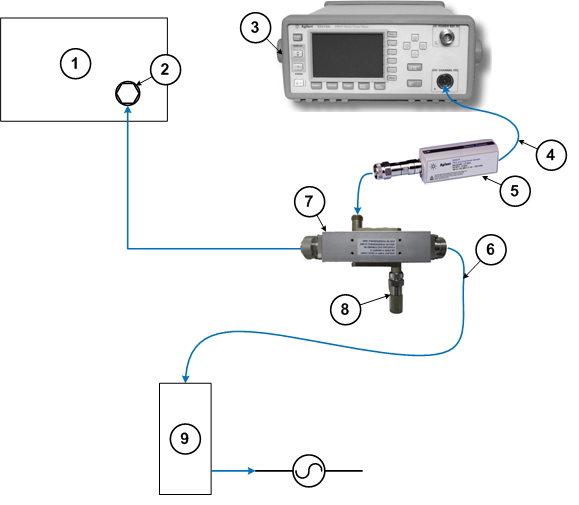
    1RF amplifier (front) 6RF cable to dummy load
    2RF output port 7RF coupler
    3Wattmeter 8Agilent 50 ohm terminator connected to the Reflected port on the coupler
    4Agilent sensor probe cable 9Dummy load with internal fans
    5RF sensor connected to the Incident port on the coupler
  3. Connect one end of the RF sensor to the wattmeter. Connect the other end to the coupler.
  4. Plug the fan for the dummy load into a service outlet located in the upper right part of the PGR cabinet. Never use this dummy load without its fan running.
  5. When the power meter has started, press Preset/Local.
  6. The meter displays a list of predefined applications. Use the up and down cursor keys to highlight 15T_BodyHead.
  7. Press Confirm.
  8. Proceed to Adjusting RF Amplifier Output Power for Body Mode.

Adjusting RF Amplifier Output Power for Body Mode

Procedure

  1. Set RF ENB to ENABLE (up).
  2. Perform a landmark for a body scan. A phantom is not needed.
  3. (For non-proprietary mode) On the Common Service Desktop, select Calibration > UPM Tool and select Click here to start this tool.
  4. Make the following selections for the settings.
    Table 6. Body Mode Settings for Single Drive RF Amplifiers
    Setting Value
    Nuclei 1H
    Task Launch RF Cal
    RF Chain Body
    Note:

    Power Type is grayed out. This is normal.

  5. Select Start.
  6. When a popup appears asking if the system is properly set up, click Yes.

    The system sets the proper sequence for RF calibration of the selected body channel. This process takes about one minute.

  7. When a popup titled RF Amp Calibration appears as shown Figure 16, do not select the Success or Failure button at this time. First, go to the Scan Desktop as shown in Figure 17.
    Figure 16. RF Amp Calibration Popup

  8. Click the Patient icon to go to the Scan workplace.
    Figure 17. Patient Icon
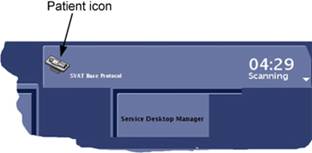
  9. In the Prescan Looping window, set Transmit Gain (TG) to 180.
    Figure 18. Prescan Looping Window
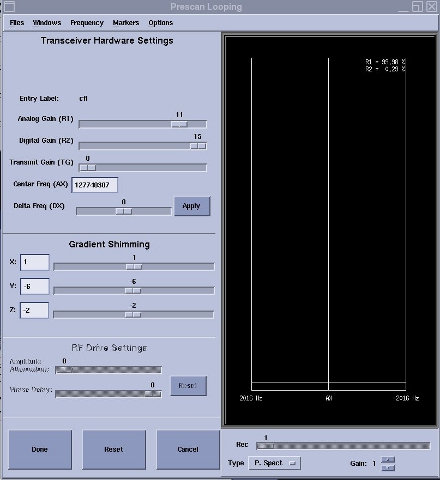
  10. Confirm that a reading of more than 1 kW is present on the wattmeter.

    If the reading is zero or very low, then 1) confirm the correct center frequency value and 2) select Done to stop looping and recheck the test setup cabling.

    If the amplifier trips, reset TG to the highest setting it reached before tripping.

    Note:

    If Manual Prescan must be stopped and restarted, you must relaunch the calibration sequence using the UPM Tool. Select Failure in the RF Amp Calibration popup (see Figure 16), and then click Start on the UPM Tool with the same menu selections, to relaunch the calibration sequence.

  11. Slowly increase TG to 200.
    Note:

    Allow 10 seconds for the meter reading to stabilize before making the next adjustment.

  12. Check the wattmeter to see if the reading is 16 kW ± 500 watts. If yes, proceed to the next step. If no, adjust the gain for the body channel.

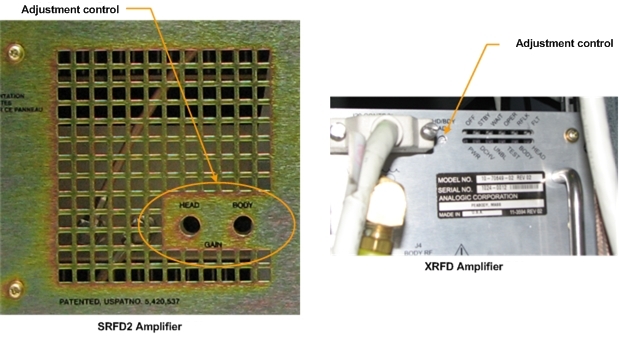
    (For 16 kW XRFD amplifier) Rotate the single HD/BDY adjustment encoder on the RF amplifier front panel and, if necessary, increase the TG in small increments until the wattmeter reads 16 kW ± 500 watts when the TG is 200. Only adjust while the amplifier is actively pulsing. If output does not change, cycle amplifier power, wait 10 minutes, and then repeat the adjustment again.

    Figure 19. Gain Adjustment Controls
  13. After the RF output is calibrated to specification, reduce TG to 0 (zero) and then click Done.
  14. From the scan desktop, click the CSD icon.
    Figure 20. CSD icon
  15. When the RF output is within specification, click Success on the RF Amp Calibration popup (see Figure 16). If the RF out put cannot be adjusted to spec, see: RF Amp Power Check Tool
    Note:

    The RF Amp Calibration popup may be hidden behind the ICW window. Move the ICW window to the left or right to see the RF Amp Calibration popup.

  16. Click Yes to confirm that the RF output calibration was successful.

    After a few seconds, PASS appears in the status area of the UPM Tool.

Calibrating UPM Forward Power for Body Channel

Procedure

  1. Proceed to calibrating forward power for the UPM in body mode. On the UPM Tool, make the following selections:
    Table 7. UPM Calibration Settings (Single Drive RF Amplifiers)
    For this setting: Select:
    Nuclei 1H
    Task Calibrate UPM
    RF Chain Body
    Power Type Forward
  2. Select Start.
  3. Select Yes when the prompt asks if the hardware setup is correct.

    After approximately one minute, you are asked to confirm the peak power value output from the amplifier.

    If the power read from the power meter is within specification, click Yes. Otherwise, click No and recheck the calibration of the RF amplifier.

  4. The tool reports the steps as they progress. In about three minutes, the Status field on the UPM Tool displays PASS or FAIL.

UPM Functional Check for Body Mode

About this task

After completing the UPM calibration, continue with the UPM functional check.

Procedure

  1. From the UPM Tool, make the following selections:
    Table 8. UPM Functional Check Selections for Single Drive RF Amplifiers
    For this setting: Select:
    Nuclei 1H
    Task UPM Func Chk
    RF Chain Body
    Note:

    Power Type is grayed out. This is normal and is not used.

  2. Select Start.
  3. Select Yes when the prompts ask if the hardware is set up correctly.
  4. Prompts are displayed during test execution, including a popup message about the UPM tripping and a power trip error message. The tool performs three tests before the host trip. This takes 2 to 3 minutes before any user interaction is required.

    From the CSD, open the error log. Verify the error log contains the message that the UPM has “detected a power fault on Body Short Term Average.” Select Yes if an error message is displayed.

  5. After completing the calibration and check of the body channel, continue to set and calibrate the RF amplifier for head mode Disabling T/R, DD, and RF Input for Head Mode.

Disabling T/R, DD, and RF Input for Head Mode

Procedure

  1. Verify that the system is idle.
  2. Perform a landmark for a head scan. Any coil or phantom is not needed.
  3. On the front of the driver module, disable the TR and DD fault detection. Set SW2 to TR DISABLE (down) and set SW3 to DD DISABLE (down). See Figure 1.
    Note:

    Leave HV set to ENABLE.

  4. Set RF Enable to DISABLE (down).
  5. The power measurement kit can have either of two brands of wattmeters. The setup instructions are different for each.

Using Bird Wattmeter and Power Adjustment Kit for RF Head Calibration

Setting up RF Coupler for Head Calibration

Procedure

  1. Insert the 5 kW element into the Forward sensor port, (green 4300A374-5). Make sure the arrow on the element points in the direction of the arrow (from Input to Output) on the sensor. Lock the element in place using the locking tab on the sensor.
    Figure 21. RF Coupler Setup for Head Mode
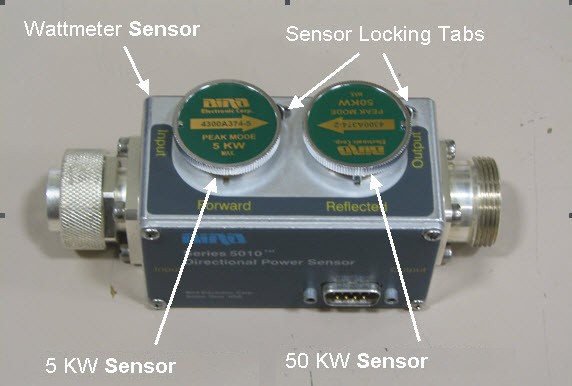
  2. Insert the 50 kW element into the Reflected sensor port (green 4300A374-2). Make sure the arrows on the elements point in opposite directions. Lock the element in place using the locking tab on the sensor. (See Figure 21).

    The Reflected port is not used during this procedure. Placing the 50 kW element into the Reflected port is a safety measure.

  3. Use the DVM to measure the resistance of input to the dummy load. Confirm that the resistance measures 50 ohms +/- 5 ohms.
    Note:

    If the dummy load is out of specification, return the RF kit for repair. Do NOT proceed with the RF amplifier output calibration.

Wattmeter and Dummy Load Setup for Head Mode

Procedure

  1. Verify that the scanner is idle. Confirm that the RF ENB switch on the DTX1 exciter is in the Disable (down) position. See Figure 2.
  2. Disconnect the head output cable from J3 on the front of the RF amplifier:
  3. Connect the input of the coupler to J3 on the front of the RF amplifier:
    Figure 22. Connection of RF Coupler to Head Output
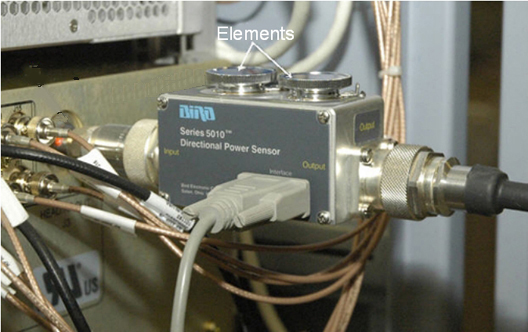
  4. Connect the RF coupler output to the dummy load.
    Figure 23. Complete Head Output Test Setup
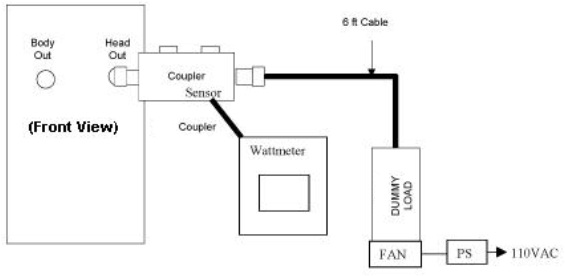
  5. Plug in the wattmeter to use wall power (batteries are often not charged). Connect one end of the wattmeter cable to the wattmeter sensor output connector (RS232 is unused). Connect the other end to the coupler.
  6. Plug the fan for the dummy load into a service outlet in the PGR cabinet. Never use this dummy load without its fan running.
  7. Set the RF ENB switch to ENABLE (up).
  8. The power measurement kit can have one of two Bird wattmeters. The setup instructions are different for each.

Setting up Bird 5000-EX Wattmeter to Measure Forward Head Maximum Power

About this task

This procedure is for the Bird 5000-EX. If you have a Bird 5000-XT, see Setting up Bird 5000-XT Wattmeter to Measure Forward Head Maximum Power.

Procedure

  1. Press the ON button on the wattmeter. (If the coupler and sensor are not correctly attached to the amplifier, you will see a No Sensor indication).
  2. Select the arrow button under Scale.
  3. Type 5000 to set the range and then press Enter.
  4. To validate the setting, select the arrow button under Scale.
  5. To exit, press Enter.
  6. Select the arrow button under Fwd Units. Make sure the scale reads W (or kW on some wattmeters). If the scale reads dBm, select the arrow button under Fwd Units again to toggle the scale to read W (or kW) on the TOP, forward power scale. Ignore the BOTTOM, reflected power scale value. It is not used during maximum power calibration.
  7. Select the Shift button.
  8. Select the arrow button under Setup.

    This action displays the sensor type configured in the wattmeter. This procedure uses sensor type 43, which is optimized for peak power measurement.

  9. Verify that the wattmeter display reads 43. If not, type 43 and then press Enter.
    Figure 24. Wattmeter Display Set to Read Sensor Type
  10. Press Enter.
  11. Select the arrow button under Type, and change the unit of measurement to Peak.
  12. Some kits require an offset to ensure accurate measurement. Locate the Element Offset Factors card in the kit.

    Find the offset for “1.5T Head Output,” 2000 W.

    Figure 25. Example Element Offset Factors Card
  13. Press the Offset button on the wattmeter. Enter the numeric value from the offset card, and press Enter.
    Note:

    If entering a negative value, first enter the numerical value, then the minus symbol (–).

    Figure 26. Wattmeter Set to Display Peak Power and Watts
  14. The meter is now configured to read RF peak power, in watts, for the head maximum output calibration.
  15. Proceed to Adjusting RF Amplifier Output Power for Head Mode.

Setting up Bird 5000-XT Wattmeter to Measure Forward Head Maximum Power

About this task

This procedure is for the Bird 5000-XT. If you have a Bird 5000-EX wattmeter, see Setting up Bird 5000-EX Wattmeter to Measure Forward Head Maximum Power.

Procedure

  1. Press the OK button on the wattmeter.
  2. Press MENU. Press ▼ to SCALE MENU, and then press OK.
  3. Type 5000 to set the range, and then press OK.
  4. Check the setting by pressing ▼ to SCALE MENU, and then press OK.
  5. Press OK to exit. Press ◄ to return to measurement mode.
  6. Press ▲ to make sure the scale reads W (or uW or kW on some wattmeters). If the scale reads dBm, press ▲ again to toggle the scale to read W (or uW or kW) on the TOP, forward power scale. Ignore the BOTTOM, reflected power scale value. It is not used during maximum power calibration.
  7. Press MENU.
  8. Press ▼ to select ELEMENT TYPE. Press OK.

    This action displays the sensor type configured in the wattmeter. This procedure uses sensor type 43, which is optimized for peak power measurement.

  9. Verify that the wattmeter display reads 43. If not, type 43 and then press OK.
    Figure 27. Wattmeter Display Set to Read
  10. Press OK. Press ◄ to return to measurement mode.
  11. Press ► button repeatedly to change the unit of measurement to Forward Peak.
  12. Some kits require an offset to ensure accurate measurement. Locate the Element Offset Factors card in the kit.

    Find the offset for “1.5T Head Output,” 2000 W.

    Figure 28. Example Element Offset Factors Card
  13. Press MENU on the wattmeter. With OFFSET selected, press OK. Enter the numerical value from the offset card and press OK. (The wattmeter rounds the number to three significant digits.) Press ◄ to return to measurement mode.
    Note:

    If entering a negative value, first enter the numerical value, then the minus symbol (–).

  14. Press MENU. Press ▼ until SMOOTHING is selected, and then press OK.
  15. Press ▼ until 4 Samples is displayed, and then press OK.
  16. To verify that the SMOOTHING has been set, press ▼ until SMOOTHING is selected, and then press OK.
  17. The wattmeter should read 4 Samples. Press OK.
  18. Press ◄ to return to measurement mode.
    Figure 29. Wattmeter Set to Display Peak Power and Watts
  19. Proceed to Adjusting RF Amplifier Output Power for Head Mode.

Using Agilent Wattmeter and Power Adjustment Kit for RF Head Calibration

About this task

Confirm that the Agilent wattmeter is still powered on. If the wattmeter has been turned off, it must be powered for at least 30 minutes for stable and accurate readings. The wattmeter must also be zero calibrated Agilent Wattmeter Setup.

Procedure

  1. Use a digital multimeter to measure the resistance between the dummy load RF connector center pin and the shield. Confirm a reading of 50 ohms (+/- 5 ohms). Replace the dummy load if the resistance is out of range.
  2. Before setting up the wattmeter and dummy load for head mode, verify that the scanner is idle. Confirm that the RF ENB switch on the DTX1 exciter is in the Disable (down) position. See Figure 2.
  3. Disconnect the head output cable from J3 on the front of the RF amplifier:
  4. Connect the input of the coupler to J3 on the front of the RF amplifier:
  5. Connect the remaining Agilent power components as shown below.
    Figure 30. Agilent Wattmeter Setup for RF Power Output for Head
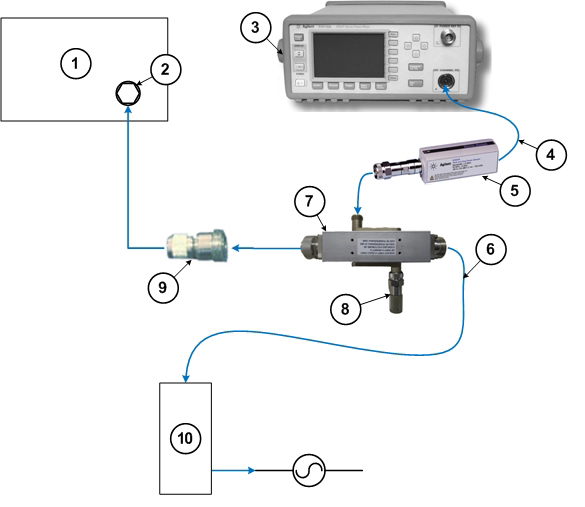
    1RF amplifier (front) 6RF cable to dummy load
    2RF output port 7RF coupler
    3Wattmeter 8Agilent 50 ohm terminator connected to the Reflected port on the coupler
    4Agilent sensor probe cable 9RF adapter
    5RF sensor connected to the Incident port on the coupler 10Dummy load with internal fans
  6. Connect one end of the RF sensor to the wattmeter. Connect the other end to the coupler.
  7. Plug the fan for the dummy load into a service outlet in the ISC cabinet. Never use this dummy load without its fan running.

Adjusting RF Amplifier Output Power for Head Mode

Procedure

  1. Set RF ENB to ENABLE (up).
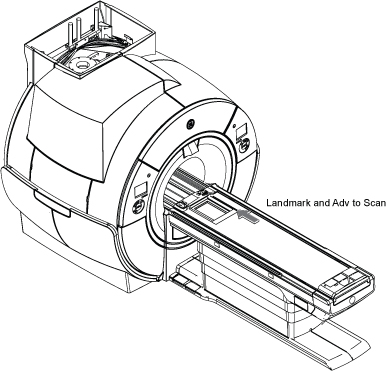
  2. Press Landmark. Then, advance to scan. A phantom is not needed.
    Note:

    No phantom is needed since dummy command for head connection is set in UPM Tool Head mode for SIGNA Voyager.

    Figure 31. Adv to scan
  3. On the UPM Tool, make the following selections for the settings.
    Table 9. Head Mode Settings
    Setting Value
    Nuclei 1H
    Task Launch RF Cal
    RF Chain Head
    Note:

    Power Type is grayed out. This is normal.

  4. Select Start.
  5. When a popup appears asking if the system is properly set up, click Yes.

    A message displays asking if you have completed the body mode. Click Yes.

    The system sets the proper sequence for RF calibration. This process takes about one minute.

  6. When a popup titled RF Amp Calibration appears, do not select either the Success or Failure button at this time. First, go to the Scan Desktop.
  7. Click the Patient icon (shown in Figure 17) to go to the Scan workplace.
  8. In the Scan workplace, click the patient model to open the manual prescan window.
  9. Slowly move the Transmit Gain (TG) slider to 180. Make sure everything is functioning normally and there is a reading on the wattmeter.
  10. Slowly increase the TG to 200 (if the amplifier trips, reset the TG to the highest setting it reached before tripping).
  11. Check the wattmeter to see if the reading is 2000 watts (2.0 kW) ± 100 watts. If yes, proceed to the next step. If no, adjust the gain for the head channel.

    (For 16 kW XRFD amplifier) Rotate the single HD/BDY adjustment encoder on the RF amplifier front panel and, if necessary, increase the TG in small increments until the wattmeter reads 2kW ± 100 watts when the TG is 200. Only make adjustments while the amplifier is pulsing. If the output does not change, cycle the amplifier power. Wait 10 minutes and then repeat the adjustment process.

    Allow 10 seconds for the meter reading to stabilize before the next adjustment.

  12. After the RF output is calibrated to specification, reduce the TG to 0 (zero).
  13. From the scan desktop, click the CSD icon (see Figure 20).
  14. If the RF output is within specification, click Success on the RF Amp Calibration popup.
    Note:

    The RF Amp Calibration popup may be hidden behind the ICW window. Move the ICW window to the left or right to see the RF Amp Calibration popup.

  15. Click Yes to confirm that the RF output was successful.

    After a few seconds, PASS appears in the status area of the interface.

UPM Calibration for Head Mode

Procedure

  1. Proceed to calibrating the UPM in head mode.
    Table 10. UPM Calibration for Head Mode
    For this setting: Select:
    Nuclei 1H
    Task Calibrate UPM
    RF Chain Head
    Power Type Forward
  2. Select Start.
  3. Select Yes when the prompt asks if the hardware setup is correct.

    After approximately one minute, you are asked to confirm the peak power value output from the amplifier.

    If the power read from the power meter is within specification, click Yes. Otherwise, click No and recheck the calibration of the RF amplifier.

  4. The tool reports the steps as they progress. In about three minutes, the Status field on the UPM Tool displays PASS or FAIL.

UPM Functional Check for Head Mode

Procedure

  1. After completing the UPM calibration, continue with the UPM functional check.
    1. On the UPM Tool, make the following selections:
      For this setting: Select:
      Nuclei 1H
      Task UPM Func Chk
      RF Chain Head
      Note:

      Power Type is grayed out. This is normal and is not used.

    2. Select Start.
    3. If the functional check passes, select Quit.
  2. After the RF amplifier and UPM are calibrated for head mode, proceed to Finalization.

Finalization

Procedure

  1. Set the RF ENB switch to DISABLE (down).
  2. Adjust connections as disconnect the RF coupler from J3 and reconnect the head transmit line.
  3. Re-enable the TR and DD fault switches on the front of the driver module. See Figure 1.
  4. Set RF ENB switch to ENABLE (up).
  5. Confirm that the other RF amplifier system cables are reconnected to their correct locations for clinical scanning.
  6. Perform Check Scan.
  7. If all the calibrations have been successfully made, perform a SaveInfo to save the UPM calibration results.