
- Object ID: 00000018WIA305BF450GYZ
- Topic ID: id_2024236 Version: 2.1
- Date: Nov 10, 2020 2:27:39 PM
Creating a customized logon message
The MR system can be configured to display a custom system message to be displayed on the logon screen.
Procedure
- Open the EA3 Administration window.
- Click the Application tab.
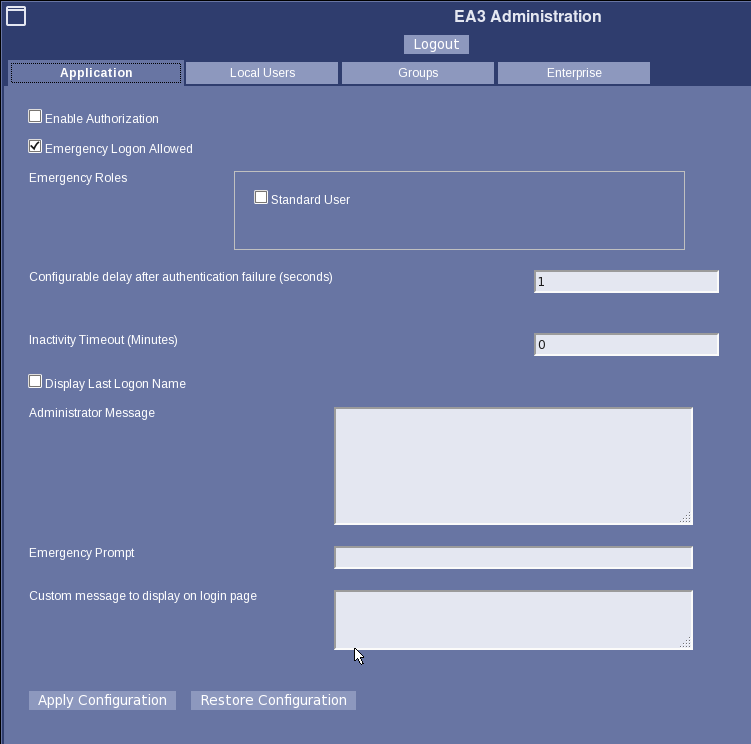
- Fill in the desired logon message, such as:You are accessing a U.S. Government (USG) Information System (IS) that is provided for USG-authorized use only. By using this IS (which includes any device attached to this IS), you consent to the following conditions: -The USG routinely intercepts and monitors communications on this IS for purposes including, but not limited to, penetration testing, COMSEC monitoring, network operations and defense, personnel misconduct (PM), law enforcement (LE), and counterintelligence (CI) investigations. -At any time, the USG may inspect and seize data stored on this IS. -Communications using, or data stored on, this IS are not private, are subject to routine monitoring, interception, and search, and may be disclosed or used for any USG-authorized purpose. -This IS includes security measures (e.g., authentication and access controls) to protect USG interests -- not for your personal benefit or privacy. -Notwithstanding the above, using this IS does not constitute consent to PM, LE or CI investigative searching or monitoring of the content of privileged communications, or work product, related to personal representation or services by attorneys, psychotherapists, or clergy, and their assistants. Such communications and work product are private and confidential. See User Agreement for details.
- Click Apply Configuration.
- Open a virtual terminal window and enter the
su- rootcommand.Note: The Shell window can only be launched when the EA3 user is included in the authorized EA3 group. Users not in this EA3 group will not have access to launch the Shell window. If you are not logged in as the proper logon user, log out and then log back on as the correct EA3 user with the authorized permissions. - Edit the file /etc/issue to contain a logon message using the
[ root@MRscanner ] gedit /etc/issuecommand.