Correct improperly entered patient information or add information that was previously unavailable at the time the patient data was entered into the system.
Prerequisites
Personnel requirements
Required persons
Preliminary requirements
Procedure
Finalization
1
-
5 minutes
-
About this task
You can only edit patient information after the exam ends, when all the exam information has finished reconstruction, and none of the system functions are actively using the data.
Procedure
From the header area of the screen, click the Image Management icon.
Figure 1. Image Management icon
From the Image Management Patient List, select the exam to be edited.
Only one exam number can be selected.
The exam must be closed or ended.
The exam cannot be active in an application such as the Viewer, FuncTool, and so on, or in a queue for archive, network, or film.
You can only edit exams that were created on your system.
The images must be in Digital Imaging and Communications in Medicine (DICOM) format.
The exam must not be too old.
This parameter is set from the Service Desktop Manager screen: Guided Install > FE Mode > Start > Enter Password > Edit Patient Data.
The default is 14 days.
You can edit exams multiple times.
From the Data Apps list, click Edit Patient.
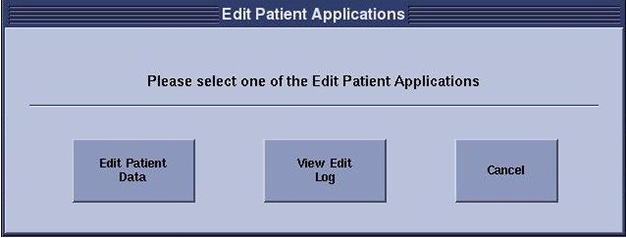
Figure 2. Edit Patient Applications screen
On the Edit Patient Applications screen, click Edit Patient Data.
Edit Patient Data opens the Edit Patient Data screen.
View Edit Log displays a log of the most recent edited events.
Cancel closes the Edit Patient Application.
Read the cautions and click Accept to continue.
Note: After editing is completed, the original exam is removed from the patient list and is no longer accessible.
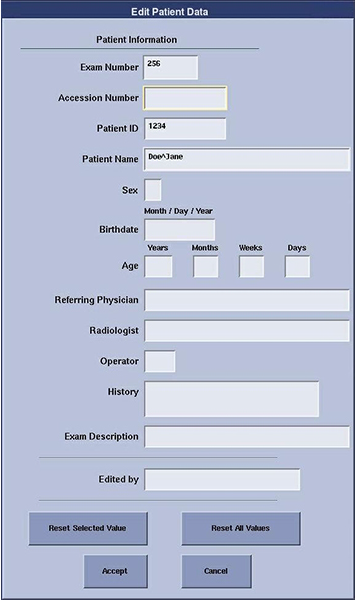
Figure 3. Edit Patient Data screen
On the Edit Patient Data screen, complete the text fields you want to change.
The Exam Number text box is the only text box that you cannot edit.
If the text box is empty, click in the text box and type the new data.
If the text box contains data, put your cursor in the text box and select the text you want to change. When the text is selected, press Delete or immediately begin typing new data.
If you make an error, you can click Reset Selected Value or Reset All Values.
When entering data in the Birthdate field, the month, day, and year can be separated by a dash (-), slash (/), comma (,), or period (.). The year must contain four digits (for example 2007).
You must enter your name or initials (a minimum of three characters) in the Edited by text field.
Click Accept when your changes are complete.
Click Accept at the confirmation prompt.
A percentage status displays until the Edit Patient Data screen is closed and the Patient Information Edit Log is updated.
The original exam is replaced with the edited exam. It is indicated by "e" in the description in the patient list.
A plus (+) or minus (-) sign indicates that the examination's date and time has been increased or decreased. The system determines the plus or minus by the time of day the examination number was edited. Any original examination that is edited after 11:55 PM on the date the scan was completed has a minus sign.
The number indicates how many times the exam has been edited.
Note: If you have started the edit process and the number of images in the examination changes before the data is updated, exit the edit function and try again. This could happen if you start to edit the patient data, then enter the Add/Subtract application and add images to the examination. When the edits are accepted, an error message shows.