- Optima MR450w BASE 1.5T System Service Methods
- 5690012-2EN Revision 3
- 00000018WIA30CF9060GYZ
- id_20289292.0
- Feb 21, 2021 9:04:19 PM
Upgrading an Loading USB Host System Software (Quick Start)
| Notice | |
|---|---|
 | |
| Loading software | |
|---|---|
| Step | Procedure for USB load only |
|
Prerequisites |
|
|
Note: Refer to the MR Service Pack Software Matrix (DOC1667089), available from the online documentation library and make sure the necessary service pack media (if any) is available. Do not start the software load until this media is available.
| |
|
Required media |
|
|
Perform SaveInfo (Check Information instead if using an older SaveInfo media) |
Note: The SaveInfo is done automatically and stored on the USB installer when the install is started. Saving information.Note: If restoring from older SaveInfo is desired, insert the SaveInfo media. The installation will prioritize the restore from the DVD media over the USB Installer Media. |
|
Load USB host system software |
Reloading or upgrading USB host system software Note: If a RestoreInfo media with all the required files is available, then Host OS load, Applications Software Load, ICN Configuration, IRM software and SSA licenses, including restore of connectivity settings, are all automatically executed sequentially.
Note: Beginning with software release 29.1 software restoring information will automatically set the PNF Filter setting to ON regardless of previous setting. Make sure you re-set the PNF filter to previous setting after consulting with the customer.
In case any failures are observed, after the completion of applications software load, a dialog box appears showing all remaining tasks that need to be completed. To complete these tasks manually, see the procedures in this table. If any failures occur prior to the applications software load completion, restart the software load process. For a list of errors and possible actions during the software load process, see Troubleshooting the software load. |
|
Loading proprietary software |
This task is automated. In case of any failure, this can be attempted manually. |
|
Configure ICN (VRE) OS |
This task is automated for software re-installations and upgrades if the RestoreInfo action is successful. In case of any failure, this can be attempted manually. See Configuring the ICN - VRE. |
|
Update System configuration |
Update the system configuration, hardware configuration, and Security levels for software 29.0 and later configuration in Guided Install. Complete any other site configuration as needed in Guided Install and click Configure in each tab. |
|
RSvP registration |
This task is automated for software reinstallations and upgrades if the RestoreInfo action is successful. Register device with RSvP to establish remote connectivity. See Configuring the Remote Service Platform (RSvP). See Enabling the Remote Service Platform (RSvP) iLinq to enable iLinq. |
|
Install SSA |
This task is automated for software reinstallations and upgrades if the RestoreInfo action is successful. If upgrading from software revision prior to DV26 or changing host PC or any of its components, the SSA 16-digit license code will change and also the new SSA API in MR29.0 and later requires an additional signature file, which means the SSA soft key license for the site must be regenerated and reload both files (.dat & .ssa). See Managing SSA service licenses for information on how to record the service license ID. See Ordering service license softkey to order the license. See Loading service license softkey to load the license. |
|
Install options/option keys |
For the purchasable option keys, see Option key catalog matrix. Note: Signa Secure Advanced option: If the customer purchased this license, configure the security setting in Guided Install to Signa Secure Advanced. The system must be restarted to enable the highest security configuration in Guided Install.
|
|
Install operator manual | |
|
Install latest service pack (if required) |
See Loading software updates from repository or CD/DVD or Installing updates from Remote Software Download (RSD). Note: Refer to the MR Service Pack Software Matrix (DOC1667089), available from the online documentation library and make sure the necessary service pack media (if any) is available. Do not start the software load until this media is available.
|
|
Close Guided Install from File → Quit option and then reboot the system |
|
|
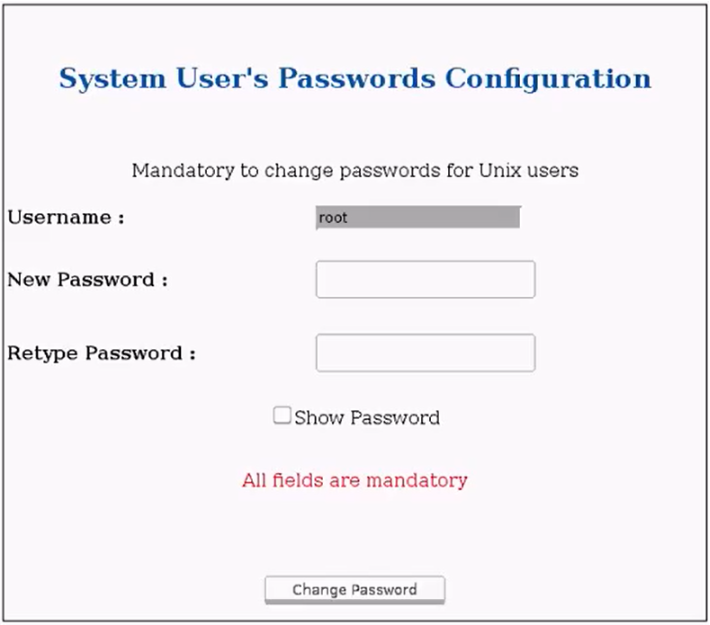
Setup temporary OS Passwords (for time period during calibration) |
|
|
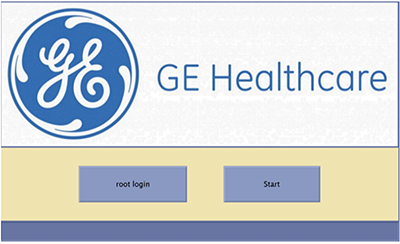
Login to Applications |
Click Start to log in to applications.
 |
|
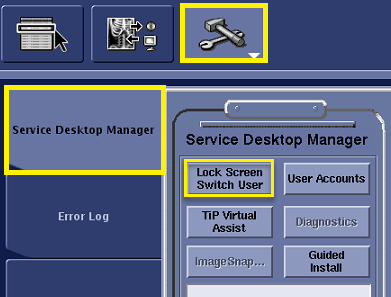
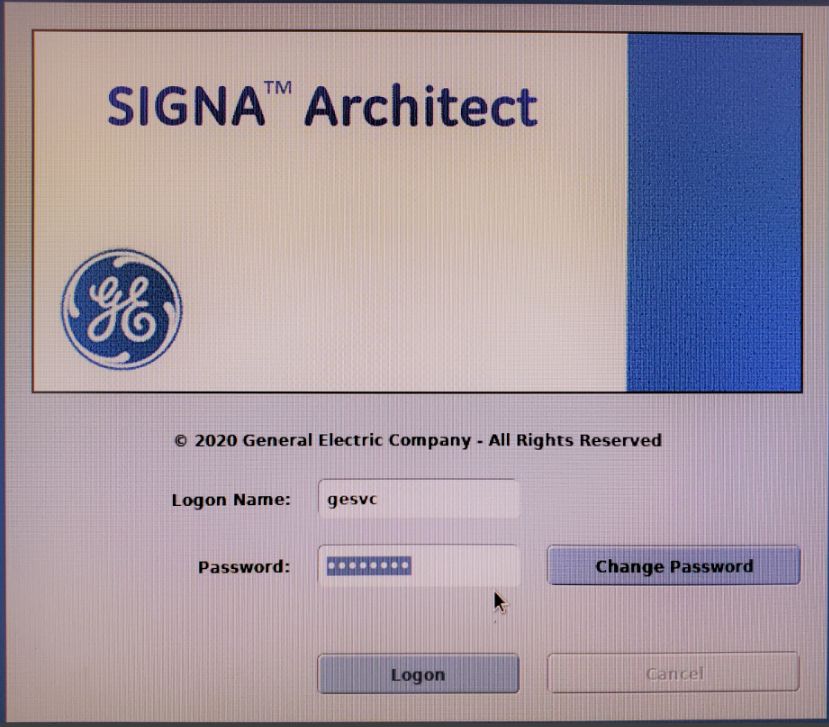
Setup EA3 gesvc password |
|
|
EA3 User Group Establishment |
Add EA3 users to their correct user groups to establish the correct permissions. For information on adding user groups, see Configure user accounts for Role Based access controls. Note:
Add the gesvc user to groups:
Add the administrator user to groups:
|
|
System Calibration |
Launch Installation and Calibration Wizard and complete any necessary calibration procedures. Refer to Installation and calibration wizard (ICW) Upgrade mode for your product. Note: The first reboot after Install In Spec (IIS) key is generated the system will force the password setup for customer OS and EA3 accounts. Contact the customer at this point to prepare for their password setup and have the customer present at post IIS reboot time.
|
|
Do the Safety Calibration Checks | |