- Topic ID: id_16157632
- Version: 3.0
- Date: Jun 10, 2020 2:25:50 AM
(17BW24.x and 18BW42.x) Load From Cold
Prerequisites
Overview
This LFC (Load from Cold) procedure supports the following system:
-
Optima CT520 with Z840 Host PC
-
Optima CT540 with Z840 Host PC
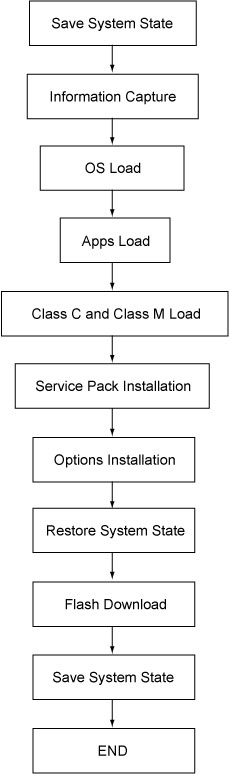
The following procedure describes and illustrates the system software loading process commonly referred to as the Load From Cold (LFC). It is important to follow the steps listed below in order.
Figure 1. LFC Procedure Flowchart
1 Software Deliverable for OpenOC16 Console
Procedure
- OS SUSE
- CT Applications Software
2 Pre-LFC Checks and Information Gathering
Procedure
- Confirm that a current system state backup media is on site. If unsure of the status of the system state, execute Save System State procedure to save a system state backup to either DVD-RAM or USB media, found in the software chapter of this manual.
- notice
- Remove all media from DVD peripheral tower before starting the OS Load of the LFC process.
 |
3 Information Capture
3.1 Common Information Capture
Procedure
- Record Autovoice Volume control settings (ALT-F3 by Toolchest, upper right corner).
- Write down all of the system INFO information on the reconfig screens, including the network information (use the appropriate information sheet, found in Console Information Sheets)
- notice
- Verify and record specific system hardware configuration.
- Open a shell and type the following:
{ctuser@hostname} cat /usr/g/config/INFO
- Record screen information in Console Information Sheets.
For an example output, see Example Config/INFO Output.
- Open a shell and type the following:
- If the console has Connect Pro installed, write down the information when you run installhisris so it can be entered on the new console when installing the Connect Pro option.
- Close the Service Desktop window in the upper left corner of the screen.
|
3.2 Information Capture for Option Installation
If your system does NOT have “Exam Split” option, skip this section. Perform these steps before powering down your current Operator Console:
Procedure
- Open a Unix Shell and type the following:
- {ctuser@hostname} su –
- Password: #bigguy
-
[root@hostname]
ls –l ~ctuser/ves/.hesMode
note: There are no spaces in the phrase ~ctuser/ves/.hesMode.
- Examine the results.
-
If the results are similar to:
-rw-r--r-- 1 ctuser users 0 Apr 3 12:43
/usr/g/ctuser/ves/.hesMode
Then HES (Hard Exam Split) mode is configured.
-
If the results show ‘No such file or directory’, then VES (Virtual Exam Split) mode is configured.
-
- Record Exam Split Mode (Hard or Virtual). This info will be used during the LFC Options Installation.
- Close the Unix Shell
3.3 Save JEDI Runtime Parameters
Procedure
- Save the Jedi Runtime parameters.
- Detail procedure, refer to Software → HV Subsystem Utilities → JEDI Generator Tool for how to save them.
4 Operating Software (OS) Load
NOTE: Takes 20 minutes approximately to complete OS installation.
Procedure
- Insert the OS disk into the host computer DVD drive.
- Shutdown and re-power the operator console:
- If application is up:
-
Shut down the application.
-
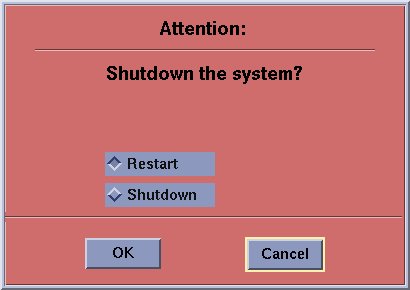
Select Restart then OK to restart the system.
Figure 2. Monitor Display – Restart System
-
- If application is down, at the toolchest open a shell and type:
-
{ctuser@hostname} sync
-
{ctuser@hostname} halt
-
The operator console monitor will display a System halted message when it is acceptable to power OFF the operator console.
-
Power OFF the operator console at the front panel switch.
-
Wait 30 seconds to allow the disk drive to settle; then power ON the operator console at the front panel switch.
-
- If application is up:
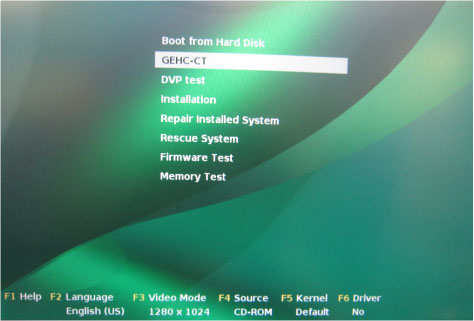
- As the computer restarts, the installation interface appears,
select GEHC-CT and enter.
Figure 3. Monitor Display – Installation Prompt
- System starts Base Installation procedure, includes two steps: AutoYaST Setting and Perform Installation.
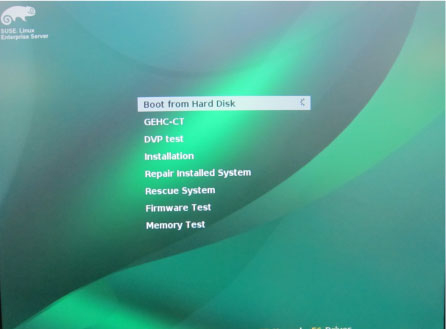
- The computer restarts after about 15 minutes, the installation
interface appears again, select Boot from Hard Disk and enter.
Figure 4. Monitor Display – Boot Prompt
- System starts Configuration procedure, includes two steps: System Configuration and Clean Up.
- After the OS is loaded, the Application Install – KDialog window
appears.
Figure 5. Monitor Display – Application Installation
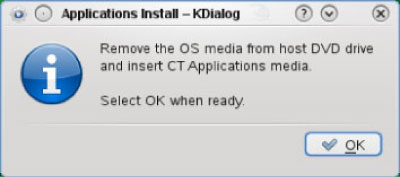
- Remove the OS disk from the host computer DVD drive when it ejects.
5 Applications Software (APPS) Load
NOTE: Takes 40 minutes approximately to complete application installation.
Procedure
- Insert the APPs disk into the host computer DVD drive and close the tray. When devices recently plugged in window appears, then click OK button in Application Install - KDialog window.
Figure 6. Devices Recently Plugged
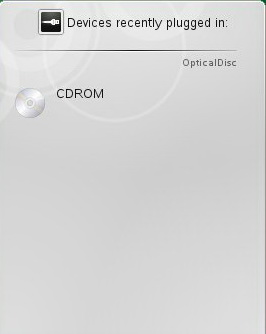 note: The application software disk will open and run automatically.
 - Select Load in the CT Software Installation
window.
Figure 7. Apps Load Command Window
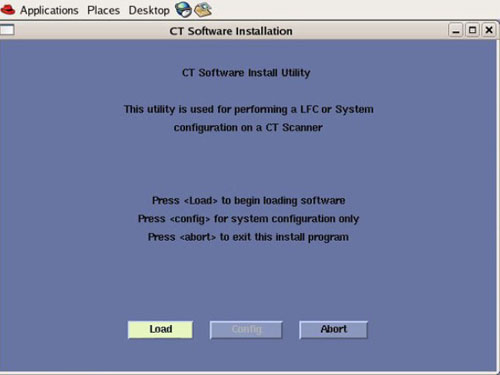
- A prompt message appears asking if you wish to load the INFO
file from the system state backup media.Select Yes.
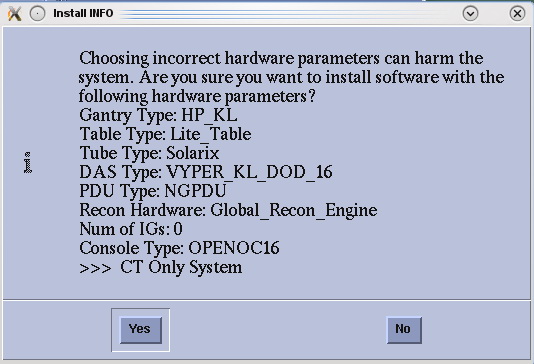
Figure 8. Install INFO Window
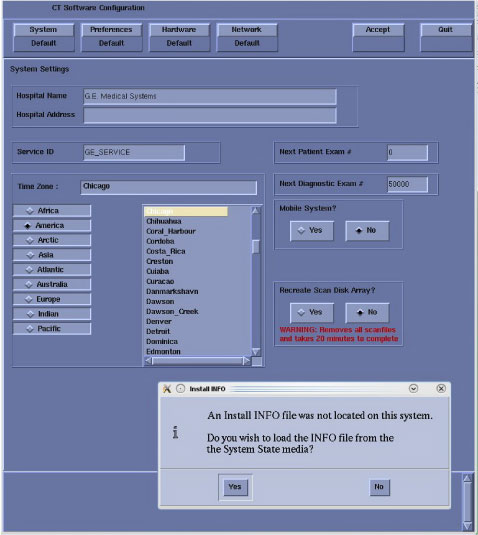 note: If a valid and current system state backup media is not available, select No and manually configure the Hardware Tab to define system and console type in accordance with the procedure Manual Configuring System INFO.
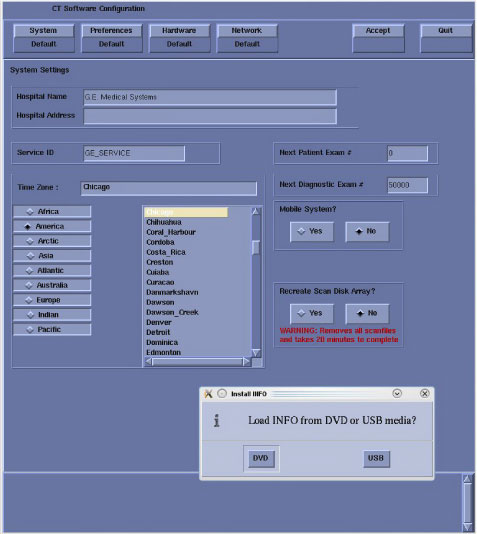
 - System state (Install INFO) media type decision window will
appear
Select DVD or USB based on media type available.
Figure 9. System State Media Type Window
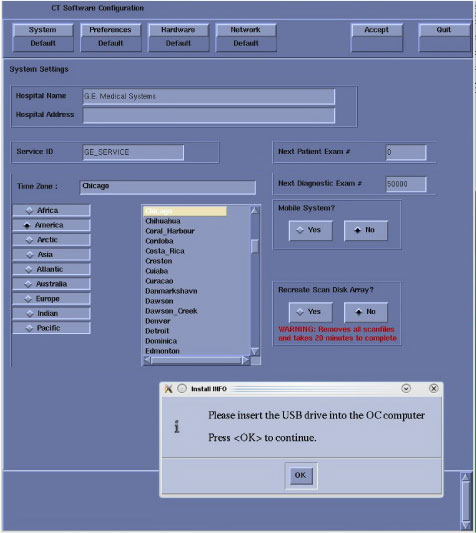
- Insert the system state backup media (DVD-RAM or USB). note:
DVD-RAM media: Insert DVD-RAM media into the DVD-RAM drive located in the DVD peripheral drive tower.
USB media: USB media can be inserted in any of the USB ports located on the console. Recommend using the service USB port located next to the console's power switch.
Select OK.
Figure 10. Install INFO - System State DVD Install Window
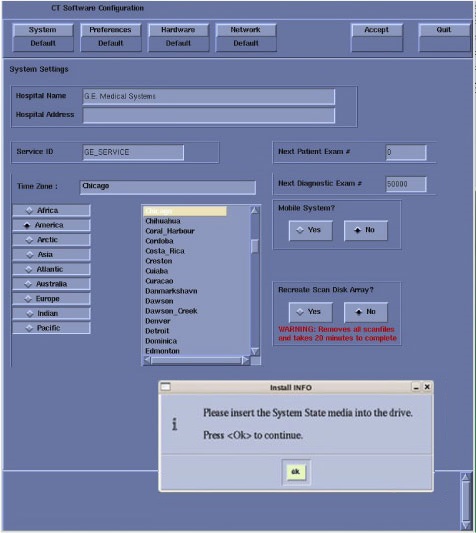
Figure 11. Install INFO - System State USB Install Window
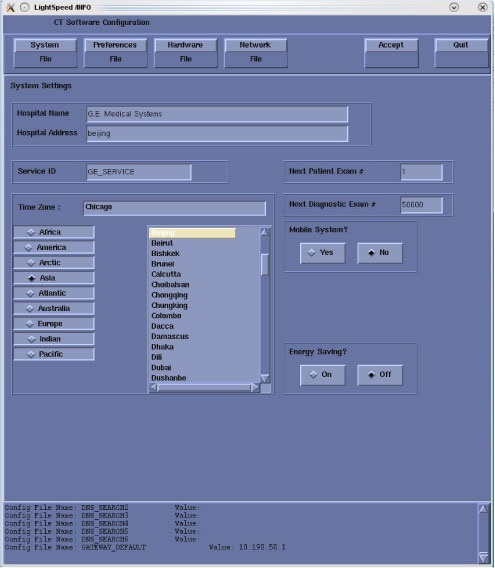
- The Install INFO on the system state backup media will be read
and if a valid system state backup has been inserted, CT Software
Configuration window will become active.
Select Accept.
Figure 12. Install INFO - Accept Window
- The Install INFO on the system state backup media will be displayed
and a confirmation window will appear.
Select Yes.
Figure 13. Install INFO - Confirm Window
 note:
note:The Install INFO detail in illustration will differ depending on system type. Verify that the Install INFO detail is correct for the system before selecting [YES].
If the information is not correct, select the [NO] button. This returns you to the Hardware screen. Select the Hardware Parameters Selection button and select the correct system configuration from the displayed list. Select the Accept button again, following by the YES button on the Install INFO pop-up to accept the new hardware configuration.
- System Install INFO will be now used to create the CT application load routine. Do not remove the APPs Disk until completed.
- The following pop-up message appears:
Please make sure the CT Application SW is in the drive - the system will be rebooted.
No action is required for this pop-up. The system will automatically reboot after approximately 10 seconds if the OK button is not selected.
- The APPs is loaded after about 17 minutes, then system will automatically reboot.
- After the host computer reboots, a pop-up window will appear
Figure 14. CT Software Auto-Start Disabled Pop-Up Windows
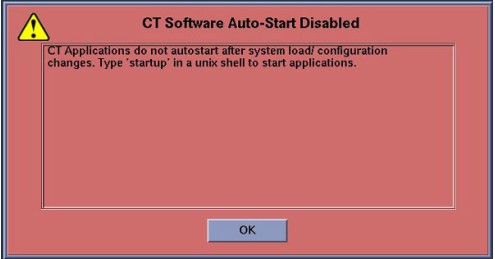
Click OK to close window.
note:Remove APPS disk from Host Computer.
Remove system state backup media for either DVD-RAM drive of tower or USB port.
6 Confirm Host PC Software
Procedure
- Enter the cursor in the monitor screen, then click on the right button of the mouse to select UnixShellLeft or UnixShellRight in Utilities window.
- A unix shell window pops up and type the following to see software
and hardware config information:
{ctuser@hostname} swhwinfo
17BW24.x. <hardware revision info here>
Example: 17BW24.1.KL_S_KLDOD16_G_HLT
- Confirm that the swhwinfo results match the
software revision shown on the applications disk.
-
If the revision match, continue with this procedure.
-
If the revision do NOT match, reload the software.
-
7 Set Time and Date
Procedure
- Open a unix shell and log in as root:
-
{ctuser@hostname} su -
-
Password: #bigguy
-
- Set date and time. Type the following:
{root@hostname}# setdate Enter to be prompted through the individual entries. Where:
Note: Type “q” to quit anytime. Enter to proceed:
Note: TO BE ACCURATE, this tool will prompt you to enter the “Second”. Watch your clock or PC carefully to enter the proper value, and hit [Enter] at the right second to set the accurate time. Enter to proceed:
Enter the current Year (1980-2030) [2010]:
Enter the current Month (1-12) [04]:
Enter the current Day (1-30) [14]:
Enter the current Hour (Military Time) (0-23) [18]: 15
Enter the current Minute (0-59) [13]: 18
Enter the current Second (0-59) [00]: 10
Updating the time on the OC, Please Wait...
- Upon completing either of the above commands, the user will
receive the following responses:
Current OC date : Fri Apr 14 16:14:05 CDT 2010
[root@hostname]#
setdate completed with NO ERRORS.
- Type: [root@hostname]# reboot
- Turn OFF the Operator Console power at the front switch.
- Wait ten (10) seconds, then turn ON the Operator Console power at the front switch.
8 Startup Application Software
Procedure
- Open a unix shell and type the {ctuser@hostname}startup
- Application will be started up automatically.
- A pink pop-up Attention Message appears: OC initializing.
Please wait….note: If a message concerning incorrect DAS configuration is encountered, review the Error Log for the Card List issue. Select from the following two methods to alleviate this issue: Flash Download Update or Power OFF the Axial Drive and HVDC at the Gantry service panel - turn OFF DAS Power for 1 minute - turn DAS Power back ON - turn Axial Drive and HVDC at the Gantry service panel back ON - Flash Download Update - verify error message has disappeared. If error message reappears then troubleshoot the DAS/DCB.
- Select OK for other pink message boxes
that appear throughout the reboot process.
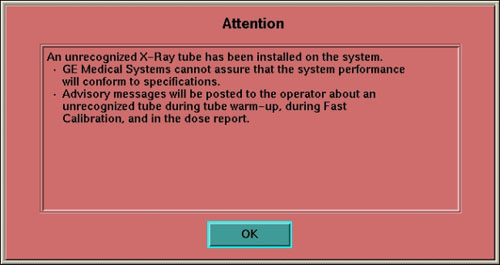
After each reboot during the software load process, an 'Unrecognized X-Ray Tube' message will be displayed (as shown below) until the tube identity has been selected (later in this procedure) and 'Flash Download' has also been performed.
- If any Recon Selftest Failures are encountered, review the error log. Make certain to note the errors for troubleshooting after the LFC.
9 Load Other Service Software
9.1 Service Pack Load
Procedure
- Open a Unix Shell.
- If Application software is up, perform{ctuser@hostname}cleanMon.
- In the Unix Shell, become root:
{ctuser@hostname } su -
Password: <password>
note: If the Password has not been modified by the site and is not known, contact Local GE Service. - Check which Service Pack is installed, type {root@hostname} #swhwinfo.
- Insert the Service Pack CD into DVD drive in the host.note: Service Pack CD will include any new service pack and all previous released service packs that are still applicable. Load all of the Service Packs included in the latest Service Pack CD in sequence.
- Perform the following steps to install the Service Pack CD:
- Type the following install script:
[root@hostname ]# patch_install -c
note:Any patches on the Service Pack CD will be listed. Before installation of each patch, the window will wait for user's confirmation as follows:
I will install update Patch Name , is this ok ? [y/n]
- Input y to install this patch or n to cancel installation of this patch.
- After installing the Service Pack CD, type patch_status (Class M service key inserted is required to use this command) in
the Shell window to determine which Service Pack patches were installed
(if any). The following is an alternate command to verify the Service
Pack load:
[root@hostname ]# showprods | grep -i ServicePack
- Type:[root@hostname]#reboot
note: A reboot is always required after a patch is installed. Additional processes may be required for installing certain Service Pack media. Refer to the instructions sent with the Service Pack. - Type the following install script:
10 Install Software Options
|
|
|
|
If performing a Load From Cold (LFC) for the first time and software option licenses plus site-specific configuration has not been saved to system state, software options will need to be loaded manually.
-
Follow the procedures in this section to install the options manually.
OR
-
Software options licenses will be loaded during restore system state.
Procedure
- Insert the Options DVD in the peripheral tower DVD-RAM drive.
- With the Applications up, select the SERVICE DESKTOP.
- Select CONFIGURATION.
- Select INSTALL OPTIONS. A blank software options screen appears:
- Select INSTALL. A Select Mechanism window
opens (see illustration, below). Select the mechanism through which
you want to install option keys.
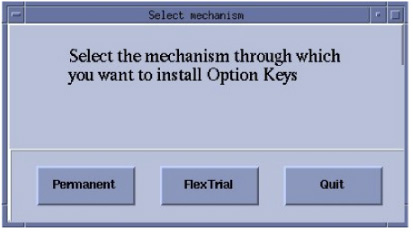
- Select Permanent. A Select Device window
opens (see illustration, below). Select the mechanism through which
you want to install the permanent option keys.
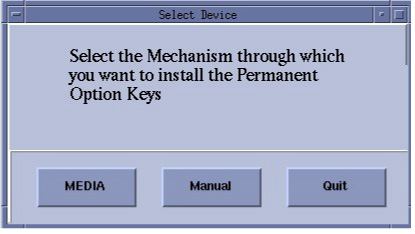
- Select the MEDIA button and insert the options DVD. Available options appear on the software options screen.
- Perform option installations if applicable.note: The order of installation is critical.
- Pick remaining options one at a time from the Available Options list and select INSTALL to update each selection and place it on the Installed Options List.
- When the process is complete, select Quit then quit to close the window.note: After Select Quit, please wait for 5 minutes before perform any other operation.
11 Restore System State
Restart Application to perform Restore System State.
12 Tube Identification
Procedure
- notice
- Verification that a tube is a GE Healthcare tube (called “GE
Tube” in the TIC tool) can be done by visually checking the
Manufacturer Name, which can be found on the tube rating plate.
-
If you are installing a GE brand tube, click [GE Medial System Tube]
-
If rating plate does not identify the tube as a GE brand tube, click [ALL OTHERS]
note: Some Advanced features may be disabled and pop-up warnings will be activated.note: Do not double-click the Tube Certification Tool. This will cause more than one tool window to be displayed; one with message ‘service key information not available’. If this happens, close the window and try again. If this happens more than once, reboot system and try again.
Figure 15. Selection of Tube Identify
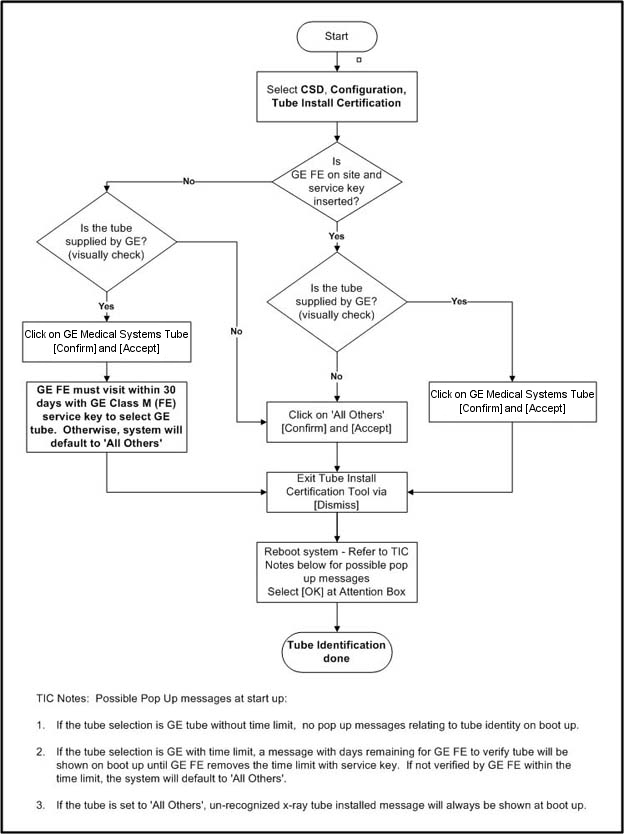
Flowchart Note:
Possible pop-up messages at start-up:
-
If the tube selection is GE tube without time limit, no pop-up messages relating to tube identity on boot up.
-
If the tube selection is GE with time limit, a message with days remaining for GE FE to verify tube will be shown on boot up until GE FE removes the time limit with service key. If not verified by GE FE within the time limit, the system will default to 'All Others'.
-
If the tube is set to 'All Others', unrecognized x-ray tube installed message will always be shown at boot up.
Please refer to Tube Install Certification for examples of the screens displayed by the Tube Install Certification Tool.
-
- When completed, continue with Flash Download.
|
13 Flash Download
Procedure
- Perform the Flash Download Utility found on the Common Service
Desktop – Utilities Tab, select Flash Download.
Figure 16. Common Service Desktop – Utilities Tab, Flash Download
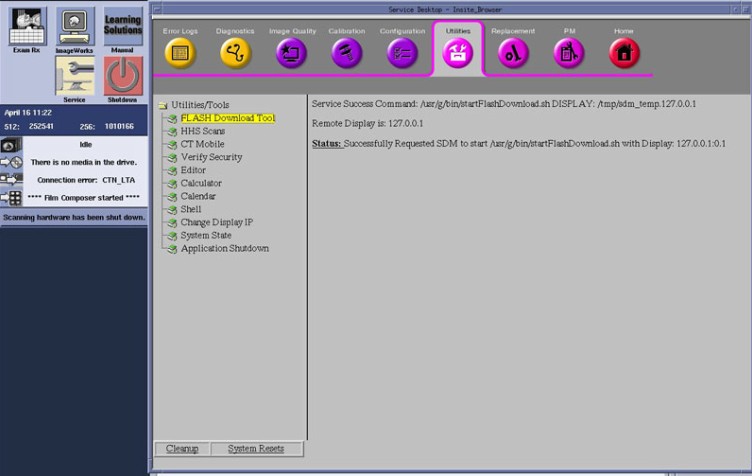 note: The Flash Download takes 5 - 30 minutes, depending on which subsystems need firmware updating.
 - When the Flash Download Window opens,
Select Update.
Figure 17. Flash Download Window
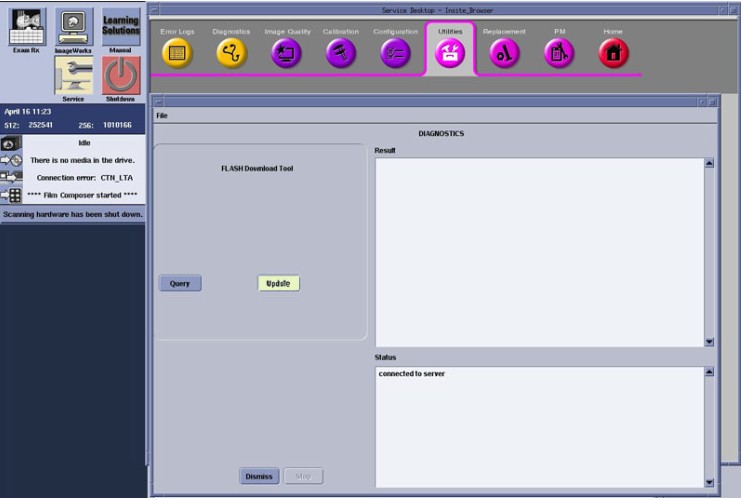
- Once the Gantry Hardware Flash Downloads successfully, select Dismiss.
- Close the common service desktop.
- Reconnect the Hospital Network cable at the rear of the operator console that was disconnected at the beginning of the LFC.
- Select Shutdown icon on the desktop and restart the system.
14 SSA License Install
Install SSA License file. Refer to SSA License File Installation procedure.
15 Final Save System State
Procedure
- Perform the Save System State procedure to save a system state backup to either DVD-RAM or USB media.
- notice
- Save the system state backup media in a safe and secure location for future service activity.
|
16 Finalization
Procedure
- If applicable, install any service pack updates related to this
release. note: Follow service pack load instructions supplied with the service pack software.
- Refer to System Scanning Tests in the Functional Checks chapter of this manual to confirm proper operation.