- Topic ID: id_16157628
- Version: 3.0
- Date: Jun 10, 2020 2:25:33 AM
SSA License File Installation
Prerequisites
Overview
This Service procedure explains how to install the SSA license file which allows user to access additional service tools.
Procedure
- Obtain the System ID and the System 16 digit code from the Common
Service Desktop (CSD) home page. Obtain the Order Number (GON) for
this system.
Confirm the 16 digit code. Ensure there is no confusion over letters and numbers such as zero and letter “O” or a number one and lower case “L” for example. Copying the code from the CSD home page to a Unix shell can help identify the characters since the font difference of a Unix shell will show the differences.
note:The Customer Order must have the license catalog attached for the SSA website to allow creation of the license file. Contact your local sales person if you have issues with the order number.
- Access the http://ssa.gehealthcare.com/ website.
- Acquire the required License file(s) for the system. Note the
filename for the license file(s) supplied. The available catalog
numbers are shown below for reference for this product.
- Copy the license file data (*.dat format), which was generated by SSA web site, to the root directory of Class M SSA key or USB memory.
- Insert the USB device to the PMT USB port.
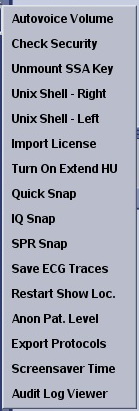
- Select “Import License” button from the Tool Chest
menu. You can see a pop-up message that indicates completion of importing
license.
Figure 1. Tool Chest menu
- Remove the USB device from the PMT USB port.
- Reboot the system.
Finalization
- Perform a Check Security to verify the class M key is no longer recognized/installed.
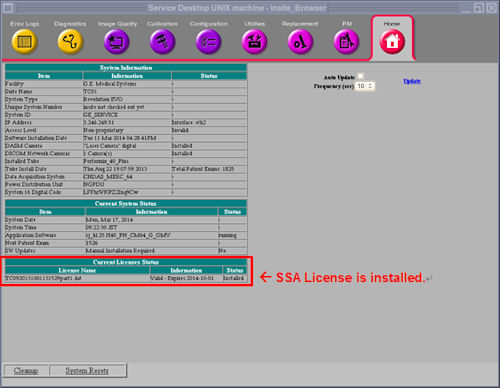
- Check the CSD home menu and confirm that the valid license is
displayed on the Current License Status as illustration below.
Figure 2. CSD Home menu with SSA License installed
- If the above check(s) fail, reboot the system and retry and if needed check license creation details. Confirm the 16 digit code was entered correctly. Ensure there is no confusion over letters and numbers such as zero and letter “O” or a number one and lower case “L” for example.