- Topic ID: task_efb_skd_zhb
- Version: 4.0
- Date: Dec 22, 2021 11:21:25 PM
Z8G4 System HDD Replacement
Prerequisites
Overview
This procedure shall be followed when replacing the System or Backup hard drive in a Z8G4 computer.
1 System or Backup Disk Replacement Preparation and Location
Procedure
- Shutdown system. Select one of the following methods to Power OFF the Console:
- If Applications are up, click on the [Shut Down] button on desktop display and select [Shutdown].
The Operator Console monitor will display a 'Power Down' message when it is acceptable to power OFF the Operator Console.
- If Applications are down, open a Terminal Window. Type: halt , then press ENTER
- When halt command has finished, power Off the console at the front panel switch.
- If Applications are up, click on the [Shut Down] button on desktop display and select [Shutdown].
- Apply LOTO. See Equipment Service - Lockout-Tagout-PPE procedure.
- Locate System or Backup Hard Drive Disk by referencing the Illustrations below.
Figure 1. Z8G4 Component Location
2 System or Backup Hard Drive Disk Removal
Procedure
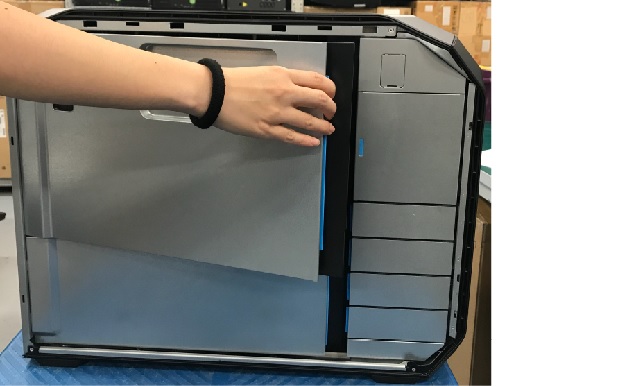
- Open and remove the module small side cover.
Figure 2. Remove module small side cover
- Disconnect the power and signal cables from hard disk drives.
- Pull System/Backup HDD from the computer’s drive bay.
Figure 3. Remove Hard Drive Disk
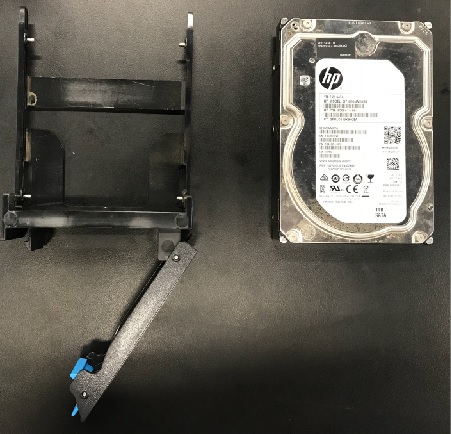
- Remove the original Hard Drive Disk from the Hard Drive carrier rails.
Figure 4. Remove HDD
3 System or Backup Hard Drive Install
Procedure
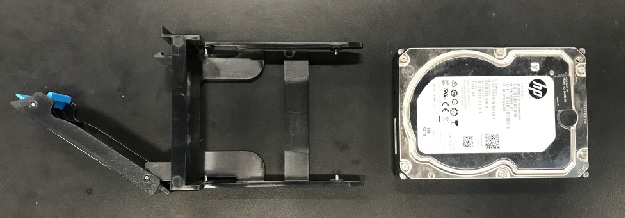
- Install replacement Hard Drive Disk into original Hard Drive carrier rails.
Figure 5. Install HDD
- Install the replacement Hard Drive assembly into the computer’s drive bay.
- Reinstall the module small side cover.
- Reinstall the host computer left side panel.
4 Finalization
Procedure
- Refer to LFC procedure to load all the software and options.
- Perform the Functional Checks → System Scanning Test instructions from the procedure list.
- Reinstall the console covers and all removed components, and reconnect any cables that have been disconnected.
- Remove LOTO on console.