- Topic ID: task_v24_bfd_knb
- Version: 2.0
- Date: Nov 6, 2020 1:29:45 AM
Image Database troubleshooting (20HW16.x)
Prerequisites
Overview
The follow procedure describes the Image Database troubleshooting procedure for System software version of 20HW16.x.
Procedure
- Execute Application shutdown if tis's running, typing "cleanMon" in command window.
- Open command window and type the following command. All of the command must be done with ctsuer account.
{ctuser@bay}touch /usr/g/sdc_image_pool/db.incons <enter>
If the following file does not exist, create it by following command.
{ctuser@bay}touch /usr/g/sdc_image_pool/gracefullyshutdown <enter>
Then reboot the system by the following command.
{ctuser@bay}reboot <enter>
- Confirm if all of images are available at ImageWorks. If the image database still has any trouble, execute the following steps.
- Open command window and type the following command, with ctuser account.
{ctuser@bay}cleanMon <enter>
{ctuser@bay}su - <enter>
Enter root password.
[root@bay ~]# resetImageDB_Linux <enter>
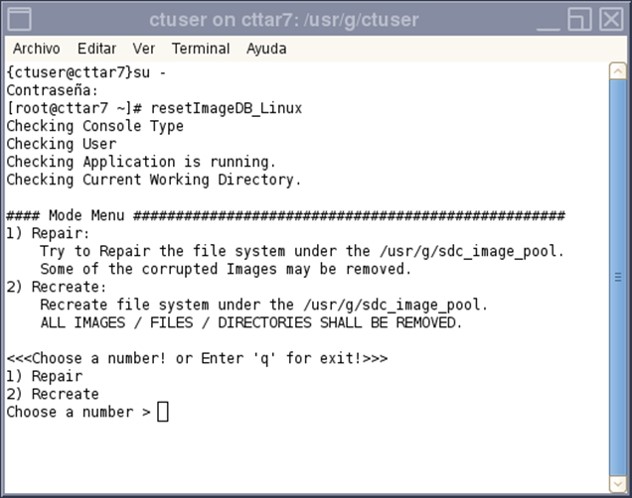
The following menu is displayed.
Figure 1. Terminal Window
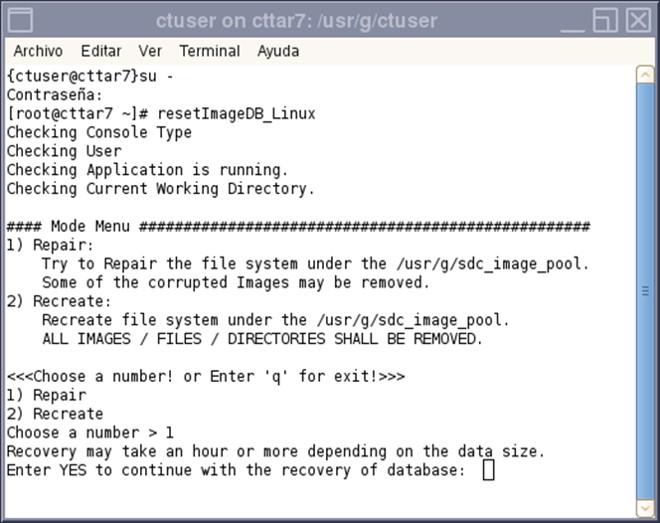
- Type 1 and enter to select Repair menu. The caution message is displayed about the time for recovery. The required time for recovery depends on the number of images on the Console. Enter “YES” and press enter if it’s OKnote:
Use upper case letter for “YES”.
Figure 2. Screen of Repair
- After completing the command line tool, Terminal Widow user back to {ctuser@hostname}.
Start application by typing {ctuser@hostname} st <enter>
- If the above procedure does not effective, execute the following procedure to recreate Image Database. The tool will erase all of images.
- Type the following command to start up the tool.
{ctuser@bay}cleanMon <enter>
{ctuser@bay}su - <enter>
Enter root password.
[root@bay ~]# resetImageDB_Linux <enter>
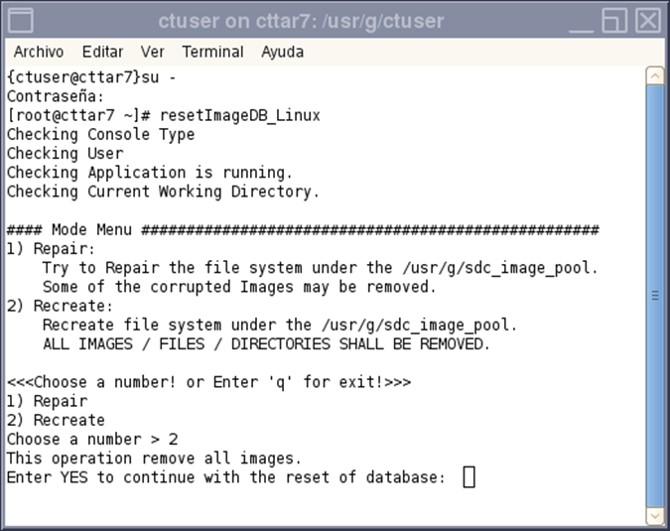
- Type 2 and enter to select Recreate menu. The caution message is displayed about all image deletion. Enter “YES” and press enter if it’s OK.
Figure 3. Screen of Recreate
- After completing the command line tool, Terminal Widow user back to {ctuser@hostname}. Start application by typing following command with ctuser account.
{ctuser@hostname} st <enter>
Finalization
Refer to System Scanning Test to confirm proper operation.