- Topic ID: task_amz_3kv_hnb
- Version: 2.0
- Date: Nov 6, 2020 1:29:16 AM
Host Computer Image Database Reset (20HW16.x or later)
Prerequisites
Overview
The following procedure describes and illustrates the Host Computer Image Database Reset procedure for System software version 20HW16.x. Same tool has been implemented on other software versions but 20HW16.x feature is different from others.
-
Recovery corrupted image database.
-
Initialize image database to erase all of image data.
Procedure
- Reboot the Operator Console.
-
If Applications are running, reboot system by clicking the Shutdown ICON on the desktop and select the restart option. Or
-
Open a Terminal Window using the Toolchest.
Type: {ctuser@hostname} rebootENTER
-
- Just after the Operating System finishes loading and before Applications start, Click Cancel in the Application Startup Window to stop the Application from loading.note:
Application cannot be running when performing this procedure.
- Open a Terminal Window using the Toolchest.
-
Type: {ctuser@hostname} su –ENTER
-
Type the root password and press ENTER
-
- Launch the Host Computer Image Database Reset utility.
Type: [root@hostname] resetImageDB_LinuxENTER
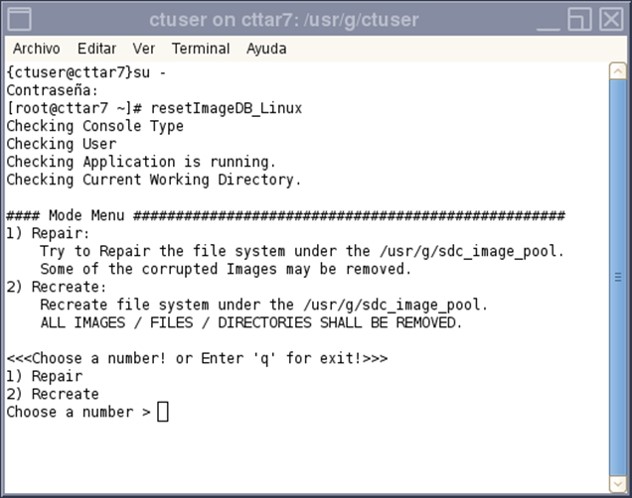
- The selection menu is displayed at first, Repair or Recreate.
Select “Repair” for database recovery and select “Recreate” for initialize image database, which is same feature as other software version’s tool.
Figure 1. Terminal Window
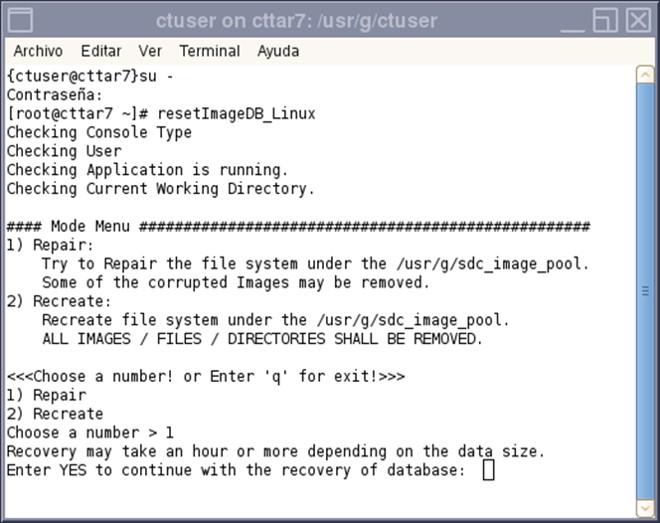
- When Repair is selected, the caution message is displayed about the time for recovery. The required time for recovery depends on the number of images on the Console. Enter “YES” and press enter if it’s OK.note:
Use upper case letter for “YES”.
Figure 2. Screen of Repair
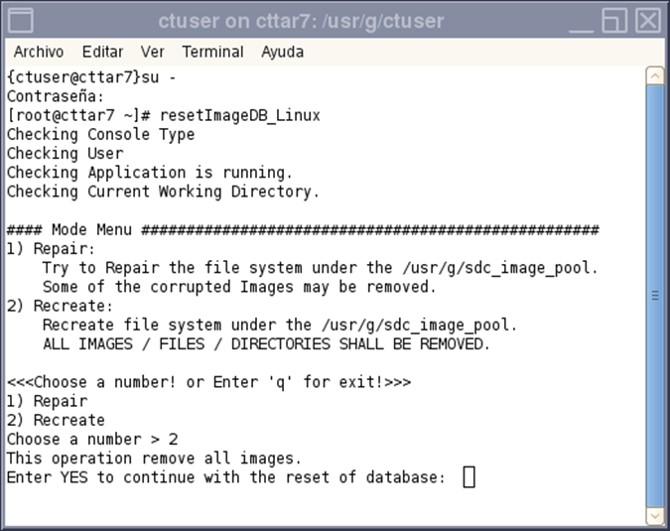
- When Recreate is selected, the caution message is displayed about all image deletion.
Enter “YES” and press enter if it’s OK.
Figure 3. Screen of Recreate
- After completing the command line tool, Terminal Widow user back to {ctuser@hostname}.
- Start application by typing {ctuser@hostname} st ENTER
Finalization
Refer to System Scanning Test to confirm proper operation.