- Topic ID: id_15460669
- Version: 3.0
- Date: Jun 15, 2020 11:01:02 PM
VeRB2 GPU Replacement
Prerequisites
Overview
This procedure describes and illustrates the steps necessary to replace the Volume Reconstruction Box Computer (VeRB2) GPU Card.
Hardware Configuration control is critical for proper system operation. Mixing of different generations of GPU Cards may result in image quality issues! Example: DIG and VeRB Computers utilize NVidia GPU's. DIG2 and VeRB2 Computers utilize AMD GPU's. Like type GPU's (NVidia or AMD) must be installed in both the DIG and VeRB Computers in the same console. Mixing of first and second generations DIGs and VeRBs is not permitted.
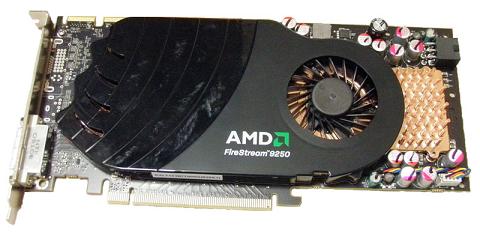
Figure 1. Volume Reconstruction Box Computer version 2 (VeRB2) GPU Card
1 Power-Off (Shut Down) the Console
Procedure
- Select one of the following methods to power off the Operator
Console:
-
If Applications are running, click the Shut Down icon and select Shut Down.
-
If Applications are down, open a Unix Shell using the Toolchest. Type: {ctuser@hostname} halt. Press Enter.
The Operator Console monitor will display a ‘System Halted’ message when it is acceptable to power off the Operator Console.
-
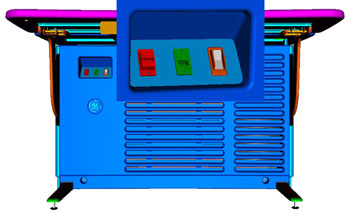
- Power OFF the Operator Console at the front panel switch. (See Figure 2.)
Figure 2. Console Power Switch
- Perform prescribed Lockout/Tagout procedure. For added protection, disconnect the Twist-N-Lock Main Power Cable from rear of console.
2 Remove VeRB2 Computer
Procedure
- Remove the front and rear Operator Console Covers per prescribed cover removal procedure.
- Remove the cable connections at the rear of the VeRB2 Computer
chassis.note:
Verify that all cables are labeled and clearly marked. If necessary, add a label for clarity.
- Remove the power cord at the rear of the VeRB2 Computer chassis.
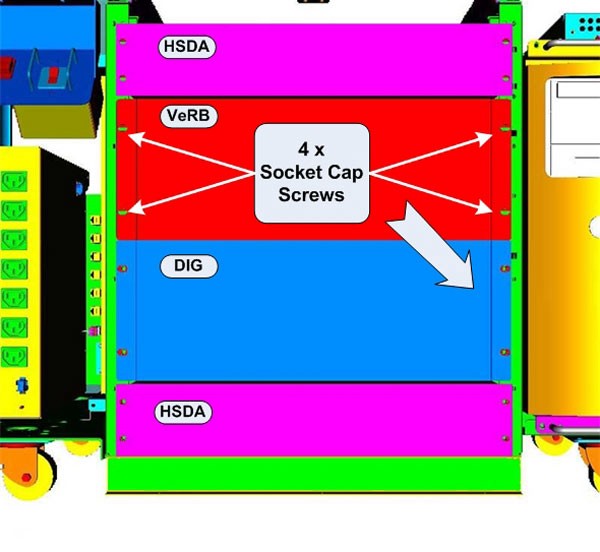
- Remove the four (4) 5mm socket cap mounting screws and washers
from the front of the VeRB2 Computer chassis, holding the chassis
to the Operator Console rack.
Figure 3. VeRB2 Computer Mounting
- Slide the VeRB2 Computer chassis forward (out the front of console) and set aside.
3 Remove GPU Card from VeRB2 Computer
Procedure
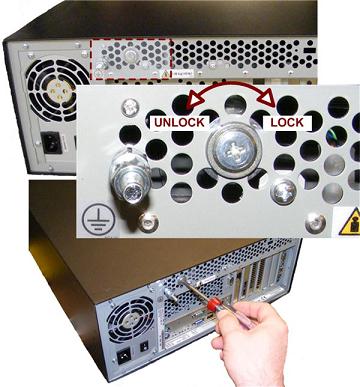
- At the rear of the VeRB2 Computer Chassis, release the Chassis
Cover Lock using a Phillips screwdriver. Back out lock screw at least
two (2) full turns.
Figure 4. VeRB2 Computer Chassis Cover Lock
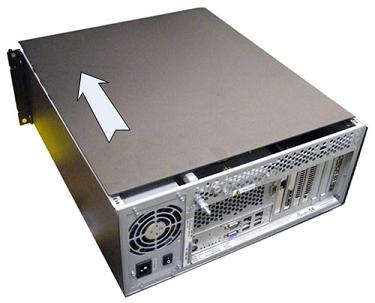
- Slide the Chassis Cover towards the front of the chassis and
remove.note:
You may need to tap on back upper edge of cover to release cover before sliding forward.
Figure 5. VeRB2 Computer Cover Removal
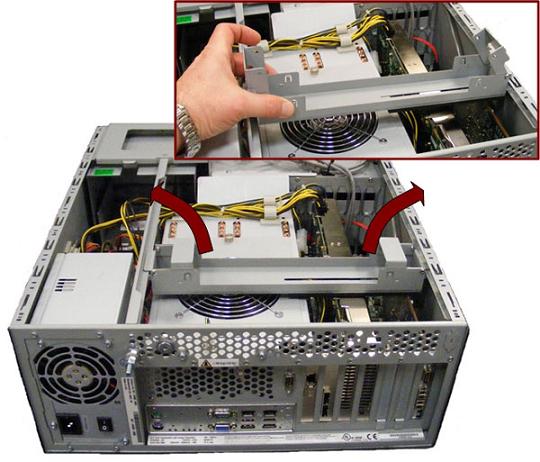
- Remove the Expansion Card Hold-down Clamp from VeRB2 Computer
Chassis.
Figure 6. VeRB2 Computer Expansion Card Hold-down Clamp Removal
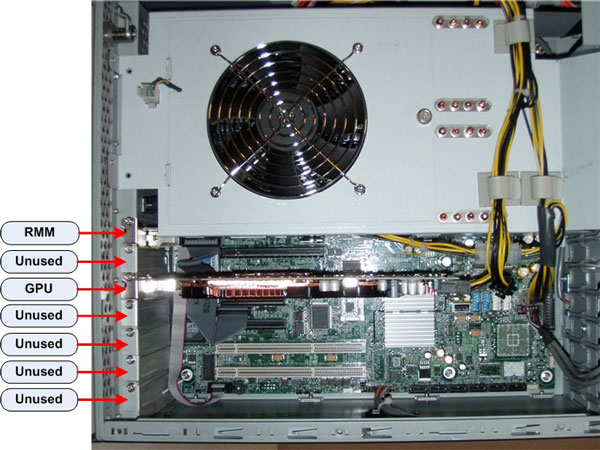
- Disconnect the Power Supply Connector at the rear of the GPU Card.
- Remove the Phillips Screw holding the GPU Card in the VeRB2
Computer chassis and carefully remove the card from the Systemboard.
Figure 7. VeRB2 Computer GPU Card Location
4 Install Replacement GPU Card in VeRB2 Computer
Procedure
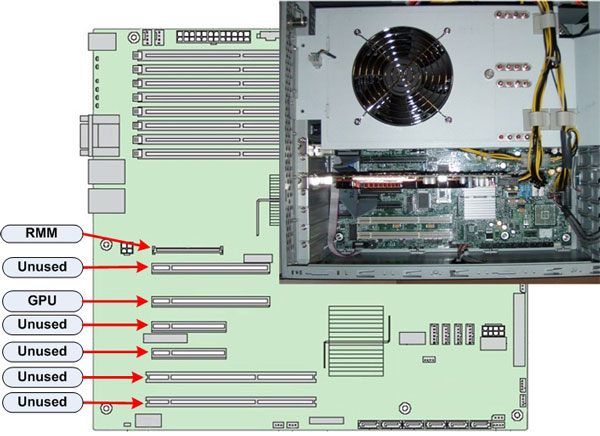
- Carefully install the replacement GPU Card in the same location
(slot) in the VeRB2 Computer. Make sure all cables are clear of the
GPU Card and the card seats firmly in the Systemboard.
Figure 8. VeRB2 Computer GPU Card Slot Location
- Reinstall the Phillips Screw to secure the GPU Card to the chassis.
- Reconnect the Power Supply Connector to the rear of the GPU Card.
- Reinstall the Expansion Card Hold-down Clamp in the VeRB2 Computer
Chassis.
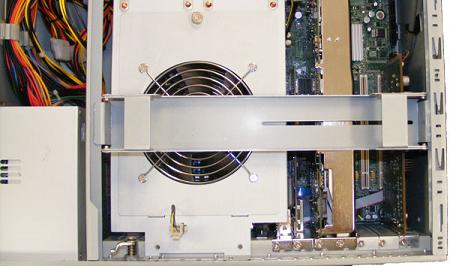
Figure 9. VeRB2 Computer Expansion Card Hold-down Clamp Placement
 note:
note:The Expansion Card Hold-down Clamp must be installed as illustrated above. The Clamp should be centered over the Cooling Fan with slotted end over expansion cards.
- Reinstall the VeRB2 Computer Chassis Cover and lock the cover
in place.note:
IN ORDER TO MEET EMC REQUIREMENTS, THE CHASSIS MODULES MUST BE PROPERLY INSTALLED AFTER SERVICING. CHECK THAT THE MODULES ARE MOUNTED FIRMLY IN PLACE AND LOCKED DOWN WHERE APPLICABLE.
5 Re-Install the VeRB2 Computer
Procedure
- Slide the replacement VeRB2 Computer into the Operator Console from the front.
- Replace the four (4) 5mm socket cap mounting screws and washers to secure the VeRB2 Computer chassis to the Operator Console rack. Torque to 4.6 N-m.
- Mount the power cord to the rear of the VeRB2 Computer chassis and verify that its power supply switch is turned to the ON position.
- Replace the rear cable connection(s).
Figure 10. VeRB2 Cable Connections and Destinations
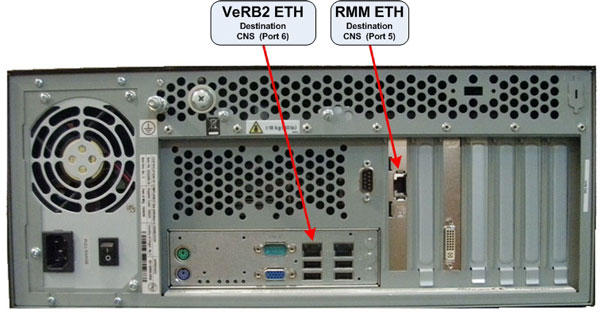
For cabling details, refer to the appropriate interconnect located in the System Diagrams folder of this service methods publication.
6 Power-On the Operator Console
Procedure
- Reconnect the Twist-N-Lock Main Power Cable from rear of console and remove Lockout Tagout protection applied earlier.
- Power ON the Operator Console at the console’s front panel switch.
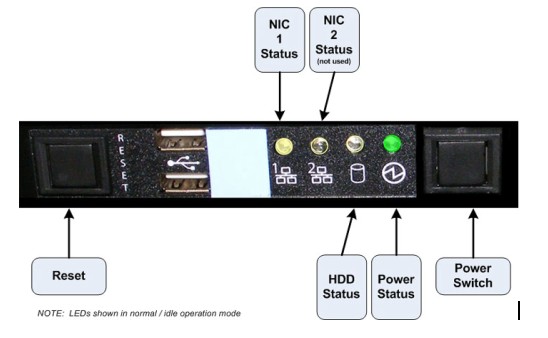
- Visually verify the VeRB2 Computer front panel Power LED is
illuminated. If not, press the VeRB2’s front panel power switch
to apply power to the VeRB2 Computer.
Figure 11. VeRB2 Front Panel Indicators and Switches
7 Verify Replacement VeRB2 Computer GPU Card Operation
Procedure
- Verify that the VeRB2 Computer has powered up and is not displaying
or sounding any POST Errors.note:
See the VeRB2 Troubleshooting procedure if any errors appear.
- No other verifications steps required.
8 Finalization
Procedure
- Refer to System Scanning Tests in the Functional Checks chapter of this manual to confirm proper operation.
- Reinstall Console Front and Rear Covers.