- Topic ID: id_15460107
- Version: 2.0
- Date: Nov 8, 2018 1:37:06 AM
System State Save Restore
Prerequisites
Overview
The following procedures describe and illustrate the System State save and restore process. It is important to follow the steps listed below in order.
1 Save System State
Before proceeding with Save System State:
-
Make sure to have formatted DVD-RAM disk. See Peripheral Tower Functional Test (PMT-20) for DVD-RAM disk initialization. Make sure the DVD-RAM disk is not write-protected.
Or
-
Have a FAT32 Formatted USB media (either Memory Stick or USB External Drive, minimum of 2 GB).
note:System State is a collection of system files saved in a directory structure. The system uses a default directory name (service_mod_data) on System State backup media. Whenever System State is saved to DVD-RAM or USB media, the existing default directory (service_mod_data) is erased when Save All is selected. To avoid loss of a saved System State, on USB media for example, rename the default directory with an unique name. (ex: System ID). When a specific System State backup is being accessed for restoring System State, the directory must be renamed back to the default directory name of service_mod_data.
Due to the default directory name and the directory size, it will not be practical to store multiple System States on a single USB Flash Memory Stick. For emergency backup, it's recommended that System State backups be transferred to a laptop or external USB Hard Drive. Use USB Flash Memory Stick only for the immediate saving and restoring of System State during Load from Cold.
Procedure
- Insert the System State DVD-RAM Media into the Peripheral Tower DVD-RAM Drive, DVD-RW Driver or USB Media in any of the console's USB ports.
- Wait until the DVD-RAM Drive, DVD-RW Driver or USB Media is ready (i.e., front panel DVD-RAM, DVD-RW Drive LED or USB Device Access LED is no longer flashing).
- Select: [Service] icon to access the Common Service Desktop (CSD).
- Click OK as required.
- Select: Utilities tab.
Figure 1. Common Service Desktop (CSD), Utilities Tab
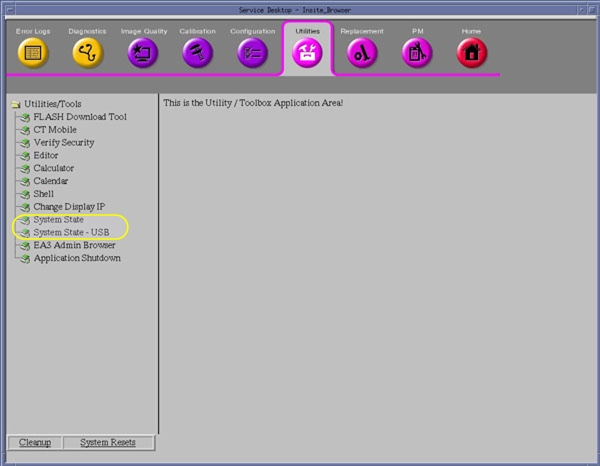
- Select: System State for DVD-RAM Media
or System State - USB for USB Media. The System
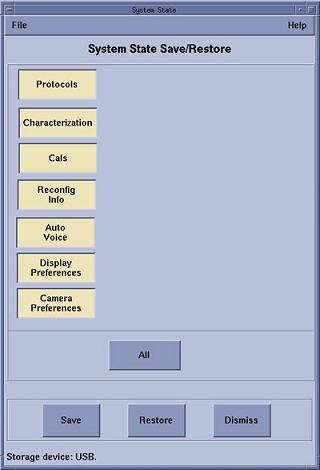
State Save/Restore screen appears.
Figure 2. Save System State Window (DVD-RAM Media)
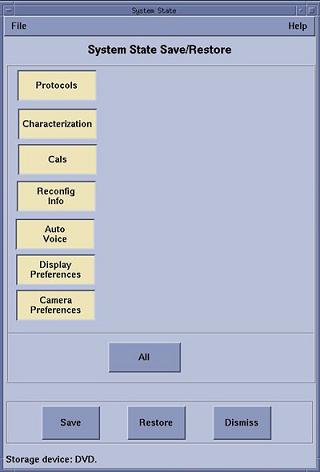
Figure 3. Save System State Window (USB Media)
- Select All.
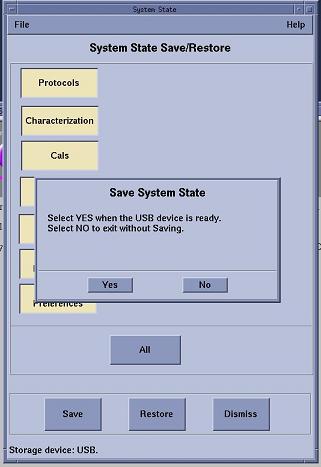
- Select [Save]. The System State Media Ready pop-up window appears.
- Select [Yes] in the System State Media Ready pop-up window.
Figure 4. System State DVD Media Ready Pop-up Window
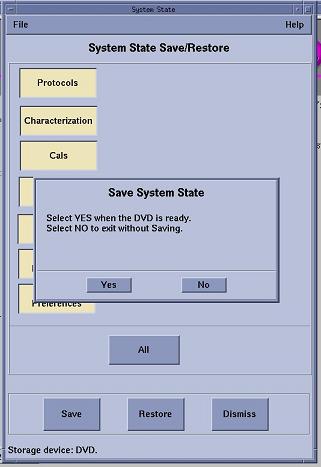
Figure 5. System State USB Media Ready Pop-up Window
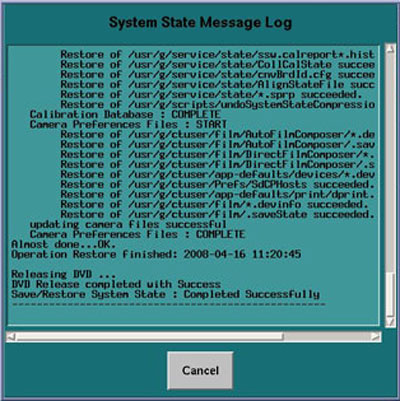
- Verify that the "Save" of System State was successful. A message
at the end of the System State Message Log Window should state: Save/Restore
System State: Completed Successfully.
Figure 6. System State Message Log Window
- When completed, select [Cancel], then [Dismiss].
- Close the Common Service Desktop window at the upper left corner of the screen.
- Remove System State DVD-RAM disk from the DVD Peripheral Tower
or USB Media from USB port. Label System State Backup Media appropriately
and place in a safe location.
2 Restore System State
Procedure
- Insert a previously saved System State DVD-RAM Media into the Peripheral Tower DVD-RAM Drive or USB Media in any of the console's USB ports
- Wait until the DVD-RAM Drive or USB Media is ready (i.e., front panel DVD-RAM Drive LED or USB Device Access LED is no longer flashing).
- Select the [Service] icon to access the CSD (Common Service Desktop).
- Select: [Utilities].
- Select: System State for DVD-RAM Media or System State - USB for USB Media. The System State Save/Restore screen appears.
- Select [All].
- Select [Restore]. The Restore System State box appears.
- Select [Yes].
- Verify that the "Restore" of System State was successful. If not, restore the System State again. A message at the end of the System State Log window should display: Restore System State Completed Successfully.
- When completed, select [Cancel].note:
If Dose check option is installed, Dose audit tool starts up when Reconfig Info or Protocol is selected. That shows configuration and Protocol summary. Press Quit to continue.
- Select [Yes] when the Scan Hardware Reset pop-up appears.
- When completed, select [Dismiss].
- Remove System State DVD-RAM disk from the DVD Peripheral Tower or USB Media from USB port and place in a safe location.
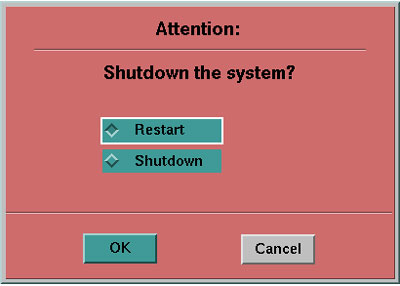
- Reboot the Operators Console by selecting [Shutdown] Desktop,
then select [Restart] in the Attention Window.
Figure 7. System Shutdown Attention Window
3 Finalization
Procedure
- Verify Save System State
For DVD-RAM Media: Insert System State DVD-RAM disk in Peripheral Tower DVD-RAM Drive. Perform Functional Checks>Console>Peripheral Tower Functional Test, DVD-RAM Checks found in the service manual and confirm System State files have been saved to disk.
For USB Media: Insert System State USB Media in any PC or Laptop Computer USB port and confirm System State files have been saved to the USB Media.
- Verify Restore System State
-
Visually verify that the system has the correct configuration and preference settings by opening a Terminal Window.
-
Execute the system configuration script “reconfig”.
note:See System Configuration for detailed instructions on running “reconfig.”
-