- Topic ID: id_15460118
- Version: 3.0
- Date: Jun 15, 2020 11:00:29 PM
GOC6.6 VCT Host Computer (Z820) System/Image HDD Replacement
Prerequisites
Overview
This procedure shall be followed when replacing the System or Image hard drive in a Z820 computer.
1 Z820 Computer Removal
Procedure
- Shutdown system. Select one of the following methods to Power
OFF the Console:
-
If Applications are up, click on the [Shut Down] button on desktop display and select [Shutdown].
-
If Applications are down, open a Terminal Window. Type: halt , then press ENTER.
-
When halt command has finished, power Off the console at the front panel switch.
-
- Apply LOTO. See Equipment Service - Lockout-Tagout-PPE procedure.
- Remove Keyboard Tabletop, Front and Rear covers from GOC6.6
console.
Refer to Replacement → Console (GOC6.6) → Console Cover Removal and Installation.
- Remove the Z820 computer from the GOC6.6 console chassis.
Refer to Replacement → Console (GOC6.6) → GOC6.6 VCT Host Computer (Z820) Replacement
2 System or Image Hard Drive Removal
Procedure
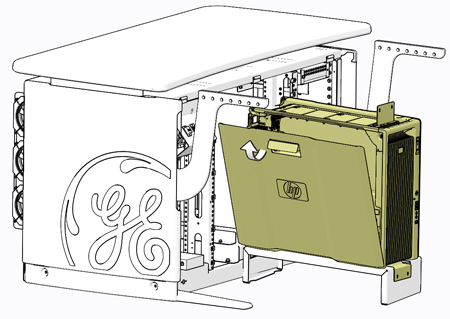
- Open the Z820 computer side access panel.
Figure 1. Z820 Side Access Panel Removal
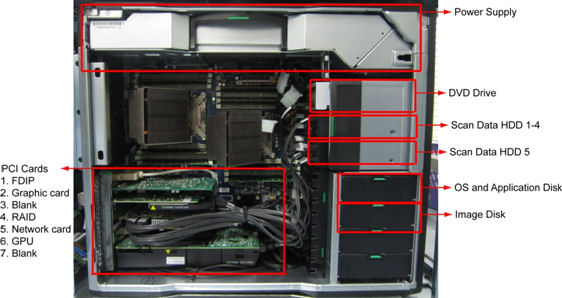
- Locate System or Image Hard Drive FRUs by referencing the Illustrations
below.
Figure 2. Z820 Airflow Guide and Expansion Card Support
- Remove the original Hard Drive assembly from the computer’s drive bay.
3 System or Image Hard Drive Preparation
Procedure
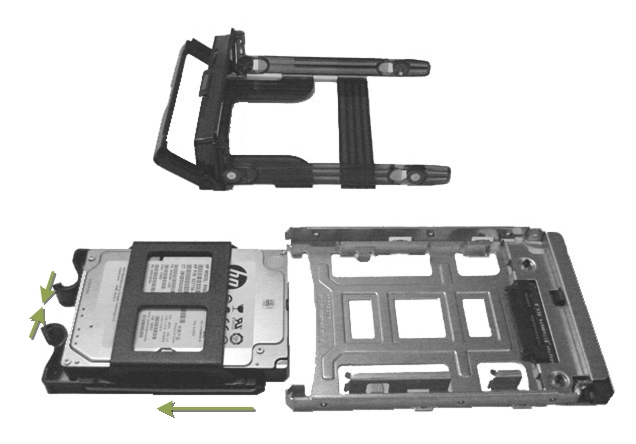
- Remove the 2.5 to 3.5 inch Form Factor Adapter Bracket with Hard Drive from the Hard Drive carrier rails. See Illustration 3.
- Remove the 2.5 to 3.5 inch Form Factor Adapter Bracket from Hard Drive and set Hard Drive aside. See Illustration 3.
- Install replacement Hard Drive into the original 2.5 to 3.5 inch Form Factor Adapter Bracket removed from original Hard Drive.
- Install replacement Hard Drive with Form Factor Adapter Bracket
into original Hard Drive carrier rails.
Figure 3. Hard Drive Form Factor Brackets and Carrier Rail Assembly
4 System or Image Hard Drive Install
Procedure
- Install the replacement Hard Drive assembly into the computer drive bay.
- Close Side Access Panel.
5 Restore the Console
Procedure
- Fully slide the Z820 computer back into the console chassis, until mounting brackets are flush against the console chassis.
- Remove and store the Service Platform.
- Install and torque the four (4) 3mm socket cap screws that mount
the Z820 computer in the GOC6.6 console.note:
Torque each the for (4) 3mm socket cap mounting screws to:
- Reconnect all cables removed earlier to the Z820 computer.
- Remove LOTO on console.
6 Finalization
Procedure
- Perform a Load From Cold (LFC).
Refer to Software (GOC6.6) Software Installation Procedures (LFC)(13HW31.x) Load From Cold procedure
note:When a hard disk drive, which was previously used in a RAID volume, is reused ads system or image disk, clearing the configuration information in the hard disk drive is required.
- Install console covers and Keyboard Tabletop assembly.
Refer to Replacement → Console (GOC6.6) → Console Cover Removal and Installation Procedure.
- Perform the Functional Checks → System Scanning Test instructions from the procedure list.