For this test, you set up the phantoms once and do all tests in one run.
Procedure
Position the coil and phantoms as follows:
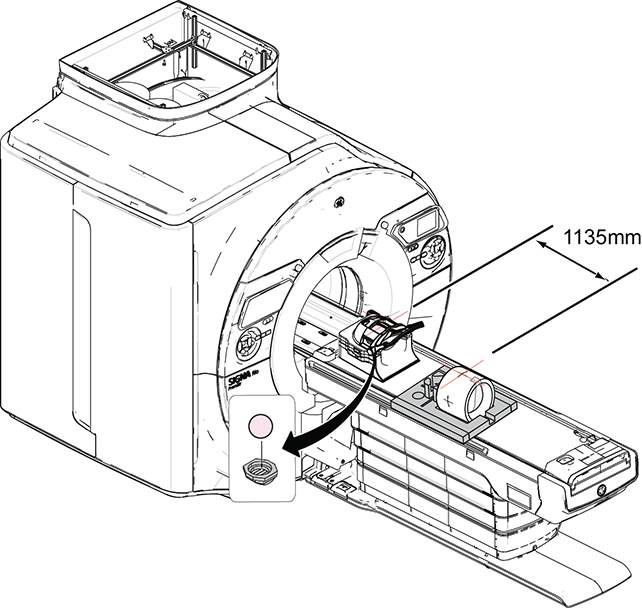
Remove the service filler panel to uncover the cradle slot.
Put the HNU coil into the cradle slot and insert the connector.
Put the head TLT sphere in the HNU with the positioner.
Landmark on the crosshair of the HNU, but do not advance to scan.
Move the cradle into the bore until the display shows 1135 mm.
Turn on the alignment light.
Put the body loader on the phantom foam support and put the body sphere in the loader.
Align the crosshairs on the loader to the alignment light (do not landmark).
Note: Do not landmark on the body sphere.
Press Advance to Scan.
Figure 1. Distance between TDI HNA coil landmark and center mark on body loader
Launch SPT in the appropriate mode:
Note: You must run SPT in PM Mode if you are running it as part of a PM visit, otherwise, the PM check may not pass.
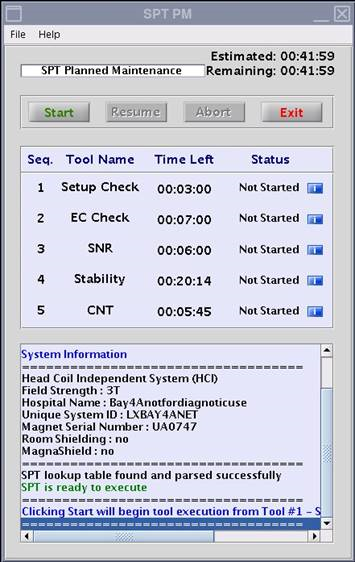
If you are running SPT PM Mode, go to PM > PM Assist > SPT PM Mode > Click here to start this tool.
The SPT PM window shows.
Figure 2. SPT PM tool GUI
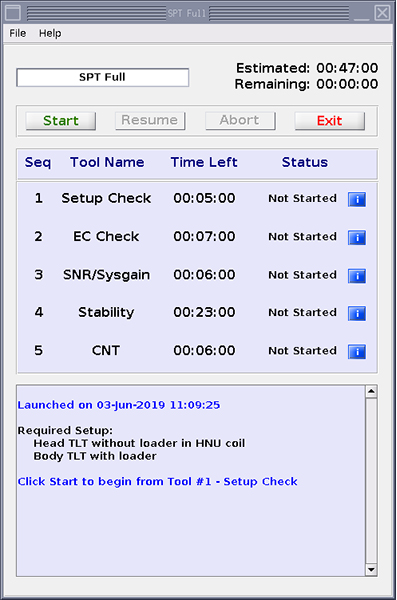
To run SPT in Full Mode, go to Image Quality > SPT Full Test Menu and select Click here to start this tool.
The SPT Full window shows.
Figure 3. SPT Full tool GUI
Click Start.
Result
When SPT is complete, the message SPT execution completed shows in the status window.
Note: The setup check will confirm setup for both head and center locations.
Resolve any errors or failures and click Start to run SPT again.
Note: Do not click Resume if SPT is being called from ICW. Always click Start to complete the test from ICW.
If you click the blue i button next to each tool (only for PASS or FAIL status), the viewer will show for that respective tool.
After SPT has finished running the tools, a data file (for example, YYYYMMDD_HHMMSS_<bayname>_<instance>.stc) is created in the /usr/g/service/data directory.
Note: Report manager is not supported for this tool. Use the Viewers to see the results in detail.
On the SPT interface, go to File > Open > Data File to view the overall results of the SPT run.