
- SIGNA™ Hero 3.0T Service Methods
- 5852800-8EN Revision 1.0
- 00000018WHA30753EGYZ
- id_20027257.17
- Jul 13, 2021 4:05:16 PM
Running the coil datapath diagnostic
Running the coil datapath diagnostic procedure.
Procedure
- Launch coil datapath diagnostics from or use these steps:
- Use one of these selection paths: or .
Figure 1. Coil datapath diagnostics (example from Premier shown) 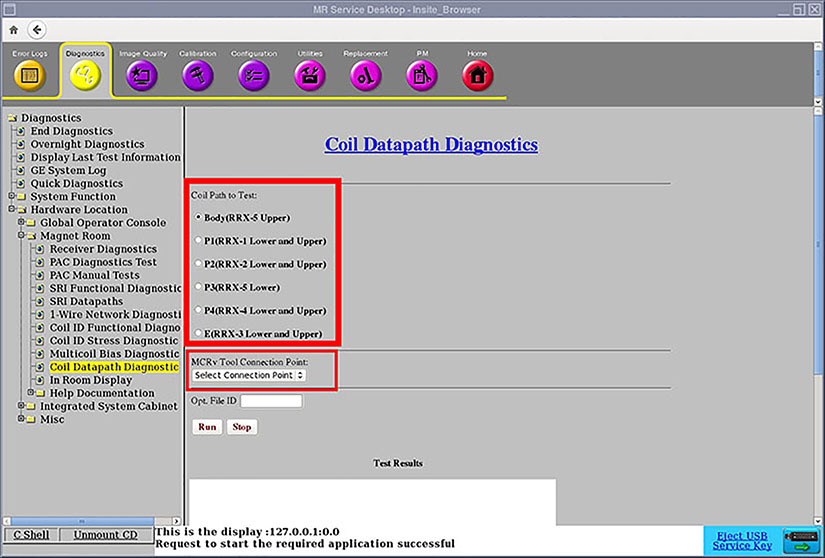
- Use one of these selection paths: or .
Results
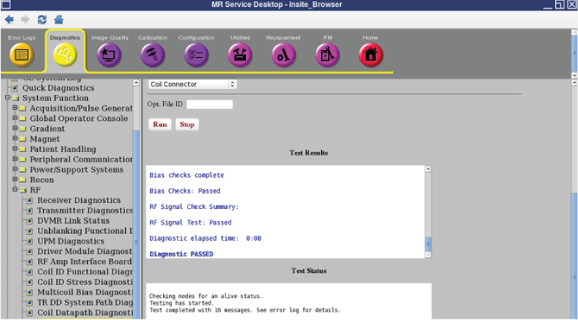
Failed tests identify a problem that you must resolve before continuing.
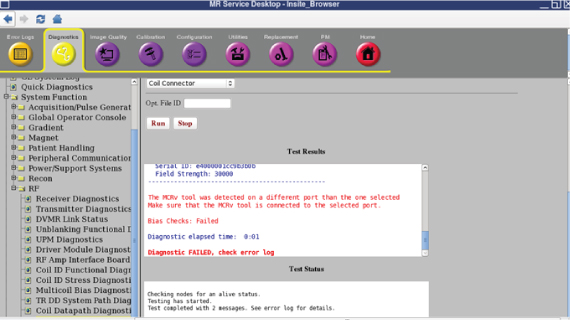
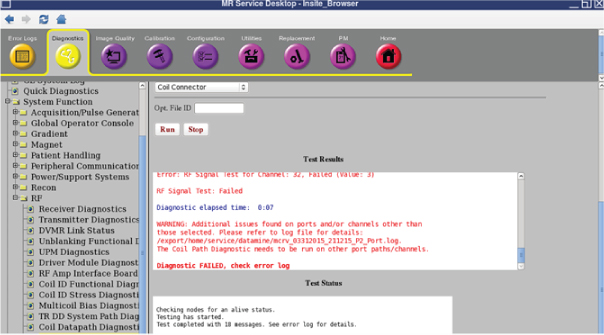
Note: Refresh the diagnostic web page after you finish connecting the cable to the other port. If you do not refresh the diagnostic web page, an error message appears after you click Run. Cable track changed after UI was loaded. Diagnostic FAILED, please reload diagnostic web page.