• SIGNA™ Hero 3.0T Service Methods
  • 5852800-8EN Revision 1.0
  • Object ID: 00000018WIA30A50F20GYZ
  • Topic ID: id_13107496 Version: 2.4
  • Date: Jul 13, 2021 7:09:35 PM

Intercom Adjustment For GOC Audio Board

Prerequisites

Table 1. Personnel requirements
Required personsPreliminary requirementsProcedureFinalization
210 minutes30 minutes10 minutes
Topic ID: id_SL112186-1178735

Overview

Procedure

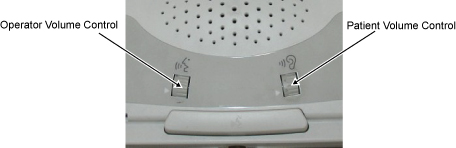
  1. This document describes how to adjust the maximum volume and minimum volume of the Patient’s voice, in the magnet bore. Also, describes how to adjust the maximum volume of Operator's voice.
    • Operator Volume- controls the speaker volume in the Bore, (Operator’s voice).

    • Patient Volume- controls the volume of the speaker in the keyboard, (Patient’s voice).

    Figure 1. Volume on SCIM
  2. Audio Assy is located in GOC. The following is the volume location of Audio Assy.
    Figure 2. ACCESS THE INTERCOM BOARD
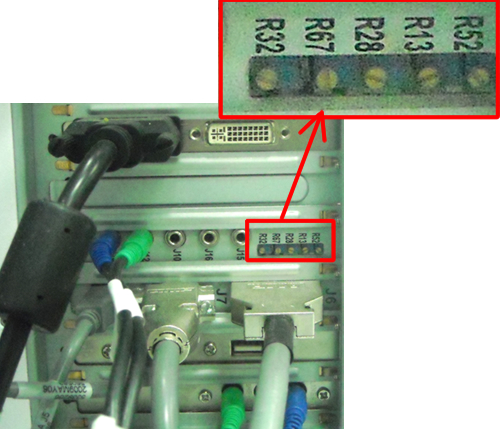
  3. The following adjustments are performed.
    • Maximum Keyboard Speaker Volume R28 (Patient’s Voice)

    • Minimum Keyboard Speaker Volume- R13 (Patient’s Voice)

    • Maximum Patient Speaker Volume R67 (Operator’s Voice)

    Note:

    Minimum Patient Speaker Volume is fixed and there is no volume for it.

    Note:

    Do NOT adjust R32. R52 is used only for Profile5. Do not adjust R52 if system is not Profile5.

Topic ID: id_SL112189-1178735

Maximum Keyboard Speaker Volume R28 (Patient’s Voice)

Procedure

  1. At the Operator Workspace keyboard, set the Patient Volume Control at maximum, by rotating the volume wheel UP with your finger, (Clockwise).
    Figure 3. VOLUME CONTROLS
  2. One-person talks into the patient microphone in the magnet bore. The second person adjusts R28 on the Intercom Board for the desired maximum volume at the keyboard speaker. This is an iterative process. Repeat the voice test until the maximum desired level is achieved.
    Note:

    Counterclockwise will make volume smaller, clockwise will make volume bigger.

Topic ID: id_SL112192-1178735

Minimum Keyboard Speaker Volume- R13 (Patient’s Voice)

About this task

This section adjusts the minimum volume of the Patient’s voice, in the magnet bore. The Operator benefits from this adjustment.

Procedure

  1. At the Operator Workspace keyboard, set the Patient Volume Control at minimum, by rotating the volume wheel down with your finger. (counterclockwise).
    Figure 4. VOLUME CONTROLS
  2. One person should listen at the keyboard speaker (Patient’s Voice). The other person talks into the patient microphone in the magnet bore. The person at the keyboard should make minor adjustments to R13 on the Intercom Board for the desired minimum volume at the keyboard speaker. This is an iterative process. Make a slight adjustment to the potentiometer, test the volume and repeat the voice test until the desired Minimum Volume level has been achieved.
    Note:

    Counterclockwise will make volume smaller, clockwise will make volume bigger.

Topic ID: id_SL112195-1178735

Maximum Patient Speaker Volume R67 (Operator’s Voice)

Procedure

  1. At the Operator Workspace Keyboard, set the patient volume control at maximum by rotating the Operators volume wheel UP with your finger, (Clockwise).
    Figure 5. VOLUME CONTROLS
  2. One person listens at the patient speaker. The other person talks into the keyboard microphone and adjusts R67 on the Intercom Board for the desired maximum volume at the keyboard speaker. This is an iterative process. Repeat the voice test until the maximum desired level is achieved.
    Note:

    1. If R67 is turned to clockwise too much, howling sound may be heard from Patient Speaker. Adjust R67 not to cause this problem.

    2. Set the Operator Volume to “4” and check that howling sound is not heard. (As a result of the experiment, howling sound is often heard when Operator Volume is set to “4”)

    Note:

    Counterclockwise will make volume smaller, clockwise will make volume bigger.

Topic ID: id_14972277

Finalization

Procedure

  1. Restore the GOC.
  2. Perform a head and body scan to ensure system functionality.