
- SIGNA™ Hero 3.0T Service Methods
- 5852800-8EN Revision 1.0
- 00000018WIA30850B40GYZ
- id_20166503.0
- Nov 2, 2021 1:20:56 PM
Doing the ICW coherent noise check
Prerequisites
| Personnel requirements | |||
|---|---|---|---|
| Required persons | Preliminary requirements | Procedure | Finalization |
| 1 | - | 10 minutes | - |
| Tools and test equipment | |||
|---|---|---|---|
| Item | Quantity | Part number | Manufacturer |
| TDI Head Neck Array (HNA) | 1 | 5495343 | - |
| M-Class SSA Hard Key | 1 | - | - |
| Required conditions |
|---|
|
| Safety |
|---|
|
Before working in any GE Healthcare MR suite or performing any GE Healthcare service procedure, you must:
If you have any safety concerns at any time, do not begin work or immediately stop work and move to a safe location. Immediately contact your supervisor or site safety officer for instructions on how to proceed. |
About this task
Procedure
- Set up the TDI HNA as follows:
- Remove the service filler panel to uncover the cradle slot.
- Put the TDI HNA coil into the cradle slot and insert the connector.
- Landmark on the center line of the TDI HNA.
- Press Advance to Scan.
Figure 1. TDI HNU setup 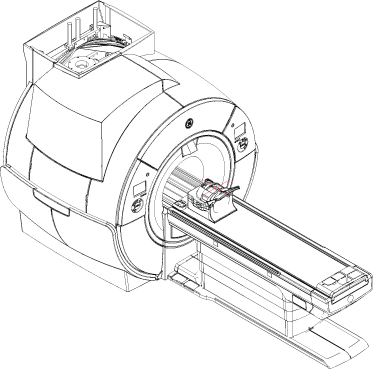
- Review and confirm the pre- and post-dependencies, and then select Click here to start this tool.The Coherent Noise window shows.
Figure 2. Coherent Noise tool launched from ICW 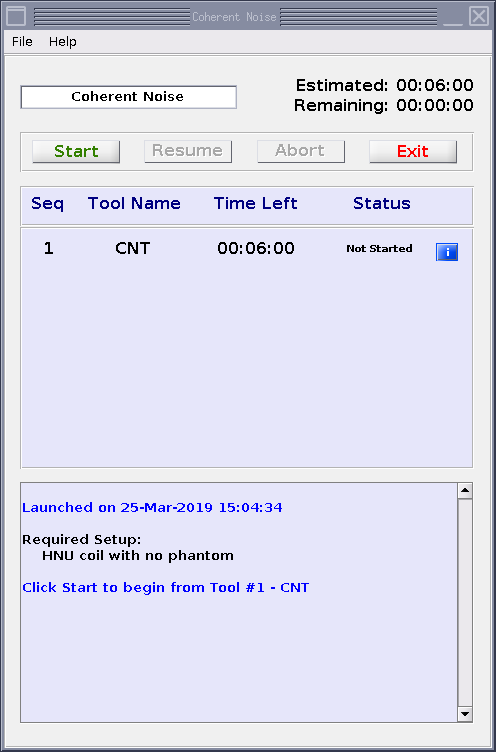
- If the test does not pass, resolve all errors or failures and run the test again.
The test results show automatically. If you closed the test results, you can click Viewer to show them again.
The viewer is also available from the CSD:
From the CSD, go to . Click Coherent Noise Test Tool Results Viewer to open the viewer.
Note: When you open the Viewer, it shows the most recent data by default. To see older data, you can go to .Figure 3. Coherent noise test viewer (passing results shown) 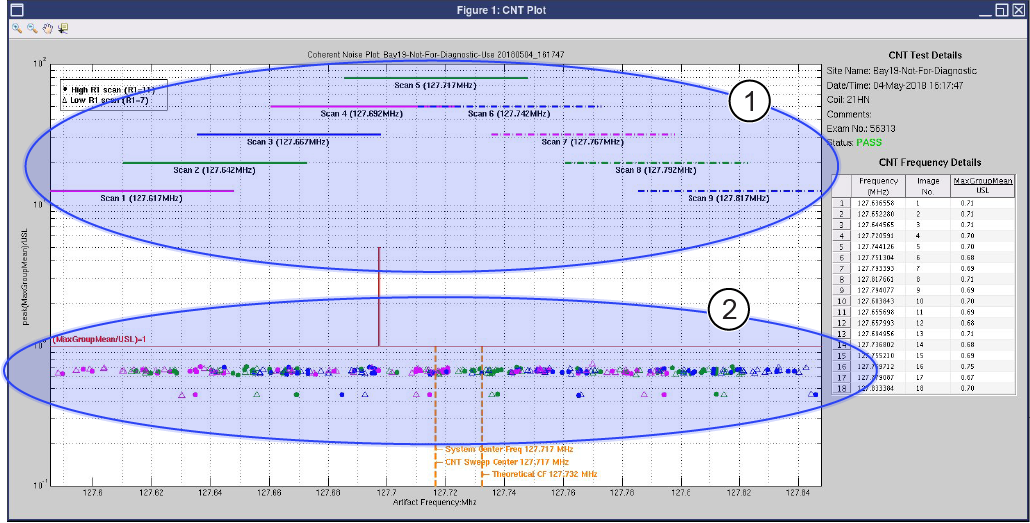
1 Frequency bands scanned 2 Noise within spec