• SIGNA™ Hero 3.0T Service Methods
  • 5852800-8EN Revision 1.0
  • Object ID: 00000018WIA30F79A50GYZ
  • Topic ID: id_2026732 Version: 2.2
  • Date: Jul 14, 2021 10:49:12 PM

Configuring DICOM image transfers to an archive node

Configure DICOM image transfers to an archive node.

Prerequisites

Personnel requirements
Required personsPreliminary requirementsProcedureFinalization
1-10 minutes-

About this task

Important: When secure DICOM push is configured in one-way TLS/SSL authentication, DICOM ping will only succeed from MR to the networked node and will fail from the networked node to MR. This is expected because the networked node does not have a trusted certificate from the MR scanner. DICOM ping will succeed both ways in secure mode only when two-way TLS/SSL authentication is configured.

Procedure

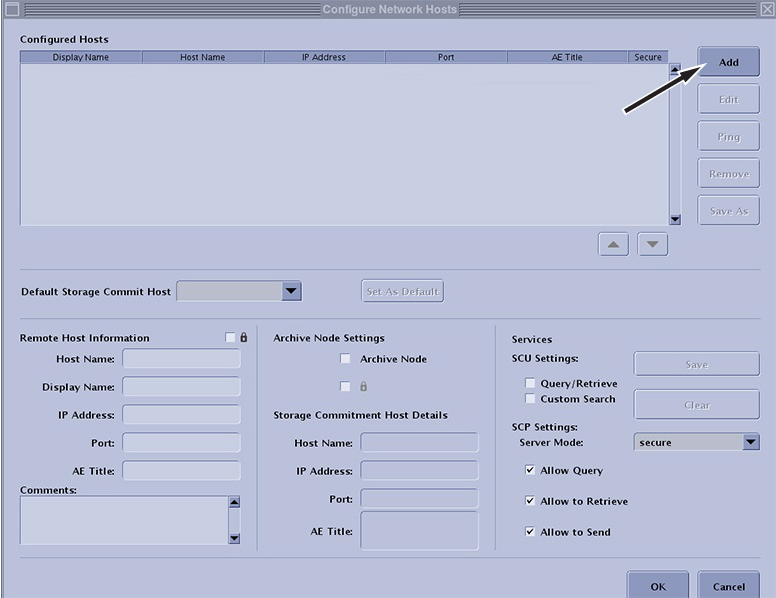
  1. In the Configure Network Hosts window, click Add.
    Figure 1. Add a remote host
  2. Configure the network node by choosing one of the following:
    OptionDescription
    DICOM over TCP/IP (Legacy method unsecure)
    1. Enter the host name, display name, IP address, port, and AE title information of the server. The default port for other GE devices is 4006.
    2. Select the Archive Node option and configure the Storage Commitment Host Details.
    DICOM over TLS (secure, available with SW version PX29.0 and later only)Proceed only if certificates have been installed and set up per workflow MR Scanner set up as secure client in Importing and exporting TLS certificates.
    1. Enter the host name, display name, IP address, port, and AE title information of the server. The default port for other GE devices is 2762.
    2. Select the Archive Node option and configure the Storage Commitment Host Details.
    3. Select the lock icon for both Remote Host Information and Storage Commitment Host Details.
  3. To archive images, check the Archive Node checkbox.
  4. Click Save.
  5. Click OK.