
- SIGNA™ Hero 3.0T Service Methods
- 5852800-8EN Revision 1.0
- 00000018WIA303A6240GYZ
- id_20131296.3
- Dec 13, 2021 5:53:38 PM
Changing Boot mode
Change the Boot mode from Legacy to UEFI when loading or reloading the USB host system software.
Procedure
Visually inspect the top of the Preparing One-Time Boot or Please select boot device menu.
- (For Dell T5810) Locate the phrase Boot mode is set to:.
- If the Boot mode is set to Legacy, use the up and down arrows on the keyboard to select BIOS Setup, listed under OTHER OPTIONS.
Figure 1. Boot mode 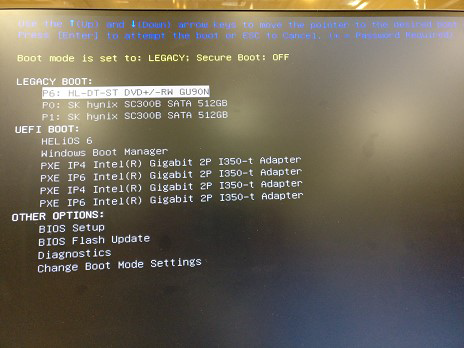
- Press Enter.
- Under Settings in the left side of the window, select .
- Under Boot List Option in the right side of the window, select UEFI.
Figure 2. Boot list option 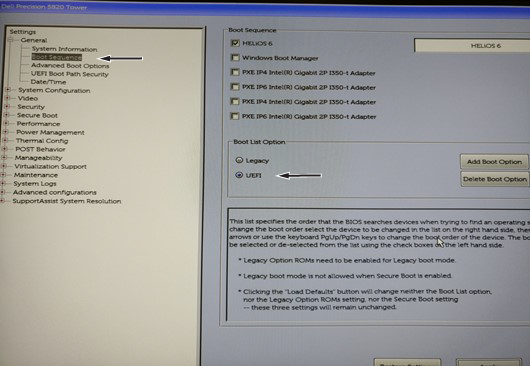
- Click Apply and then Exit.
- If the Boot mode is set to Legacy, use the up and down arrows on the keyboard to select BIOS Setup, listed under OTHER OPTIONS.
- (For Z420) Select the desired USB media.
- If UEFI Boot Sources does not list the USB media, you must enable it in the BIOS.
- Restart the host computer, and press and hold F10 to enter BIOS Setup.
- Select .
Figure 3. Boot Order 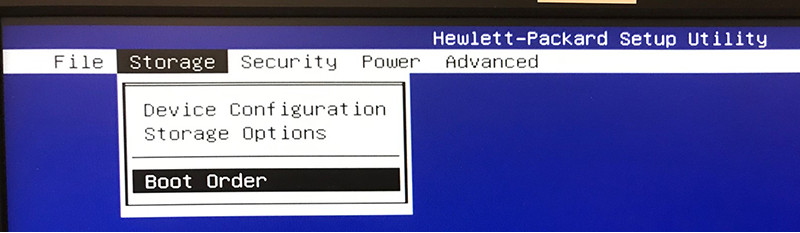
- Press Enter.
- Select UEFI Boot Sources and press F5 to enable the selection.
Figure 4. UEFI boot sources 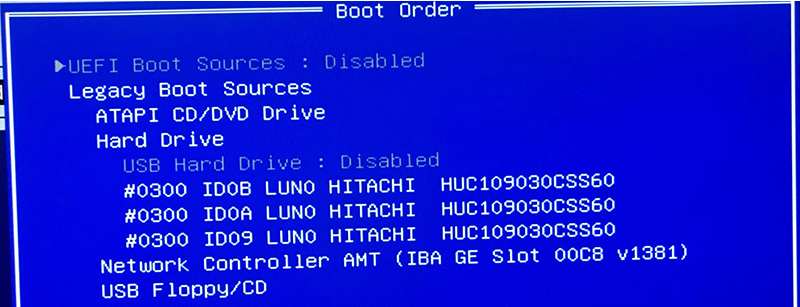
- Select .