Making sure that the NTP client is correctly synchronized
Make sure that the NTP client is correctly synchronized
About this task
To make sure that the NTP client is correctly synchronized, follow these steps from the host computer:
Procedure
Open a command window.
Note: The Shell window can only be launched when the EA3 user is included in the authorized EA3 group. Users not in this EA3 group will not have access to launch the Shell window. If you are not logged on as the proper logon user, log out and then log back on as the correct EA3 user with the authorized permissions.
Enter: ntpq -p.
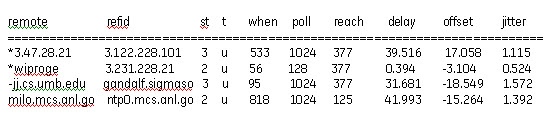
The output shows a list of time servers and the delay, offset, and jitter that each server is experiencing. The delay and offset values of the NTP server you just synchronized should be non-zero and the jitter value should be under 100.
The illustration below is an example showing correct synchronization.
Figure 1. Output with correct synchronization values
Result
Once configured, NTP will synchronize the time between the server and the client in Universal time initially, after system startup, and at a default time intervals.
Note: If the host computer drifts more than 1,000 seconds (approximately 17 minutes) from the NTP server, the NTP service on the host computer will no longer synchronize automatically. The system will have to be restarted manually or rebooted.
If the system cannot be rebooted, follow these steps to force synchronization manually:
Make sure that the system is idle and that no scans will start for the next 15 minutes.
Make sure that you have network connectivity to the NTP time server and the time server's IP address.
Log on to the system as root user and from a command window.
Note: The Shell window can only be launched when the EA3 user is included in the authorized EA3 group. Users not in this EA3 group will not have access to launch the Shell window. If you are not logged on as the proper logon user, log out and then log back on as the correct EA3 user with the authorized permissions.
Note: It is possible that the customer changed the default password. If you cannot log on, contact the customer for the correct password.
Enter the following command: /usr/sbin/ntpd -q -g.
Note: If Guided Install SaveInfo was not done after configuring the NTP server's IP address and if this information was not restored, then do a Load from Cold and repeat the configuration of the NTP server.