- Discovery MR750 3.0T System Service Methods
- 5690009-2EN Revision 4
- 00000018WIA3065D840GYZ
- id_20152863.1
- Jul 13, 2021 4:05:28 PM
Enabling the Remote Service Platform (RSvP) iLinq
Configures and enables iLinq through the Remote Service Platform (RSvP).
Prerequisites
| Required conditions |
|---|
| FFA access is required to enable iLinq on the system. If you do not have access to FFA and RSvP, contact your regional connectivity team or the MR support team to enable iLinq. |
| RSvP registration must be completed on the system with Registered and CRM Verified set to Yes. |
Note: It may take up to 10 minutes after RSvP registration is completed for the system ID to display in FFA.
Note: The iLinq page will be blank until iLinq is enabled from FFA.
Procedure
- Make sure Connect Status for the system shows ONLINE and Connectivity Type is set to Insite2-RSvP.
Figure 1. iLinq connect status 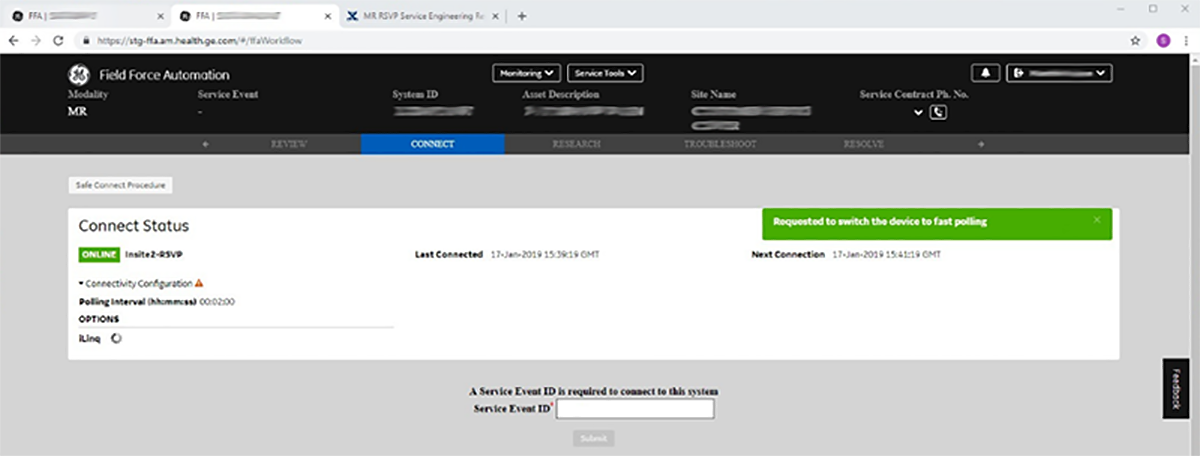
- From the menu, select Configure iLinq.
Figure 2. Configure iLinq 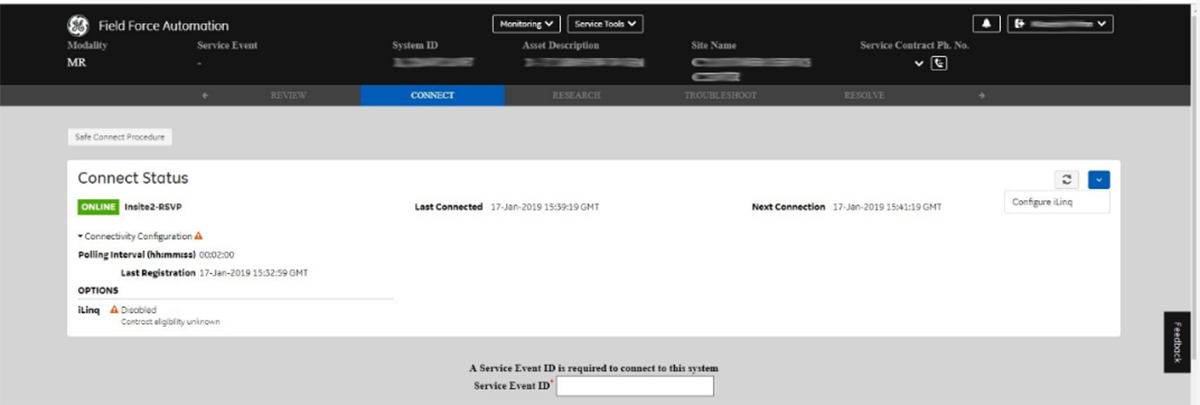
- Set iLinq Status to Enabled. Select the correct language for the site from the drop-down list, and click Configure iLinq.
Figure 3. iLinq configuration 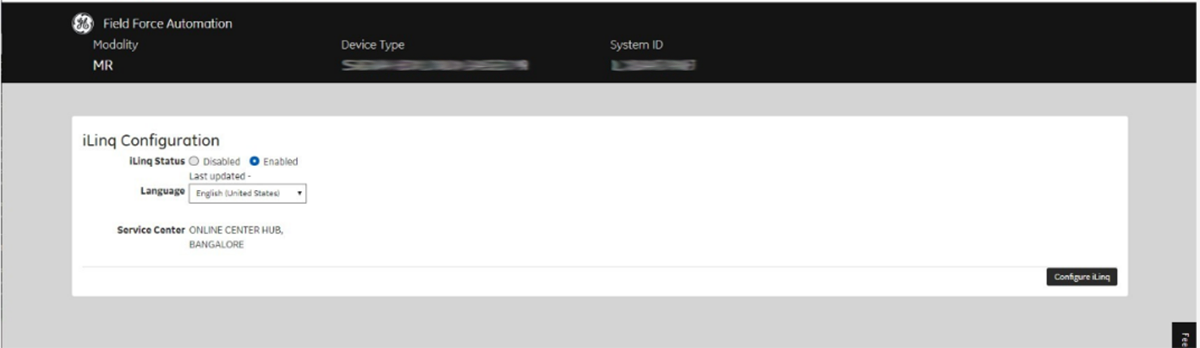
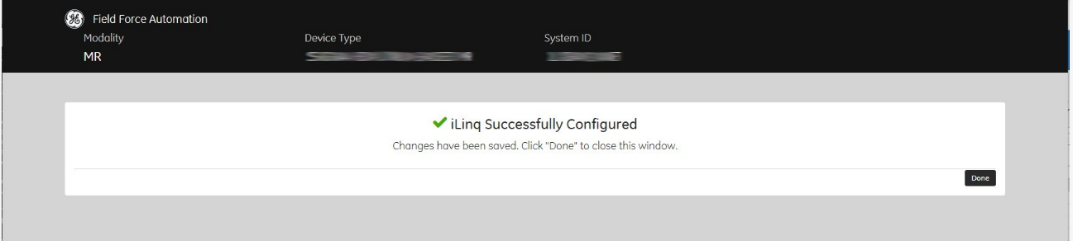
- Click Done to close the window.
Figure 4. iLinq configuration successful