Unknown Coils Configuration Procedure
Prerequisites
Each surface coil is supplied with a configuration data sheet that will be used to help configure the coil. There is also online help available at the bottom of the main coil configuration window that will guide the Field Engineer through each data field in the coil configuration process.
Procedure
- notice
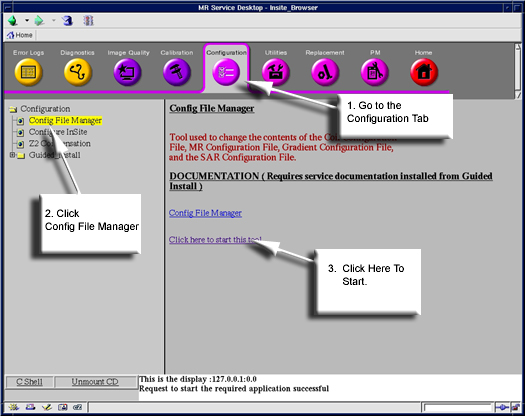
- Launch the Common Service Desktop shown in Figure 1.
Figure 1. Start Config File Manager
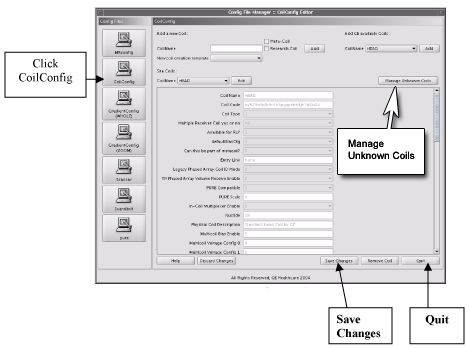
- Click CoilConfig on the left side of Config File Manager (shown in Figure 2), and click Manage Unknown Coils .
Figure 2. CoilConfig
- Click the Unknown Coil pull-down shown
in Figure 3. The system will display the list of unknown
coils as shown in Figure 4.
Figure 3. Unknown Coil Options
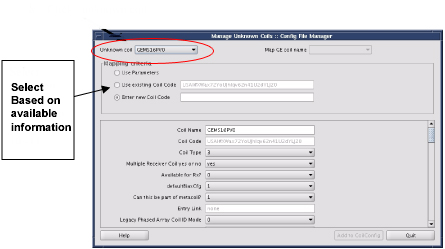
Figure 4. Unknown Coil List
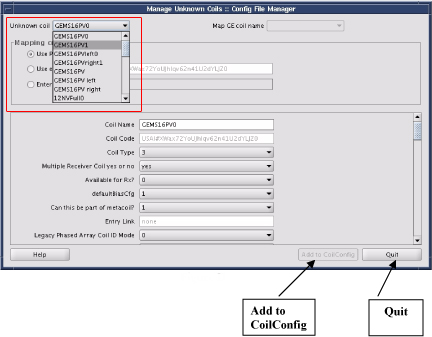
- Select the coil to be configured from the pull-down shown in Figure 4.
- Select or Insert the ID from the coil manufacturer in the Mapping
criteria section of theManaging Unknown Coils window. (See Figure 3.)note:
The data fields in the lower portion of the window will auto fill. If the Map GE Coil name selection list becomes active, click on the selection list and choose the right GE coilname from the list. If Map GE Coil name remains inactive, review the values that are auto-filled in the lower portion of the window, making sure there are no empty fields.
- If this is an unknown coil to GE that does not show up in the
list, select Use Parameters shown in Figure 2. (The coil manufacturer will need to provide the necessary information
for each data field, which should be provided in the documentation
provided by the coil manufacturer.)note:
Some non-GE coils have coil IDs that are recognized by the system. In this case, select or insert the coil ID, Step 4.
- When finished, click Add to CoilConfig shown in Figure 4.
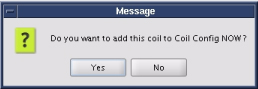
- When a message box displays with, Do you want to add
this coil to Coil Config NOW?, click Yes, Figure 5.
Figure 5. Message Box to Confirm Adding Coil Config
- Repeat Step 3 through Step 6 for all coils in the list of unknown coils.
- When finished adding coils, click Quit in the bottom right corner of the Manage Unknown Coils page, Figure 4.
- Click Save Changes in the bottom right corner of the CoilConfigmain page, Figure 2.
- Click Quit in the bottom right corner of the CoilConfig main page shown in Figure 2.
- Reboot the software by right-clicking the mouse in a background window, and select Service Tools ⇒ System Restart, and click Yes.
- Log back in when prompted with: Username: sdc Password: adw2.0.
- To verify the system recognizes the coil, perform a quick scan for all unknown coils without using geservice as the Patient ID.
 |
Finalization
- Refer to the Functional Checks in the documentation supplied with the coil.
- Ensure it is working correctly.