System Gain Calibration
Prerequisites
The System Gain calibration is performed to determine the standard HEAD (transmit/receive coil) and BODY recon scale factors that will achieve a known level of image intensity when using the standard HEAD coil or BODY coil respectively with a known phantom solution and protocol. The desire is that when the same solution or tissue is scanned in either the standard HEAD or BODY coils with the same protocol, those tissues will have approximately the same image intensity level on a given system and between systems of like type. This calibration accounts for differences in standard HEAD and BODY receive coil sensitivity, preamp gains, cable loss, receiver gain and other factors. The calibration must be done on standard HEAD AND BODY at least once to calibrate those paths. The procedure/tool can calibrate BOTH standard HEAD and BODY together OR just HEAD alone OR just BODY alone.
System Gain Calibration consists of the following:
-
Head and Body Calibration. See Head and Body Calibration.
note:Both calibrations can be run at the same time. Otherwise, run individual modes as listed in the next two options.
-
Body Calibration. See Body Calibration.
-
Head Calibration. See Head Calibration.
1 Preliminary Setup
Procedure
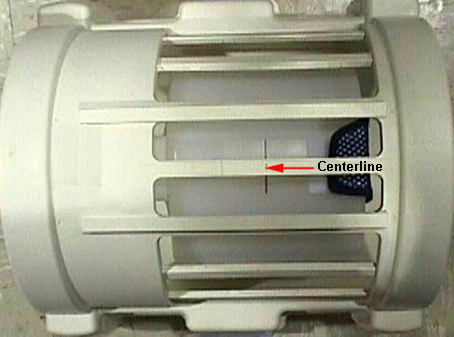
- Position SNR Sphere in the head loader as shown in Figure 1. Fasten the strap to the top of the head loader to secure the SNR Sphere inside the loader. Position the head loader on top of the Head TLT loader holder within the head coil so the loader is centered and the loader axial mark is at the center of the head coil window. See Figure 2.
Figure 1. Position SNR Sphere in Head Loader
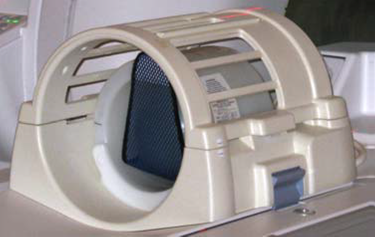
Figure 2. Landmarking Head SNR Sphere
 note:
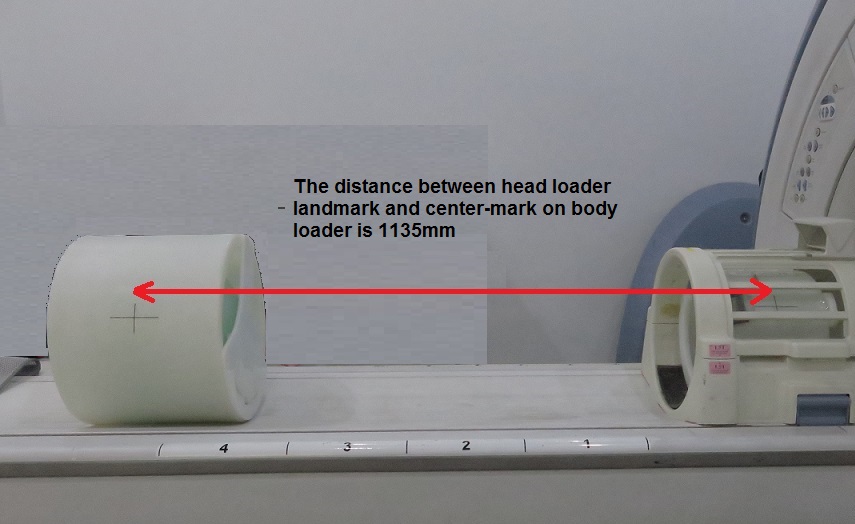
note:The distance between head loader landmark and center-mark on body loader is 1135mm.
- Landmark on the head coil. As the calibration runs, the table
will move to the body coil scan by itself.
Figure 3. The distance between head loader landmark and center-mark
- Start the System Gain Calibration Tool.
-
Starting restricted service tools available to GE Field Service:
-
Ensure that a service key is installed.
-
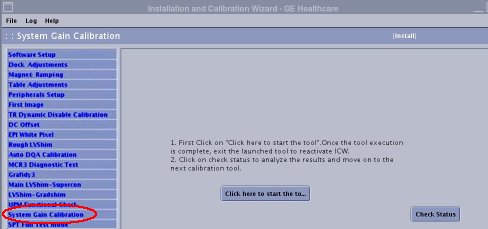
Select Calibration Wizard from the calibration menu and select Click here to start this tool to launch the wizard.
-
Select System Gain Calibration from the menu and review and verify the prerequisites are met.
-
Select Click here to start this tool to start the procedure.
Figure 4. Starting Sys Gain Cal from ICW
If you are unable to start the Restricted Service tools, use the non-proprietary method described in the next bullet.
-
-
Starting non-proprietary service tools:
-
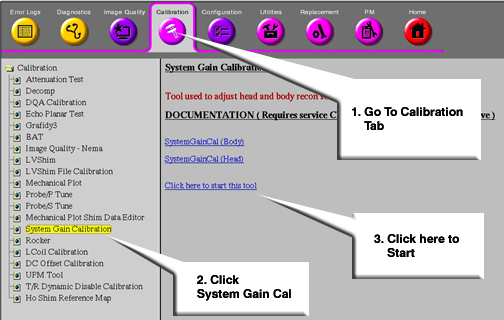
From the Common Service Desktop, select Calibration.
-
Select System Gain Calibration from the calibration menu, and select Click here to start this tool to start the procedure.
Figure 5. Starting System Gain
-
-
2 Head and Body Calibration
Procedure
- Start the System Gain Calibration Tool as shown in Figure 5.
- Select both head and body, type 3Enter. See Figure 6.
Figure 6. Starting Head and Body Calibration
- When testing is complete for the Body Mode, you will be asked
“Do you want to save the recon scale factor”. Press the Enter key since “y” is
the default. See Figure 7.
Figure 7. Saving Recon Scale Factors
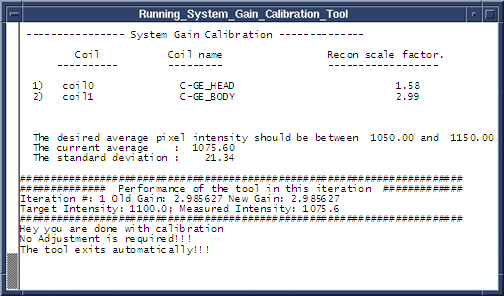
- When testing is complete for Head Mode, you will be asked “Do you want to save the recon scale factor”. Press the Enter key since “y” is the default.
- Calibration is complete.
- Select option 4 to Quit, then press Enter to exit.
3 Body Calibration
The system is dependent on landmarking the head coil, even for body mode only scans.
Procedure
- Type 2 and press Enter to select Body Mode, and the calibration begins. (See Figure 6.)
- When the test is complete, the calibration results display on the screen. If adjustments are required, the system asks, “Do you want to save the BODY recon scale factor”. Type “Y” and press Enter to save the calibration file. (See Figure 7.)
- Type 4 and press Enter to exit the tool. The calibration is complete.
4 Head Calibration
Procedure
- Type 1 and press Enter to select Head Mode only calibration, and the calibration begins. (See Figure 6.)
- When the test is complete, the calibration results display on the screen. If adjustments are required, the system asks, “Do you want to save the HEAD recon scale factor”. Type “Y” and press Enter to save the calibration file. (See Figure 7.)
- Type 4 and press Enter to exit the tool. The calibration is complete.
5 Finalization
Procedure
- Remove phantoms and Service Tools used during the calibration.
- Remove all service tools from the patient table used during the calibration.