Stopping and Starting TNS Function (For UTNS3 and DCERD2)
Prerequisites
If the system is equipped with a UTNS3(This does not apply to UTNS or UTNS2.) or DCERD2 See Stopping the TNS Function Via Software for procedure to stop the TNS Function and then Enabling the TNS Function Via Software for turning the TNS Function back on.
1 Stopping the TNS Function Via Software
Procedure
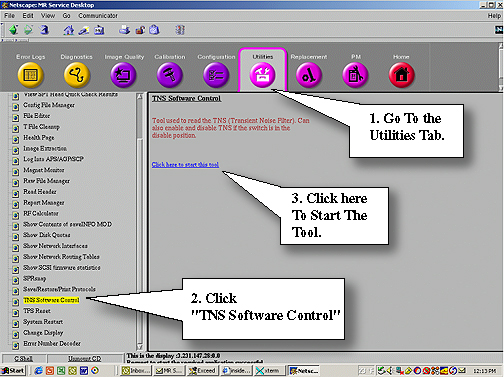
- On the Common Service Desktop go to the Utilities Tab and start TNS
Software Control. See Figure 1.
Figure 1. Starting TNS Tools
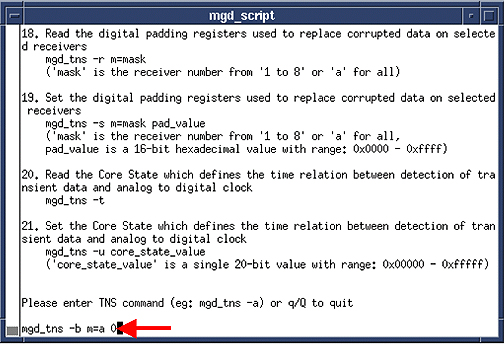
- Once the mgd_script page opens, at the command line type: mgd_tns
-b m=a 0Enter to turn off the TNS Function.
See Figure 2.
Figure 2. Command Line to Stop UTNS3
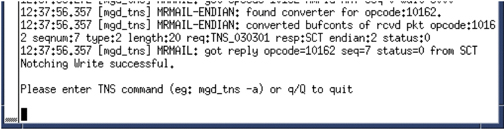
- You’ll see the Notching Write successful if
the shut down was successful. See Figure 3
Figure 3. Notching Write Successful Statement
- Leave the window open. Closing the window will enable the TNS Function again.
2 Enabling the TNS Function Via Software
Procedure
- On the Common Service Desktop go to the Utilities Tab and start TNS
Software Control. See Figure 1.
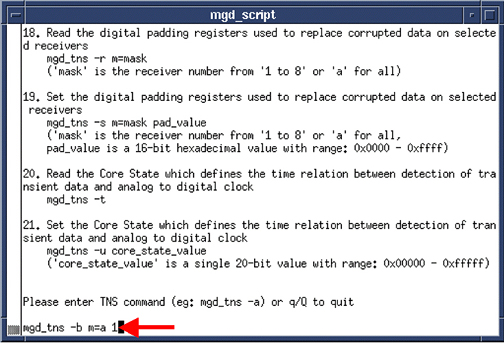
- Once the mgd_script page opens, at the command line type: mgd_tns
-b m=a 1Enter to turn on the UNTS3. See Figure 4.
Figure 4. Starting The UTNS3
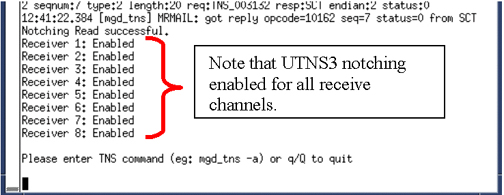
- If successful you will see notching will be enabled for all channels.
See Figure 5.
Figure 5. Successful
- Select q to exit from the window.
3 Finalization
Finalization
No finalization steps.