Signal To Noise Check-Head Scan
Prerequisites
The Body SNR Sphere Phantom, 46-265635G4, is not provided with the System. If the Body SNR sphere is needed, the customer must order it. A Body Loader is provided with the system.
Procedure
- At the operator workspace, select the scan icon in the desktop control panel.
- If necessary, exit out of any previous exams by selecting End Exam.
- Click on New Pt and enter the following:
- Id: geservice
- Name: snr check
- Weight (lb.): 111note:
On the Patient Information screen, up to 32 characters can be typed in the Exam Description field as comments. On the Patient Position screen, up to 29 characters can be typed in the Series Description field as comments. (The comments are displayed on the Report Header Info screen.)
- Check the temperature indicator on the head SNR sphere. Be sure that the temperature is 22° C ± 2° before starting the procedure.
- Position SNR sphere in the Head Loader as shown in Figure 1.
Fasten the strap to the top of Head Loader to secure the SNR sphere
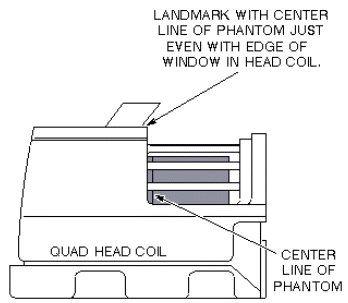
inside the loader. Position the Head Loader within the Quad Head Coil
so the loader is centered and the loader's axial mark is at the back
edge of the Head Coil window (see Figure 2 for
landmarking phantom).
Figure 1. HEAD SNR SPHERE AND HEAD LOADER
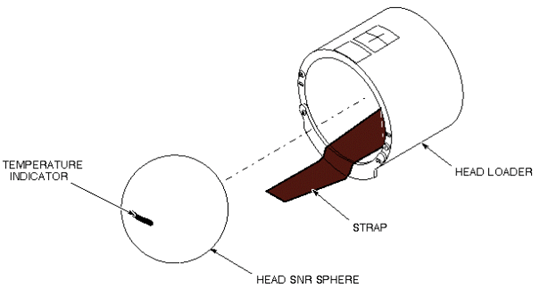
Figure 2. LANDMARKING HEAD SNR SPHERE
- LANDMARK, then MOVE TO SCAN. Allow the phantom solution to settle
for 20 minutes before starting the scan.note:
SNR scans are particularly susceptible to flow artifacts. Artifacts appear as ovals or swirls in phantom image on the subtracted image. They will cause excessively high noise measurements. If a problem exists, allow the phantom to settle an additional 15-20 minutes and rescan using the same settings.
- At the operator workspace, prepare the system for an SNR Check (Head, Axial) scan using the scan protocol shown in the "Service Protocols" procedure on the service methods CD-ROM.
- Click on Autoview, just below the Autoview image display screen, to automatically display your images.
- Click on Save Series, then Prepare to Scan.
- Click on Auto Prescan. After the prescan,
check the R1 value. If R1 does not equal 11, check for the problems
listed next. Record R1, R2, TG, and system frequency Data Sheetvalues in .
- Check for proper cable length to preamp.
- Ensure that GRADCAL has been performed.
- Ensure that slice thickness is within specification.
- Download TPS again, then on the Service Desktop click on Reset TPS. Repeat steps Step 1 through 10.
- Click on Scan. After the first scan is complete, click on Scan again (two back-to-back scans).
- After the series #4 back-to-back scans are complete, click on New Series.
- At the operator workspace, prepare the system for an SNR Check (Head, Axial) scan using the scan protocol shown in the "Service Protocols" procedure on the service methods CD-ROM.
- Click on Save Series, then Prepare to Scan.
- Click on Auto Prescan. After the prescan,
check the R1 value. If R1 does not equal 11, check for the problems
listed next. Record R1, R2, TG, and system frequency values in Data Sheet.
- Check for proper cable length to preamp.
- Ensure that GRADCAL has been performed .
- Ensure that slice thickness is within specification.
- Download TPS again, then on the Service Desktop click on Reset TPS. Repeat steps Step 1 through 10.
- Click on Scan. After the first scan of series #5 is complete, click on Scan again (two back-to-back scans).
- After the series #5 back-to-back scans are complete, click on New Series.
- At the operator workspace, prepare the system for an SNR Check (Head, Axial) scan using the scan protocol shown in the "Service Protocols" procedure on the service methods CD-ROM.
- Enter the anterior offset for the Scanning Range start/end location.
Find offset as follows:
- Click the Image Browser icon. When the browser is displayed, click Viewer. Display the image of the axial scan (Series 1).
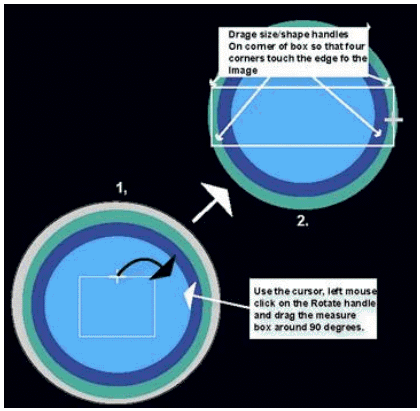
- Click Measure, then select the rectangular
cursor tool. Rotate the cursor box 90 degrees clockwise by dragging
the rotation handle until the handle marker is placed on the display's
right side. See Figure 3.
Figure 3. FINDING CENTER OF IMAGE - ROTATED BOX CURSOR
 note:
note:A horizontal rectangle provides more accuracy in the horizontal direction.
- Adjust the rectangular cursor size, dragging the size/shape handle, so that all four corners touch the edge of the image.
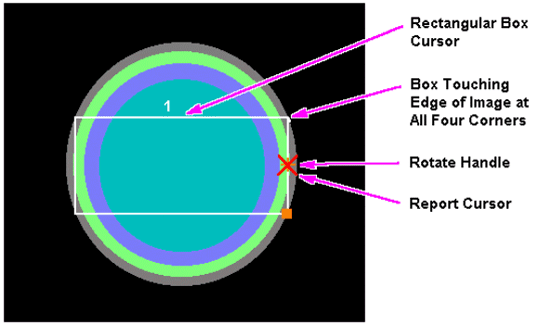
- Click [Measure], then select the (report cursor) tool. Click
the rectangle created in step c, then place the report cursor on top
of the rotation handle of the rectangular cursor box. Read the A/P
location. See Figure 4.
Figure 4. FINDING CENTER OF IMAGE - REPORT CURSOR
- Click the Scan icon. In the SCANNING RANGE area, enter the value obtained in step d for the A/P Start and End values (anterior offset) of the coronal scan.
- Click on Save Series, then Prepare to Scan.
- Click on Auto Prescan. After prescan, check the R1 value. If R1 does not equal 11, refer to step 11 for items to check. Record R1, R2, TG, and system frequency values in Data Sheet 1.
- Click on Scan. After the first scan of series #3 is complete, click on Scan again (two back-to-back scans).
- For analysis, see SNR Image Analysis.
- Return to the main menu.
Finalization
No finalization steps.