Troubleshooting SPT Problems
1 System Shutdown
If there is a stop scan condition (such as a hardware error) during a run of SPT, then it is recommended that the system be rebooted. This condition may be caused by the test software being out of sync with the scan software. The only way to clear this condition is to reboot. Follow these instructions:
-
Right-click on the desktop wallpaper area and select Service Tools from the root menu, then select System Shutdown. Click Yes to confirm.
-
When the message “Okay to power off the system now. Press any key to restart” appears, double-click on the Signa icon (or type Signa in the Login name field), then click the Log In button. Enter the password adw2.0 and click Log In again. Allow initialization to fully complete before any user interaction.
-
Continue with the SPT test.
2 Utilities for SPT
There are five utilities that are useful when you use SPT. To view a short description of them, refer to the following:
-
Sptreset - If a problem occurs when exiting SPT in an unusual manner, and the system seems to be in an unusual configuration, type the following in a C-Shell: cd /usr/g/service/cclass/spt
sptreset Enter. This puts all the files and configuration values back in their original condition.
-
PRUNE - Prune is used to take out trend file entries.
-
"T" File Cleanup - "T" File Cleanup is a file space management tool. It cleans up the /usr/g/service/data directory. See the procedure for "T" File Cleanup for more information on how to use it.
-
"whatFailed" - This utility scans through user-selected SPT result files and reports what portion of the test failed, and the actual result and test spec for that test.
To run the "whatFailed" utility, you can either:
-
Open a C-shell from the Service Desktop, then type whatFailedand press Enter, or
-
Select the whatFailed button from the System Performance Test GUI.
A menu of all the SPT files for that system will pop up. Select one of the tests displayed (or quit). The utility will then read through the file comparing each test (except for Coherent Noise) against its limits. If there are no failing values in the file, you’ll see the following message:
"This utility does not check for Coherent Noise failures."
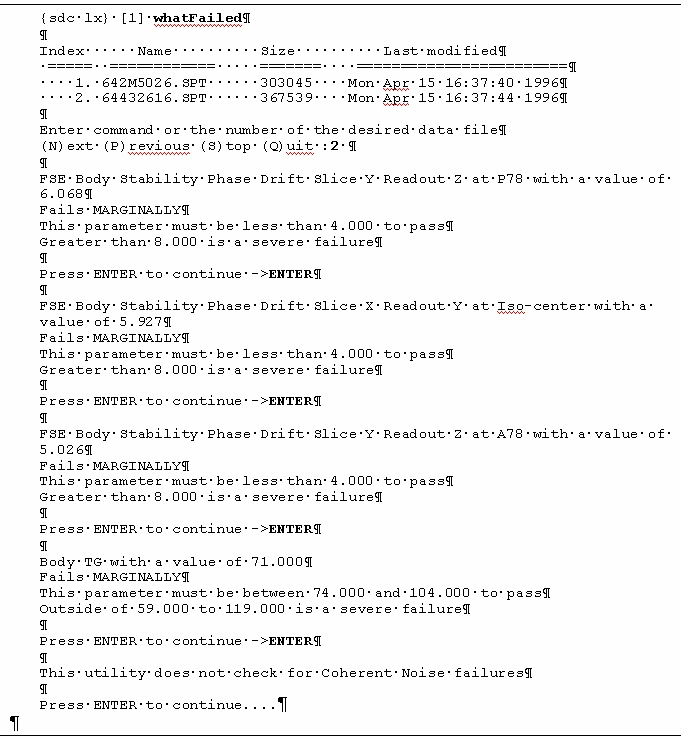
Press Enter to continue. For each failure it finds, it will print out each failure one at a time. Press Enter to move through each failure listed. See Figure 1 for a What Failed example.
Figure 1. What Failed Example
3 Stability Issues
Issue:
All 3 axes contribute to the SPT stability scans. The X and Y axes are used as readout/frequency and slice select, (e.g., X axis as slice and Y as readout). Even when phase encoding is shut off, the Eddy Current compensation is still applied on the Z axis. Other gradient hardware problems may still be introduced to the system.
Solution:
To eliminate an axis contribution from the SPT scans, remove the fiber optic drive signal connection from the rear of the GP prior to running the stability scans.
-
J2 is the X axis
-
J3 is the Y axis
-
J4 is the Z axis