- Optima MR450w BASE 1.5T System Service Methods
- 5690012-2EN Revision 3
- 00000018WHA30BC62GYZ
- id_20014494.10
- Aug 6, 2020 4:04:08 AM
Configuring HIS/RIS
This procedure documents the set up and calibration of the system to a clinical hospital information system (HIS) or a radiology information system (RIS).
Procedure
- Under Connectivity, select HIS/RIS.
Figure 1. HIS/RIS screen 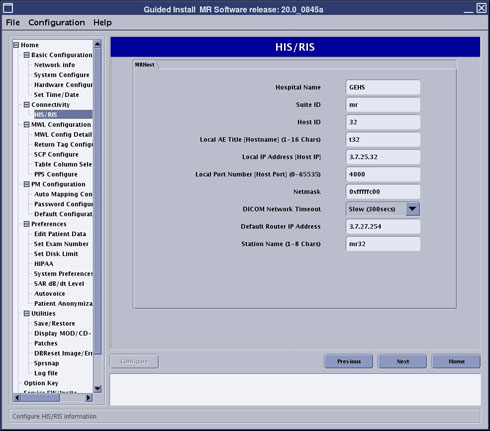
- Under MWL Configuration, select MWL Config Details.
Figure 2. MWL Config Details screen 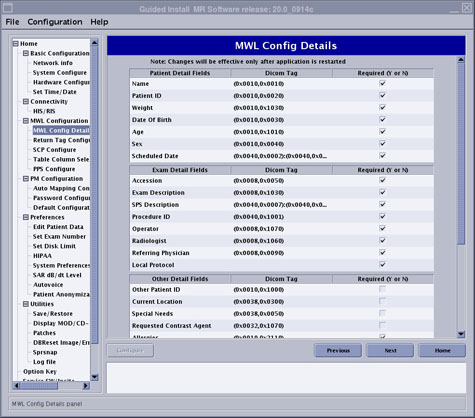
Figure 3. MWL Config Details screen (continued) 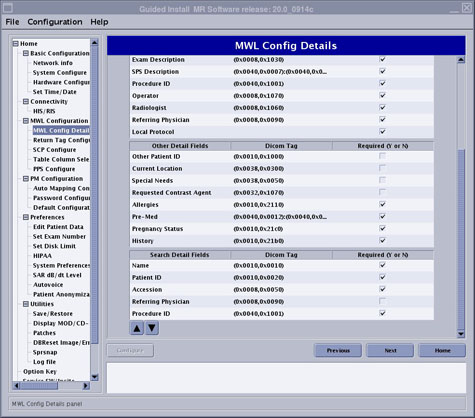
- Under MWL Configuration, select Return Tag Configure.
Figure 4. Return Tag Configure screen 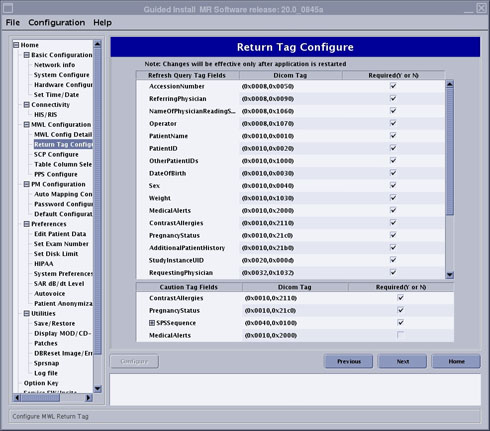
- Under MWL Configuration, select SCP Configure.
Figure 5. SCP Configure screen 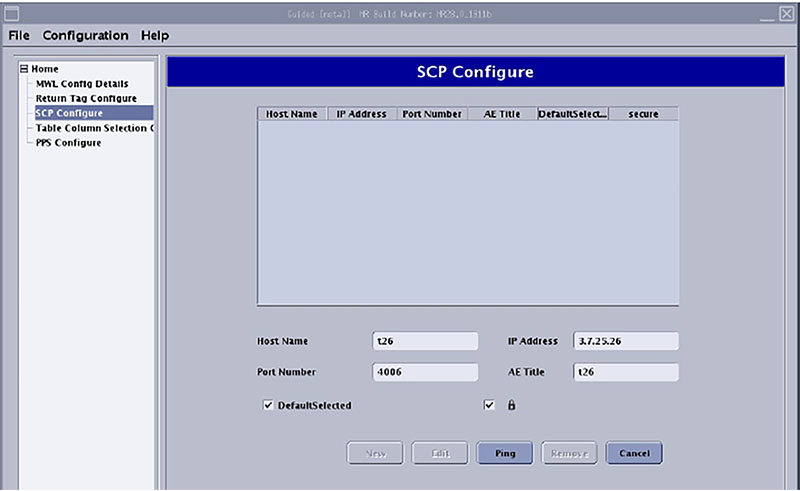
- Under MWL Configuration, select Table Column Selection Configure.
Figure 6. Table Column Selection Configure screen 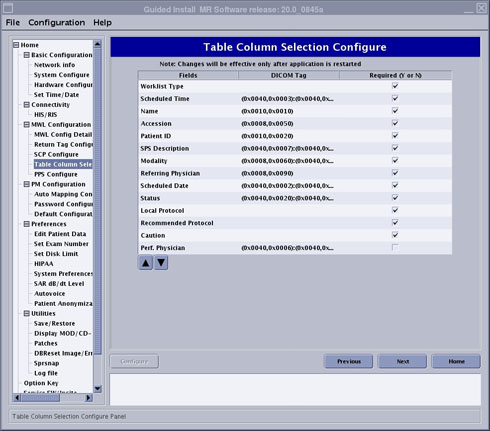
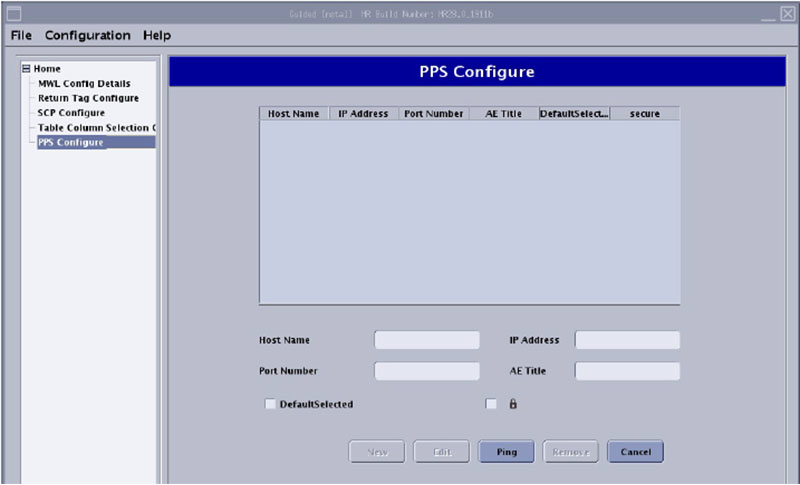
- Under MWL Configuration, select PPS Configure.
Figure 7. PPS Configure screen