Configuring certificates to the services on the MR system
After importing the host or third-party certificate, it must be configured for DICOM operations.
Prerequisites
Personnel requirements
Required persons
Preliminary requirements
Procedure
Finalization
1
-
5 minutes
-
Tools and test equipment
Item
Quantity
Part number
Manufacturer
USB Flash Drive
1
-
-
About this task
If you are configuring the certificate immediately after importing, proceed to Step 6; otherwise start with the procedure below.
Procedure
Insert the USB into the Global Operator Console (GOC).
On MR Service Desktop, click Service Browser.
Click the Utilities tab.
In the left toolbar, select Security Tools > Certificate Management.
Click Click here to go to the link.
Result
The Certificate Management window displays showing the number of certificates loaded.
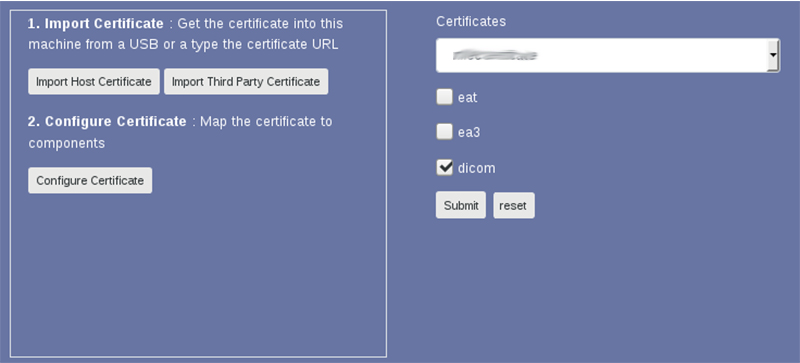
Click Configure Certificate.
Select the imported certificate from the Certificates menu.
Check the boxes appropriate for the use case of the certificate.
Note: Consult with customer IT on the type of certificate.
Figure 1. Certificate and DICOM information
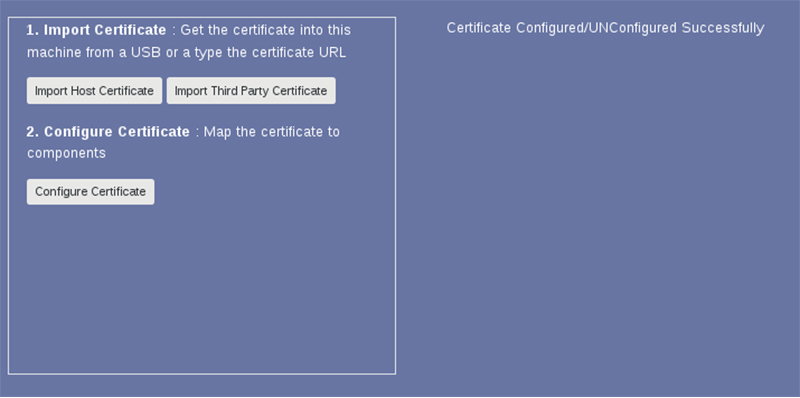
Click Submit. The message Configuration changes applied successfully displays, confirming the configuration.
Figure 2. Configuration confirmation window
Finalization
After the certificates are set up, checking the lock icon box in the Dicom Configuration UIs will enable the secure transfer. Make sure the DICOM over TLS, EAT, and EA3 configuration (depending on the type of certificate) is correct for the transfer to be successful.