• Optima MR450w BASE 1.5T System Service Methods
  • 5690012-2EN Revision 3
  • Object ID: 00000018WIA30E7BF20GYZ
  • Topic ID: id_13106267 Version: 2.15
  • Date: Jan 11, 2021 7:07:53 PM

Antivirus software for DV28 and earlier (excluding DV25 R05)

Prerequisites

Personnel requirements
Required personsPreliminary requirementsProcedureFinalization
1---

Overview

About this task

The MR scanner does not come with antivirus software. Antivirus software is an optional feature of the MR scanner. The antivirus software option includes both McAfee VirusScan Enterprise for Linux (VSEL) and VirusScan Command Linux (VSCL). VSEL uses McAfee ePolicy Orchestrator (ePO) to schedule and automatically update the virus signature definition (DAT) files. VSCL is a manual process that requires an on-site IT administrator to update the DAT as needed. Users may choose either method for the same level of protection.

Installation

About this task

To install both VSEL and VSCL on the MR scanner, begin by running the following commands:

Procedure

Insert the antivirus software DVD and execute the commands in the following steps.
  1. su -
  2. cd /export/home/McAfee
  3. ./secure_McAfee_AntiVirus.sh -install

VSEL setup

About this task

An additional configuration procedure is required to integrate with ePO. Refer to McAfee ePolicy Orchestrator Installation/Product Guide for details. MSA 4.8.0 is bundled with VSEL and installed as unmanaged mode. Configure MSA for managed mode manually after software installation.

ePO Configuration

Procedure

  1. Navigate to the ePO server:

    C:\ProgramFiles(x86)\McAfee\ePolicyOrchestrator\DB\Software\Current\EPOAGENT3700LYNX\Install\0409\

    Note: Refer to the McAfee installation guide for the correct path for version of Windows.
  2. Copy the following server keys from the ePO server and save to the root directory of a portable USB drive:
    • req2048seckey.bin
    • SiteList.xml
    • sr2048pubkey.bin
    • agentfipsmode
  3. Remove all USB drive(s) and attach only that which contains the server keys from Step 2. Copy the keys to the MR scanner and run the following commands:
    • su -

    • mkdir /USB

    • mount /dev/sdd1 /USB

    • mkdir /export/home/McAfee/keydata

    • cp /USB/* /export/home/McAfee/keydata

    • umount /USB

  4. Start the McAfee agent using the following command: /opt/McAfee/cma/bin/msaconfig -m -d /export/home/McAfee/keydata

Firewall [Product Network Filter (PNF)] configuration

Procedure

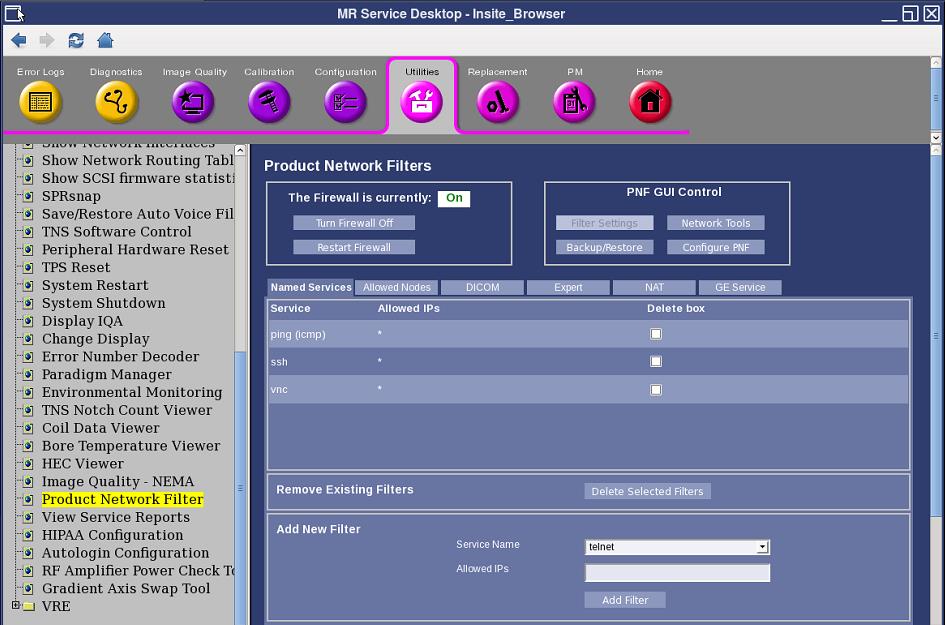
  1. Open the Service Browser, click the Utilities tab, and select Product Network Filter.
    Figure 1. Product network filter
  2. Change to the Expert tab.
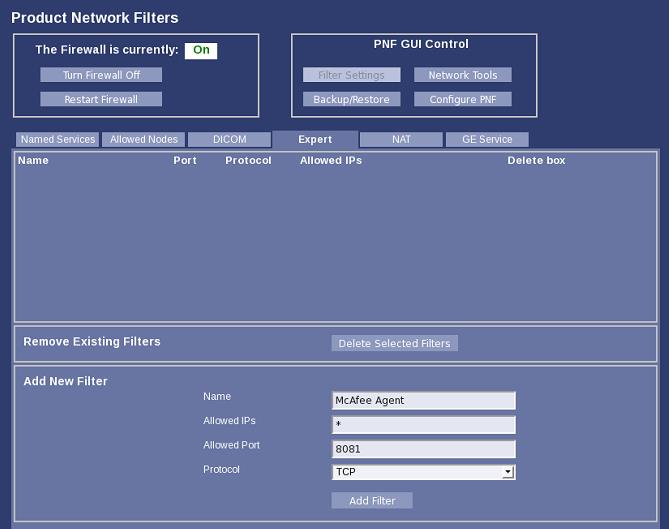
  3. Add a new filter rule for the McAfee Agent on port 8081.

    Enter the information shown in the illustration below.

    Figure 2. New filter rule
  4. Click Add Filter.
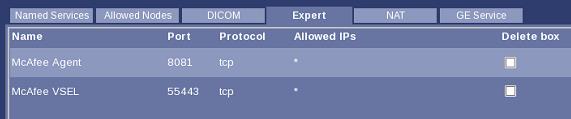
  5. Make sure the rule has been added to the list. See the illustration below.
  6. Repeat the add filter process to add a filter rule for VSEL main interface on its default port, 55443. See the illustration below.
    Figure 3. Default port rule addition
  7. Repeat Step 3 and Step 4 to add a third filter rule for VSEL monitoring on its default port, 65443.
  8. Click Restart Firewall.

Virus signature DAT file update schedule

About this task

On the ePO server, create a New Task from the Client Task Assignment menu.
  • Product: McAfee Agent

  • Task Type: Product Update

  • Task Name: Daily DAT Update (example)

  • Package Types: DAT, Linux Engine

  • Schedule: Every XX:XX (convenient time)

    Note: Master Repository shall be updated daily as Server Task. Although It is scheduled as default, review the Server Task Log to confirm that DAT is the latest on dashboard.

Virus scan schedule

About this task

On the ePO server, create a New Task from the Client Task Assignment menu.
  • Product: VirusScan Enterprise for Linux 1.9.1

  • Task Type: On-Demand Scan

  • Task Name: Daily Virus Scan (example)

  • Where: /

  • Detection: What not to scan : /proc (exclude subdirectories)

  • Schedule: every XX:XX (convenient time)

    Note: On-Demand Scan will take 30-60 min (depending on system load and number of files) if scanning all files under the / directory. The scan will be aborted if the system is shut down or rebooted during the scan.

    Virus scanning may affect system performance and scanner operation. Do not run a virus scan during MR scanning activity. Query virus scan results using ePO.

    VSEL packages should be checked in to the ePO master repository and extensions to schedule On-Demand Scan in ePO as described in McAfee VirusScan Enterprise For Linux Installation Guide. Packages are installed in /export/home/McAfee/vsel directory. Copy them to the ePO server or get them from Software Manager in the ePO server.

Configure VSEL password

Procedure

  1. Run /opt/NAI/LinuxShield/bin/nails passwd to configure password for nails account.
  2. Configure VSEL using browser at https://<system IP address>:55443/.

Minimum VSEL configuration

About this task

The following describes the minimum procedure to run an on-demand scan. Use the default configuration for easy setup.

Procedure

  1. Log on as nails. Use the password you set up in the previous section.
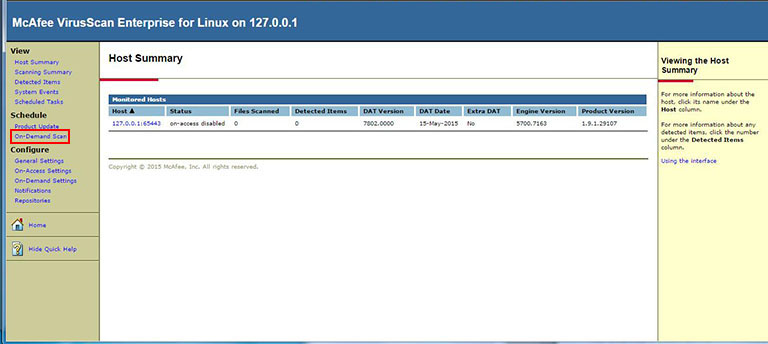
  2. Select On-Demand Scan.
    Figure 4. On-Demand Scan
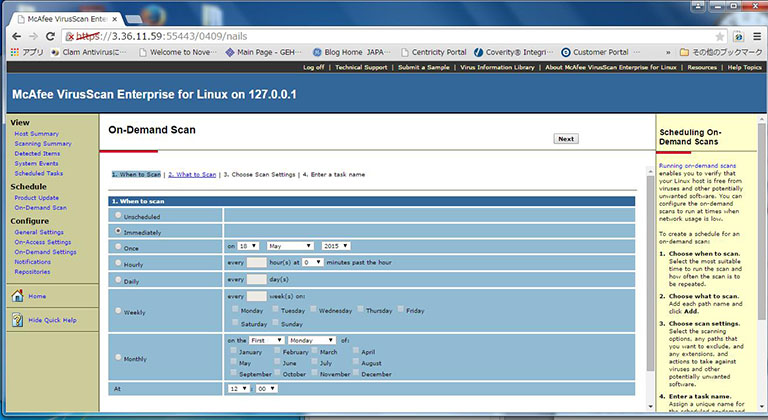
  3. Click Next for immediate scan.
    Figure 5. Immediate scan
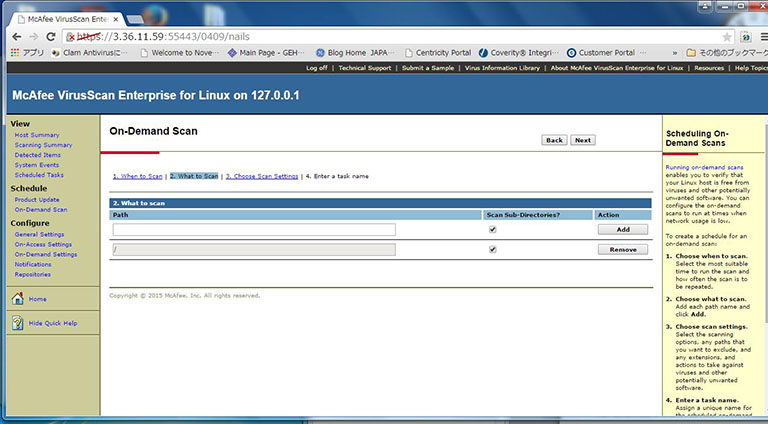
  4. Enter / for scan directory.
  5. Click Add.
  6. Click Next.
    Figure 6. What To scan
  7. Click Next (use default configuration).
    Figure 7. Scan settings
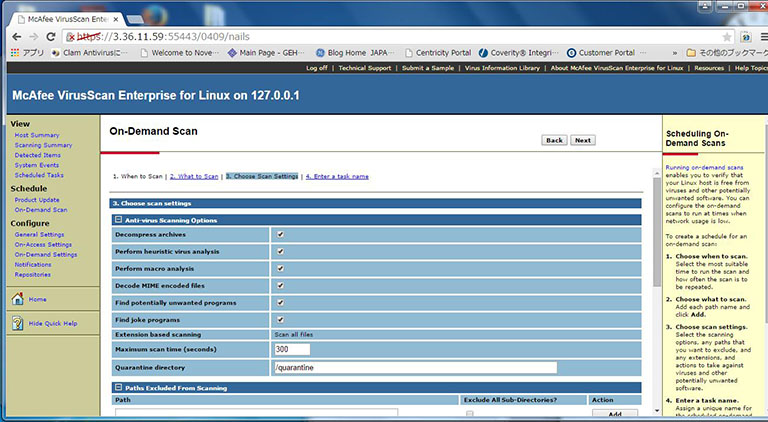
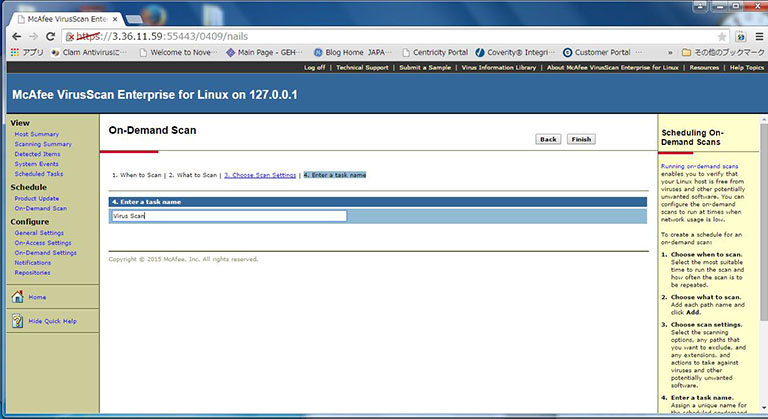
  8. Enter task name.
  9. Click Finish.
    Figure 8. Task name
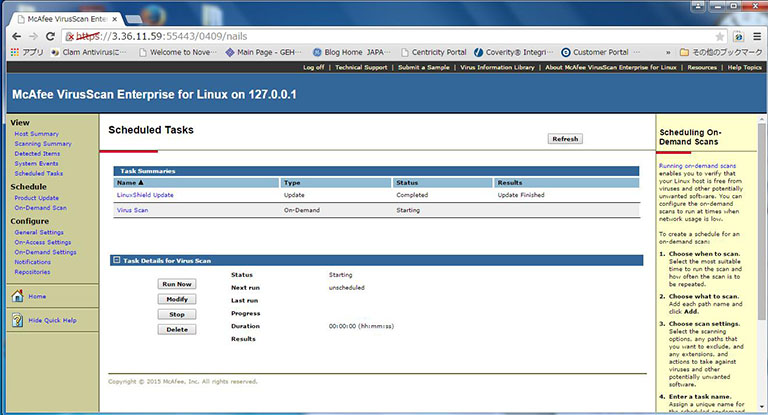
  10. Select Scheduled Tasks.
  11. Click Run Now.

    You can monitor the scan status on this window or by using the nails command: /opt/NAI/LinuxShield/bin/nails task –l.

    Figure 9. Scheduled tasks

VSCL setup

About this task

Users who desire a manual virus-scan process should set up VSCL, which requires an on-site IT administrator to update the virus signature definition (DAT) files as needed.

Procedure

  1. Download the latest virus signature definition (DAT) files from McAfee’s security update site.
    1. Navigate to the McAfee update site: http://www.mcafee.com/apps/downloads/security_updates/dat.asp.
      Note: If the McAfee site is unavailable, choose one of the following alternate sites:
      • First alternate site: ftp://ftp.nai.com/commonupdater2/current/vscandat1000/dat/0000/. Download avvdat-xxxx.zip where xxxx is the version.

      • Second alternate site: ftp://ftp.mcafee.com/pub/antivirus/datfiles/4.x/. Download avvdat-xxxx.tar where xxxx is the version. Use the tar command given in Section 3.6, Virus Scan Schedule, to extract the files.

    2. Under the heading Download V2 Virus Definition Updates (DATs), download DAT Package For Use with McAfee ePO.
    3. Unzip the files and extract avvdat-xxxx.zip where xxxx is version and save it to a USB drive.
  2. Update the virus definitions.
    1. Run the following commands:
      • su -

      • mkdir /USB

      • mount /dev/sdd1 /USB

      • cd /opt/NAI/LinuxShield/engine/dat

      • unzip /USB/avvdat-xxxx.zip

      • umount /USB

    2. Run the nails command.
      • /opt/NAI/LinuxShield/bin/nails -v

      • Virus definition output: xxxx.0000 where xxxx is the version.

    3. Make sure version number output in the previous step is current.
  3. Run the manual antivirus scan using the following command: /export/home/McAfee/secure_McAfee_AntiVirus.sh --run.

References

About this task

  • McAfee Agent 4.8.0 – Product Guide

  • McAfee VirusScan Enterprise For Linux 1.9.1 – Installation Guide

  • McAfee ePolicy Orchestrator 5.0.0 – Installation Guide

  • McAfee ePolicy Orchestrator 5.0.0 – Product Guide

What to do next

Finalization

No finalization steps.